
Apps
Create apps without code
Everything you do with apps in the nexxus interface, no code needed: start a new document of an app, install an app from a .nxa file, let the AI Assistant create a new app, and publish a new version with its changelog.
“Creating an app” covers four different jobs, and most people only ever need the first one:
| You want to | You need | Section |
|---|---|---|
| Start a new board, a new set of notes, a new deck | An app that is already installed | Create a document |
| Add an app someone gave you as a file | The .nxa file | Install an app from a .nxa file |
| Get a tool that does not exist yet | A clear idea of what it should hold | Let the AI Assistant create a new app |
| Bring an installed app up to date | The new .nxa file, and to own the app or be an administrator | Publish a new version |
In this guide, Jonas Weber from the project team of Brandt & Söhne does all four: he starts a Kanban board for a trade fair, installs the example app from the help, has the AI Assistant build a small app for visit reports, and later publishes the second version of that app.
Before you start
Section titled “Before you start”- The app list. You open it with StartApps. If the entry is missing, your role lacks the permission Apps with Read (management), or an administrator switched the area Apps & workspace off. The roles the setup wizard creates don’t include this permission, so an administrator adds it in the role editor. See Roles.
- A folder you may write to. An app document is a file in Files. You need the right to create files in the folder you pick.
- For the AI Assistant. The connector Apps is active in new chats by default. Its action List apps lets the AI Assistant read which apps exist; Build and change apps lets it create documents and install apps. An administrator can switch either action off, see Connectors.
- For installing. Anyone who can open the app list can install an app. What you install as a normal user becomes your own app. What an administrator installs is available to the whole tenant.
Create a document of an installed app
Section titled “Create a document of an installed app”Every app works the same way: a new document is a new file. There are four places to start one, and all four lead to the same document page.
-
Open StartApps.
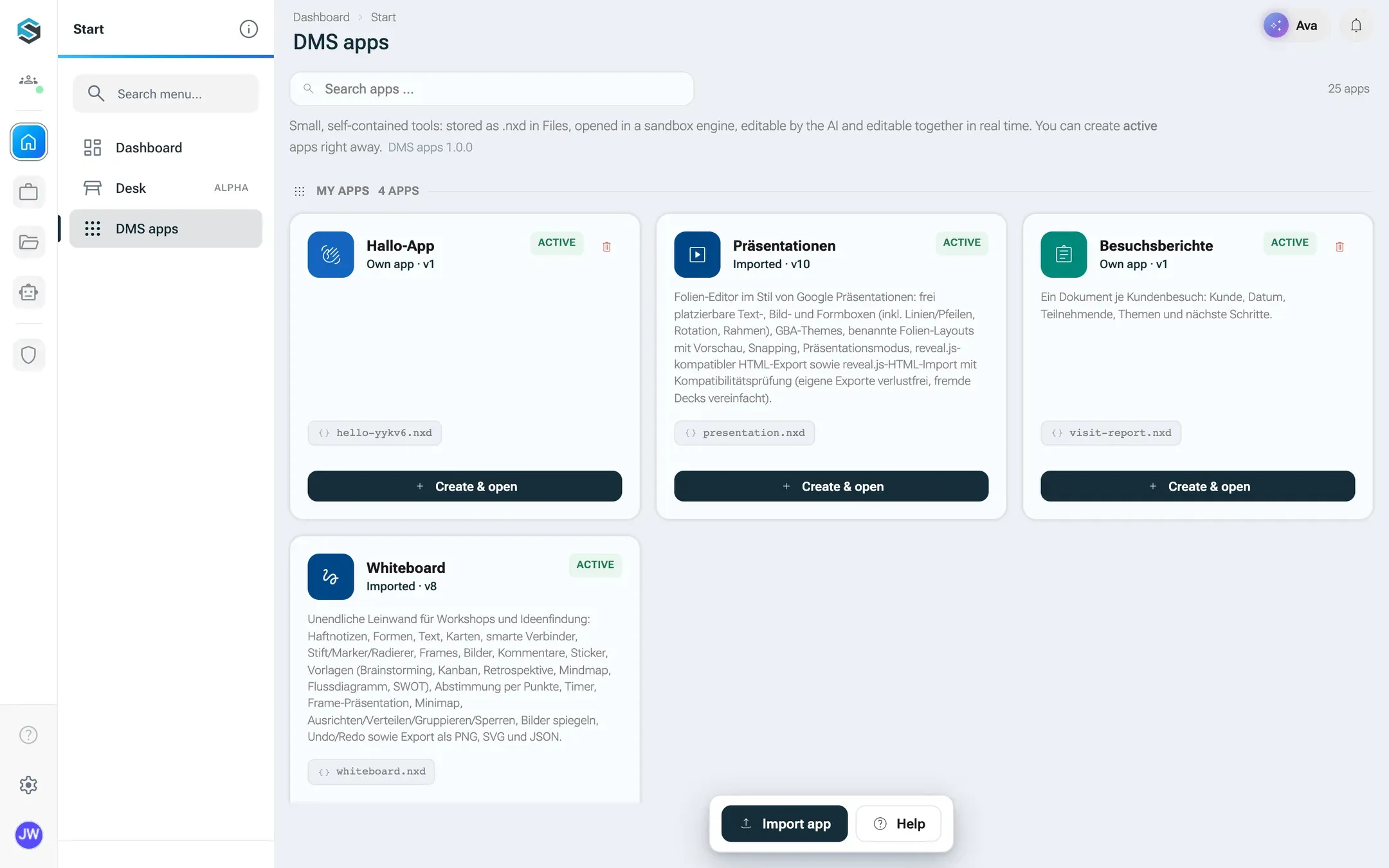
Your own apps are marked as such, and only they carry the bin icon for you. The buttons at the bottom import an app or open the help. -
Pick the app. The built-in Kanban board and Markdown editor sit in the catalog with the badge Active. Apps your tenant installed are under My apps.
-
Click Create & open on the app’s card.
-
nexxus asks Where should the document go? Pick a folder, or create one with New folder in the chosen place, and click Create here.
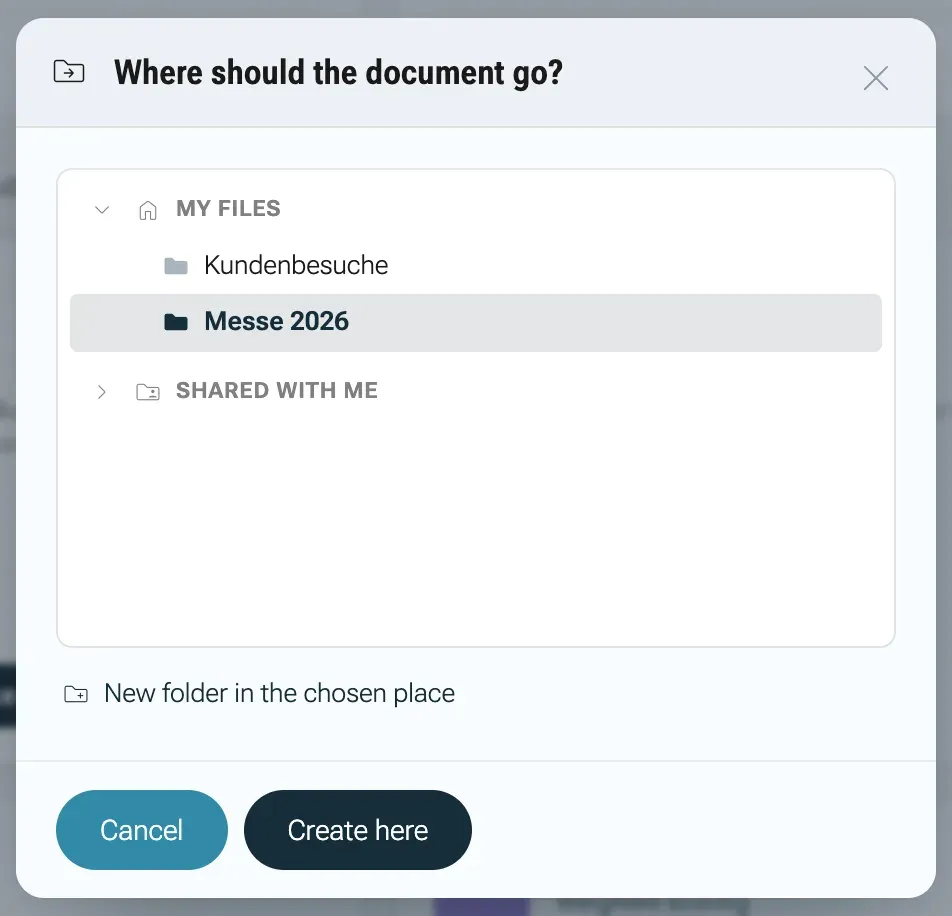
nexxus asks where the new document should go. -
The new document opens full screen. Jonas’s board already has the columns
To-do,In ArbeitandFertigand a first card.
-
Open the folder in DocumentsFiles where the document belongs.
-
Click New. Below the document types, the section New app lists every app: Kanban-Board, Markdown-Editor and each installed app by its name.
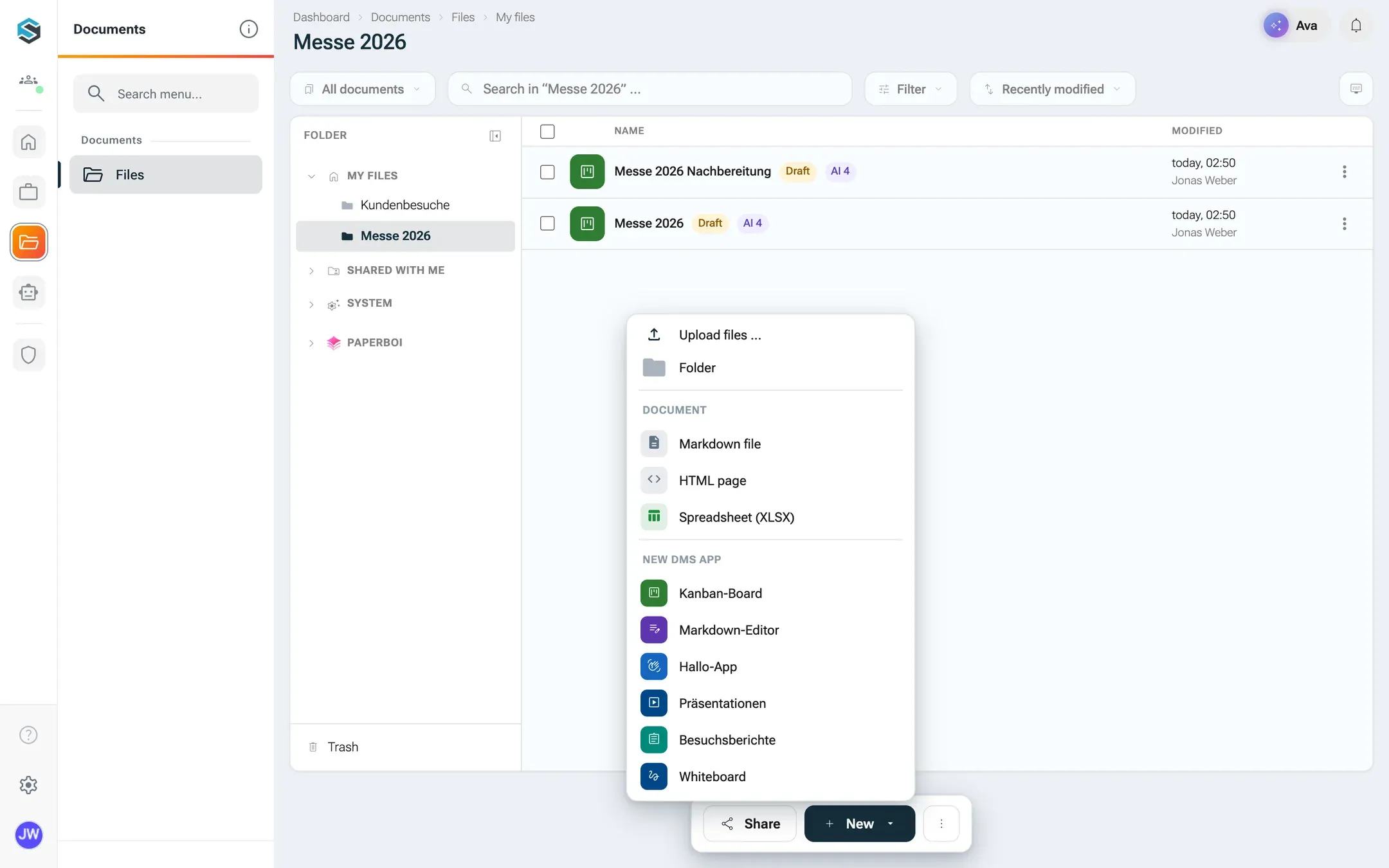
Every installed app can be started from the New menu, in the folder that is open. -
Click the app. nexxus creates the document in the open folder, or in My files if you may not write there, and opens it full screen.
-
Open StartApps and click the app’s card under My apps. The app’s page opens.
-
Click New document at the bottom of the page.
-
Choose the folder as described for the app list, and click Create here.
-
Open a chat with the AI Assistant and say what you need: “Leg im Ordner Messe 2026 ein Kanban-Board an, mit einer Karte für jeden dieser Punkte: Standbau, Prospekte drucken, Hotel buchen.”
-
The AI Assistant looks up which apps exist and what their documents look like, creates the board with the cards filled in, and opens it for you.
-
If the AI Assistant answers that it may not create documents, the action Build and change apps of the connector is switched off for your tenant.
Name it and start working
Section titled “Name it and start working”At the top of the document page, click the title and type a new one. nexxus stores it inside the document and in the file name, so a board titled “Messe 2026” is saved as Messe 2026.board.nxd.
There is no save button. Next to the title the page shows how far saving has got, ending with Saved. Each change is stored about one and a half seconds after you make it. A version for the document’s history is created when you leave the document, or after ten minutes without changes.
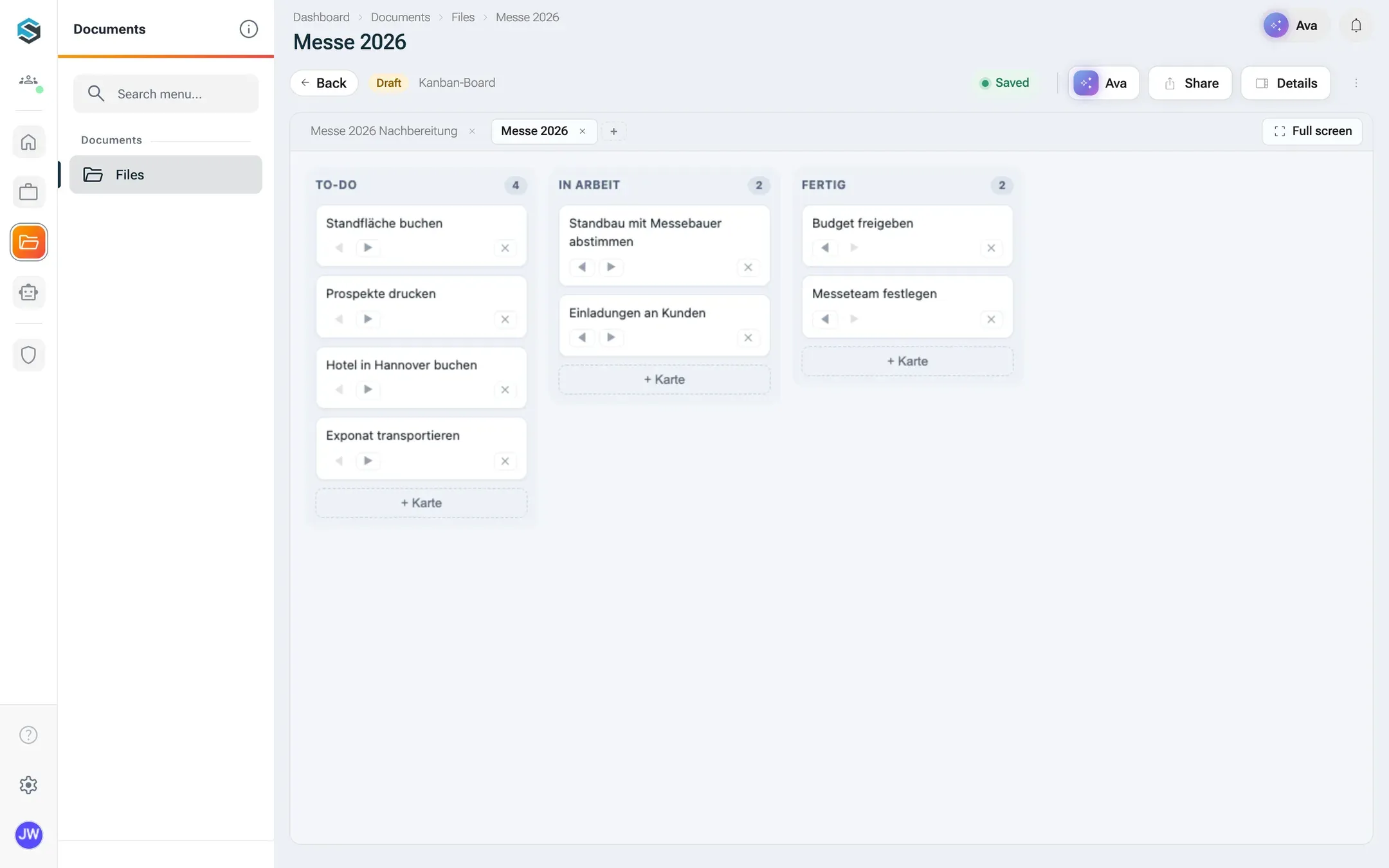
The bar above the app holds what belongs to the app: its own menus (an app can add entries to File or bring menus of its own), the tabs of other documents of the same app if the app supports tabs, and Full screen. Share at the top of the page invites colleagues. They edit the same document live.
What a new document contains
Section titled “What a new document contains”| App | New title | Starting content |
|---|---|---|
| Kanban board | Neues Board | Columns To-do, In Arbeit, Fertig, one card Erste Aufgabe |
| Markdown editor | Neue Notiz | A heading and two example bullet points |
| Installed apps | The app’s name | Whatever the app declares as its starting content, often empty |
A new app document starts with the status Draft. You change the status like for any other file.
Install an app from a .nxa file
Section titled “Install an app from a .nxa file”An app arrives as one file ending in .nxa. A colleague may have built it, or you downloaded the example from the help. Installing takes one click, and nexxus checks the file before anything is stored.
-
Open StartApps.
-
Click Import app at the bottom right and choose the
.nxafile. A.zipwith the same content works too. -
nexxus checks the package. If something is wrong, the reason appears in red at the top of the page (see When something goes wrong).
-
The app appears under My apps. Its card says Imported if you are an administrator, or Own app if you are not, followed by the version, for example
v1.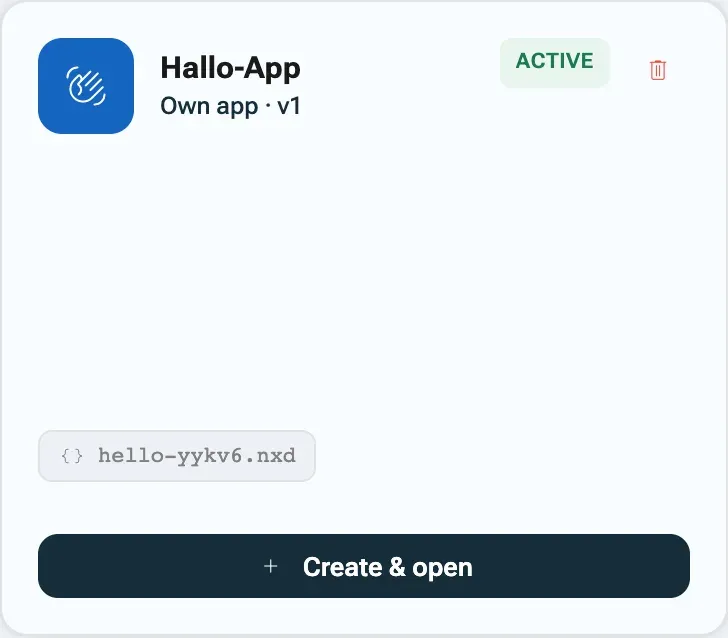
An app you import yourself is your own app until an administrator installs it for everyone. -
From now on the app is also listed under New in Files.
Own app or tenant app. When Jonas, who is not an administrator, imports the example app, it becomes his own app: only he and the administrators see it under My apps, and only they can update or remove it. A document he shares still opens for his colleagues, because the app is served to everyone in the tenant. They cannot create new documents with it until an administrator installs the app for the tenant.
Install a file with the AI Assistant
Section titled “Install a file with the AI Assistant”If the .nxa file is attached to your chat message or lies in Files, ask the AI Assistant: “Installier die angehängte App.” It installs the package with the same check and the same rule for own and tenant apps as the button, and tells you where to find the app.
Let the AI Assistant create a new app
Section titled “Let the AI Assistant create a new app”When no app fits, describe the one you need. The AI Assistant writes the two parts of an app, the description file and the screen, and registers them. nexxus checks them exactly like an uploaded package.
You describe it
What one document should hold, which fields, what it should look like.
The AI Assistant writes the app
A manifest with a data schema and a self-contained HTML screen.
nexxus checks
ID, required fields, schema, size. Errors go back to the AI Assistant to fix.
The app is there
Under My apps, and the AI Assistant can create the first document.
-
In a chat, describe the app in plain words. Jonas writes: “Bau mir eine App für Besuchsberichte. Ein Dokument ist ein Kundenbesuch: Kunde, Datum, Teilnehmer, besprochene Themen als Liste, nächste Schritte mit Verantwortlichem und Termin. Die Oberfläche soll ein schlichtes Formular sein.”
-
The AI Assistant writes the manifest, including a data schema with a description for every field, and the HTML screen. Then it registers the app. If nexxus refuses the package, the AI Assistant gets the reason (for example
manifest.label is required) and corrects it. -
The AI Assistant answers with the app’s ID. Jonas opens StartApps and finds Besuchsberichte under My apps, marked Own app.
-
He asks the AI Assistant for a first document (“Leg einen Besuchsbericht für die Nordwind AG von heute an”) or clicks Create & open himself. He tries every field once before he shares the app with colleagues.
Because Jonas is not an administrator, the app is his. If the whole project team should use it, an administrator such as Jana Brandt has to install it for the tenant. The simplest way is to let the administrator ask the AI Assistant for the app in the first place. Developers who want to maintain an app over time build it as a package, as described in the developer reference.
Set up an installed app
Section titled “Set up an installed app”Clicking an app’s card under My apps opens its page. This is where the app is looked after.
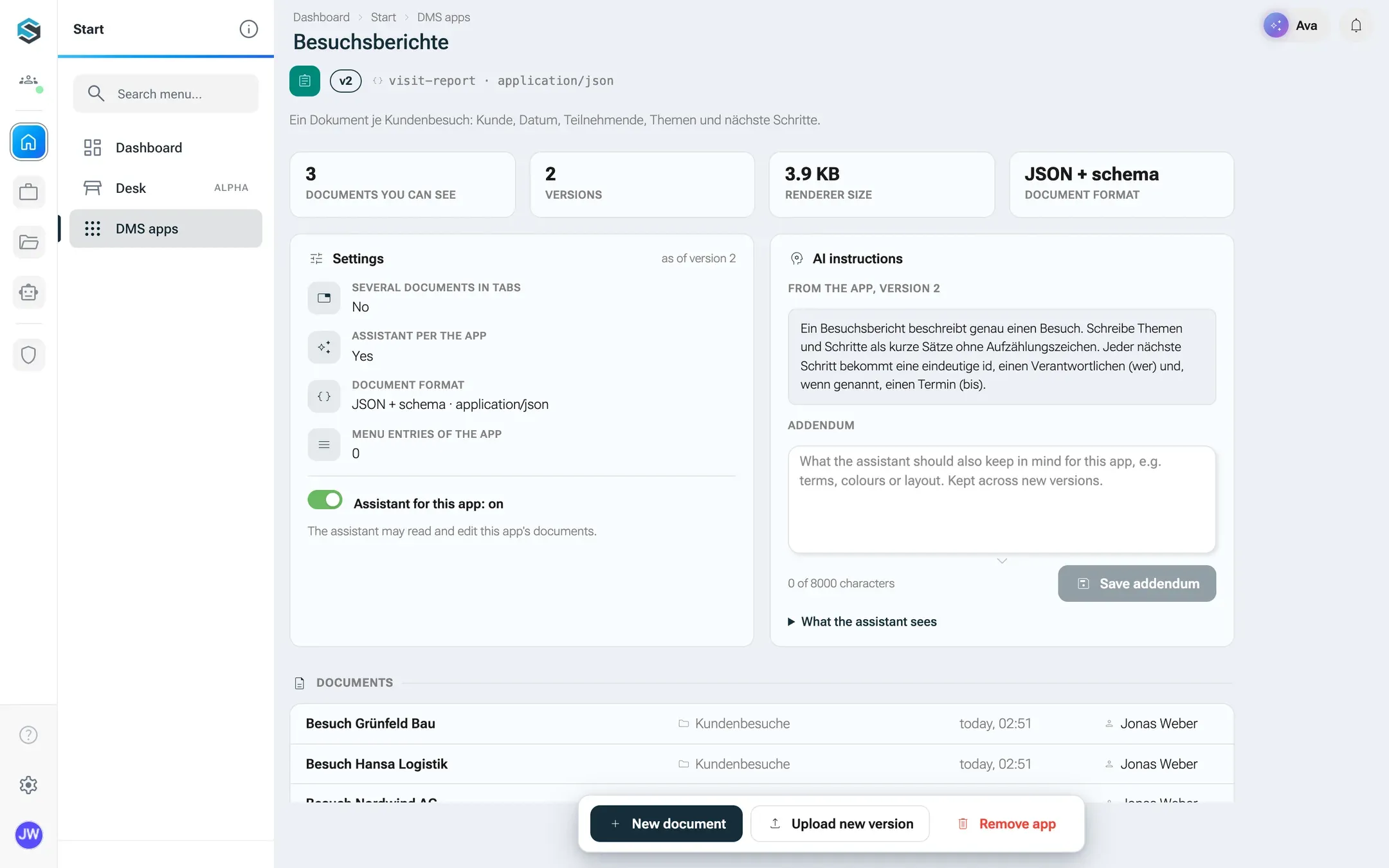
- Figures. Documents you can see, Versions, Renderer size and Document format (JSON + schema or Text).
- Settings. What the installed version brings: Several documents in tabs, Assistant per the app, the document format and Menu entries of the app. Below them, the switch Assistant for this app. Switching it off asks for confirmation (Switch off), because the AI Assistant then neither reads nor changes any document of this app, for everyone, and ongoing conversations about these documents end.
- AI instructions. The instructions the app brings for the AI Assistant, and your Addendum of up to 8000 characters. Save addendum stores it. What the assistant sees shows the full text the AI Assistant gets. The addendum stays when you publish new versions.
- Documents. The 50 most recently changed documents of this app that you may open, with their folders.
- Version history. Every published version with date, uploader and what it changed.
Only the app’s owner and administrators can change the switch and the addendum, upload versions or remove the app. Everyone else sees the page read-only: Only the app’s owner and administrators can change this.
Publish a new version
Section titled “Publish a new version”Jonas’s colleagues ask for a field “Wettbewerber”. A developer adds it, raises the version number in the manifest to 2, writes a changelog entry and gives Jonas the new visit-report.nxa. Updating keeps every existing report.
-
Open the app’s page from My apps.
-
Click Upload new version and choose the new
.nxa. -
The dialog Publish new version opens and nexxus checks the package before you confirm. You see Installed
v1and New versionv2, the file name, and under What changes the changelog entries of every version between the installed one and the new one.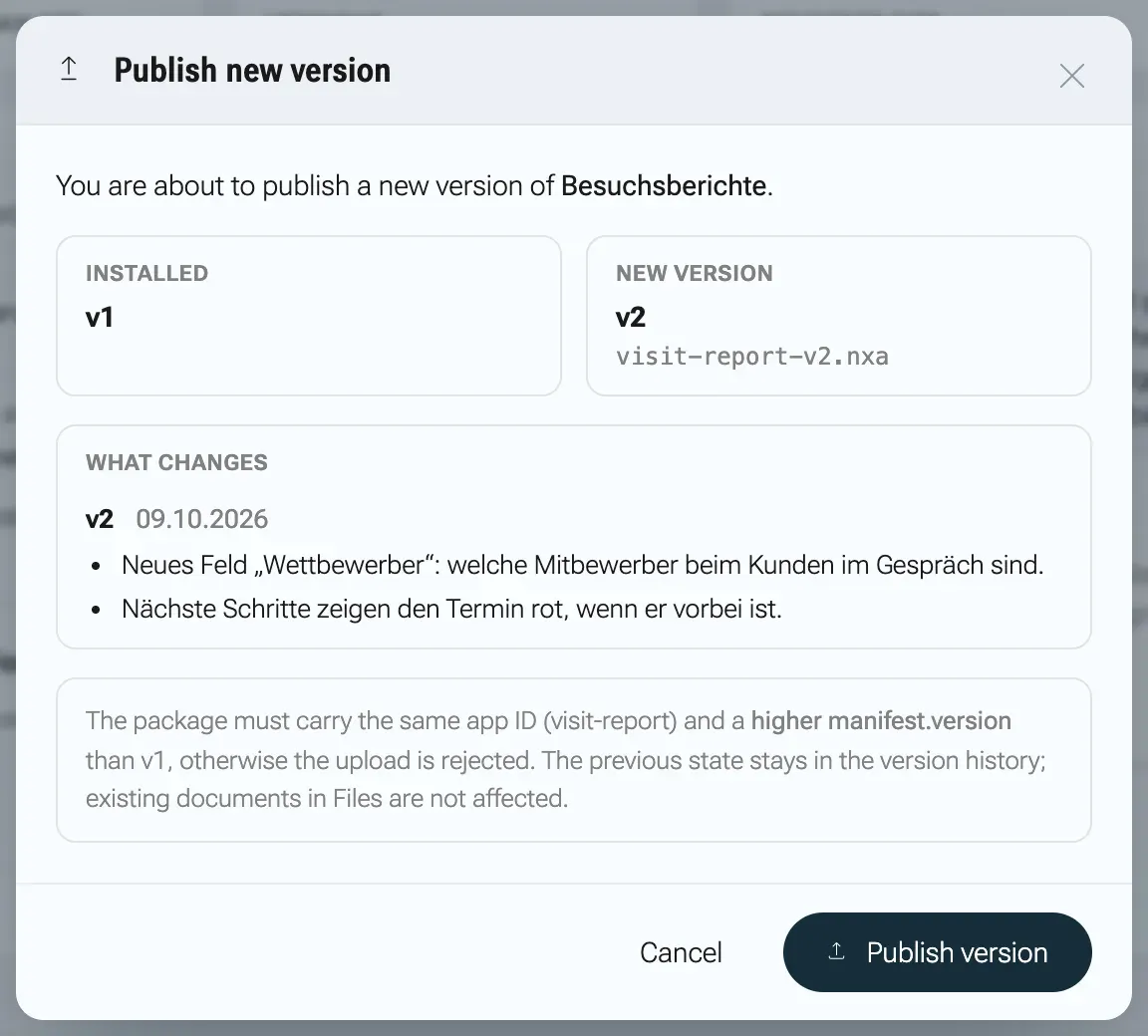
nexxus checks the package before you confirm and lists what changes. -
If the package cannot be released, the dialog shows why in red and the button stays disabled. If the package brings no changelog, the dialog says The package has no changelog.
-
Click Publish version. The page shows Version v2 was published and is active from now on. and the version history gains a row with the changes.
The rules the dialog repeats: the package must carry the same app ID and a higher version number than the installed one. The previous version stays in the history, and documents in Files are not touched. Your addendum and the assistant switch carry over.
Remove an app
Section titled “Remove an app”On the app’s page, Remove app (or the bin icon on its card) opens a confirmation. Type the app’s ID until the dialog shows Match: button unlocked, then click Remove.
The app is hidden, not deleted. Its documents stay in Files but cannot be opened in the app until the same app is imported again. A new import of the same ID brings the app back with its old documents, starting with an empty addendum and the assistant switched on. The built-in Kanban board and Markdown editor cannot be removed.
The AI Assistant’s tools for apps
Section titled “The AI Assistant’s tools for apps”The AI Assistant uses these tools when you ask it to work with apps. They are part of the connector Apps.
| Tool | Connector action | What the AI Assistant does with it |
|---|---|---|
nx_dmsapp_list | List apps | Lists every app with its ID, name, description, data schema, its own instructions and where it is opened. The AI Assistant calls this before creating anything, and when you ask it to open an app. |
nx_dmsapp_create | Build and change apps | Creates a new document of an app, with content that the server checks against the app’s schema, in a folder of your choice or in My files. |
nx_dmsapp_update | Build and change apps | Changes an existing document, either as a whole or as a list of targeted changes (JSON Patch) for large documents. Needs your edit right on the document. The change appears live for everyone who has it open. |
nx_dmsapp_register | Build and change apps | Registers a new app from a manifest and an HTML screen that the AI Assistant wrote. |
nx_dmsapp_import | Build and change apps | Installs a .nxa file that is attached to the chat or stored in Files. |
nx_ui_open | (always available) | Opens a page for you: a document (also full screen), an app’s page, or another page of nexxus. |
The AI Assistant never gets more rights than you have: nx_dmsapp_update checks your edit right on the document, and nx_dmsapp_create your right to write into the chosen folder. When the assistant is switched off for an app, every one of these tools refuses that app’s documents.
What happens behind the scenes
Section titled “What happens behind the scenes”- Documents are ordinary files in Files with the ending
.<app ID>.nxd. Folder, sharing, versions and status work like for any file. - Apps are stored per tenant in nexxus itself, never in Files. Every published version keeps a copy of its package and a checksum, which is what the version history shows.
- Every change from the AI Assistant is checked against the app’s data schema on the server before it is saved, and becomes a version of the document.
- Live editing sends each change to everyone who has the document open. If two saves collide, nexxus fetches the other state, merges both and saves again.
- The sandbox keeps every app, imported, own or built by the AI Assistant, without network access and without your rights. That is why installing an app is open to everyone.
When something goes wrong
Section titled “When something goes wrong”Errors from the app list and the app’s page appear in red at the top. Messages that come from the package check are shown as nexxus produces them, some in English, some in German.
| Message | What it means | What to do |
|---|---|---|
manifest.label is required (and the same message for contentType) | The package’s manifest misses a required field. | Ask whoever built the app to add it. The fields are listed in the developer reference. |
manifest.id must be lowercase letters/digits/hyphens (e.g. 'kanban') | The app ID breaks the naming rule. | Use 2 to 40 characters: lowercase letters, digits and hyphens, starting with a letter. |
app.html exceeds 2000000 bytes | The app’s screen is larger than 2 MB. | The app has to get smaller, for example with fewer embedded pictures. |
.nxa is missing manifest.json or .nxa is missing app.html | The file is not a complete app package. | Check that both files are inside the ZIP. |
Die App '<id>' ist schon installiert. Für eine neue Version bitte „Neue Version hochladen“ auf ihrer Seite verwenden (manifest.version erhöhen). (already installed, use Upload new version) | You imported an app that is already there. | Open the app’s page and use Upload new version. |
Die ID '<id>' ist schon von einer anderen App belegt; bitte im Manifest eine andere ID (manifest.id) wählen. (ID taken by another app) | Someone else’s app uses the same ID. | Change the id in the manifest. |
'board' ist eine eingebaute App; bitte im Manifest eine andere ID (manifest.id) wählen. (built-in app ID) | board and markdown are reserved. | Choose another ID. |
Für eine neue Version muss manifest.version höher sein als die installierte (installiert: v1, Paket: v1). (version must be higher) | The new package has the same or a lower version number. | Raise version in the manifest and build the package again. |
Das Paket gehört zur App „<id>“ (manifest.id), nicht zu „<id>“. (package belongs to another app) | You uploaded the package of a different app on this page. | Upload it on the right app’s page, or import it as a new app. |
Diese App gehört jemand anderem. Eine neue Version hochladen oder die App entfernen dürfen nur ihr Besitzer und Administratoren. (belongs to someone else) | Only the owner and administrators may update or remove an app. | Ask the owner or an administrator. |
| Apps are switched off. An admin can switch the “Apps & workspace” area back on in the setup. | An administrator switched the area off. | Ask an administrator to switch on Apps & workspace under AdministrationSetupAreas. |
| No app registered for “<app>”. | The document belongs to an app that was removed or never installed in this tenant. | Import the app again. Its documents open again afterwards. |
Der Assistent ist für die App '<name>' ausgeschaltet. Ihre Dokumente bearbeitet nur, wer sie selbst öffnet. (assistant switched off for this app) | The AI Assistant refused because the app’s assistant switch is off. | Edit the document yourself, or ask the app’s owner to switch the assistant back on. |