
Set up your workspace
Voice
Dictate to the AI Assistant instead of typing, have answers read aloud, and turn recordings into text. What exists, which models do the work and how to set them up.
Tom Keller, site manager at Brandt & Söhne, stands in a boiler room at Nordwind AG with dirty hands. Typing is out of the question, speaking is not. With voice in nexxus, Tom dictates “Create a follow-up task for Nordwind AG, the pump needs replacing” and checks the text before sending it. On the drive back, the AI Assistant reads the answer aloud.
nexxus offers three things around voice:
- Voice input (dictation): a microphone in every chat input turns speech into text. In the AI Assistant’s input area, holding it down records a voice message.
- Read aloud: a speaker button under each of the AI Assistant’s answers.
- Transcription: the connector Transcription turns audio and video files into text, for example the recording of a meeting.
There is no live spoken conversation with the AI Assistant. Dictation ends as text in the input field, and you decide when to send it. A voice message goes out when you let go, without showing you the text first.
You speak
The browser records while the microphone is on.
Speech-to-text
Your speech-to-text model turns the recording into text.
The AI Assistant answers
You check dictated text and send it; a voice message goes out when you let go.
Read aloud
Your text-to-speech model, or the browser voice, reads the answer.
Where voice appears
Section titled “Where voice appears”| Feature | Where | Who can use it |
|---|---|---|
| Voice input | The microphone button in the input area of the AI Assistant’s column, on AIWork with AIAI sessions and in the dashboard widget Ask the assistant | Everyone who can use the AI Assistant |
| Voice message | Hold the microphone down, in the input area of the AI Assistant’s column and on AIWork with AIAI sessions | Everyone who can use the AI Assistant |
| Read aloud | The speaker button under each finished answer, in the AI Assistant’s column and on AI sessions | Everyone who can use the AI Assistant |
| Transcription | The AI Assistant uses it when the connector Transcription is on in the conversation | Everyone who may use connectors, for files they may view |
Before you start
Section titled “Before you start”- A provider with speech models is connected and active. OpenAI offers both kinds. Other providers may offer one, both or none. See Connect your AI.
- To select the models you need the permission block AI Providers with Write.
- People who dictate need a browser that allows microphone access, and they must allow it for nexxus the first time.
Set up voice input
Section titled “Set up voice input”Without a selection, nexxus transcribes with OpenAI’s gpt-4o-transcribe through your OpenAI provider. If you have no OpenAI provider, or you want another model, select one.
-
Open AISet up AIAI Providers and click the provider.
-
Click Synchronise models. Models whose id contains “whisper”, “transcribe”, “voxtral” or “parakeet” land on the tab Speech-to-text.
-
Open Speech-to-text and turn on Use for the model. Your workspace uses one speech-to-text model across all providers; selecting one here replaces a selection elsewhere.
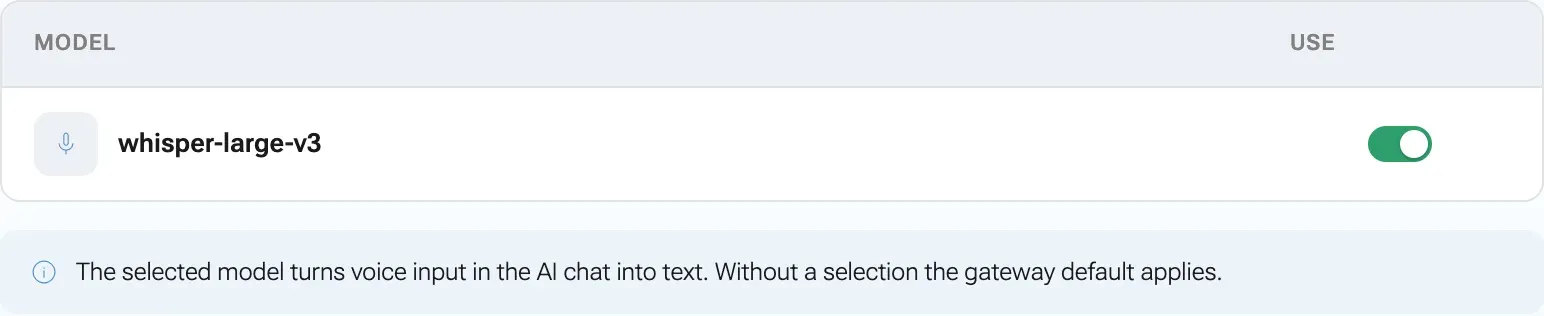
Without a selection nexxus falls back to an OpenAI model. -
Click Save.
Set up read aloud
Section titled “Set up read aloud”Without a selection, the browser reads with its own built-in voice. That costs nothing and needs no setup, but it sounds plainer, and its quality depends on the browser and the operating system. With a text-to-speech model the answers sound natural.
-
On the same provider page, open the tab Text-to-speech. It appears when the provider has models whose id contains “tts” or “text-to-speech”.
-
Turn on Use for the model and click Save.
The voice is fixed: nexxus always asks the model for the voice “alloy”. There is no setting for another voice.
How your team uses it
Section titled “How your team uses it”Dictate
Section titled “Dictate”-
Click the microphone in the input area briefly (tooltip Voice input (hold for a voice message)). The first time, the browser asks for permission to use the microphone.
-
Speak. A waveform and a timer show that the recording runs.
-
Click the stop button (Stop recording) or the send button. While the text is being recognised, the input field says “Transcribing …”.
-
The text appears in the input field. Correct it if needed and send it. A dictated message shows “12 s spoken” (with the real length) above it.
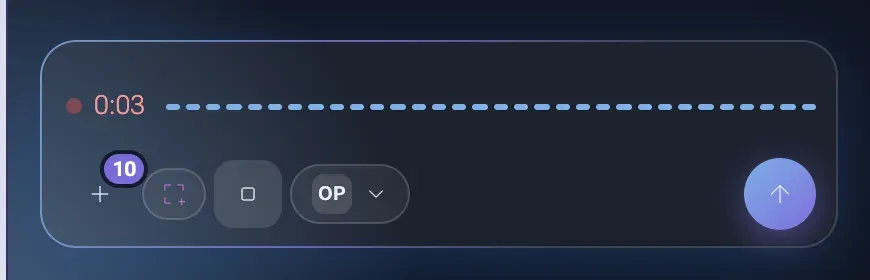
Package modules can offer a dictation button on their record pages, for example Dictate note on an appointment in the Zahnwerk package. It records with the same speech recognition, the button Stop recording with the running time ends it, and the recognised text is appended to the field on a new line, without going through the AI Assistant. If the field cannot be saved, nexxus shows the text to copy, so nothing is lost.
nexxus passes the browser’s language to the model as a hint, so it does not have to guess the language of every sentence.
Send a voice message
Section titled “Send a voice message”When you do not want to check the text, send a voice message. This works in the AI Assistant’s column and on AI sessions.
-
Hold the microphone down and speak.
-
Let go. nexxus turns the recording into text and sends it right away, together with any files you already attached. Whatever you had typed into the input field stays there.
-
In the conversation, your message shows “Voice message · 0:14” (with the real length) above it.
If the AI Assistant is still answering, nothing is sent: the text lands in the input field, as with dictation.
Listen
Section titled “Listen”Click the speaker button under an answer (Read aloud). Click again to pause (Pause reading) and once more to continue (Resume reading). While it reads, a stop button next to it ends the reading (Stop reading). Only one answer plays at a time; starting another stops the first.

nexxus reads what a person would read out: the text of the answer. It leaves out code blocks, forms, action cards, knowledge proposals, images and the addresses behind links (a link is read as its label). Tables are read row by row, and every heading and list item becomes a sentence.
Transcribe a recording
Section titled “Transcribe a recording”Turn on the connector Transcription for the conversation: click the + button in the input area and open the connectors, or type @ and choose it. Then attach the file or name one from Files and ask the AI Assistant, for example: “Transcribe the recording and write minutes with decisions and open points.”
The connector reads audio and video files of up to 25 MB that the person may view, and uses the same speech-to-text model as the microphone. It is installed by default but not switched on in new conversations. More about connectors: Connectors.
What happens behind the scenes
Section titled “What happens behind the scenes”- Dictation. The browser records in a format it supports (WebM, Ogg or MP4) and sends the audio to nexxus once you stop. nexxus forwards it to the AI gateway, which calls the speech-to-text endpoint of your provider. Only the text comes back. Nothing is stored.
- Reading aloud. nexxus sends the answer to the AI gateway in parts. The first part is short (about 240 characters) so the voice starts quickly; the rest goes in parts of about 1200 characters, and the next part is prepared while the current one plays. The provider’s MP3 is streamed through to the browser and not stored. One request may hold at most 4096 characters.
- Fallback. If no text-to-speech model is selected, or the AI gateway offers no speech service, the browser’s own voice takes over without an error message. It splits the text into short parts and guesses the language of each.
When something goes wrong
Section titled “When something goes wrong”| Message | Cause and fix |
|---|---|
| Voice input is not supported by this browser. | The browser cannot record audio. Use a current version of a common browser. |
| No access to the microphone. Please allow it in the browser. | Microphone access was denied. Allow it in the site settings of the browser and try again. |
| No speech recognised. | The recording was silent or too short. Check the microphone and speak a little longer. |
Transcription failed followed by No usable provider "openai" | No speech-to-text model is selected, and there is no active OpenAI provider for the fallback. Select a model on Speech-to-text. |
| Transcription failed followed by an HTTP status from the provider | The provider rejected the request, for example because of the key or the file size. Test the provider with Test connection. |
| Reading aloud is not supported by this browser. | The browser has neither audio playback nor a built-in voice. Use another browser. |
| Reading aloud failed followed by a reason | The text-to-speech model returned an error. Check the provider of the selected model. |
| The answer is read by a plain voice although a model is selected | The provider of that model is switched off or has no key, so nexxus falls back to the browser. Check Provider active. |