
Work with nexxus
What's in the box
Every module that ships with nexxus, grouped by the area of the menu where you find it. For each one, what it does, its menu entries and routes, the permission that opens it, and which area switch turns it off.
nexxus ships with a set of business modules that are built into every installation: time tracking and absences, customers and projects, invoices, information security, files, the content of your website, the AI assistant and the administration around them. You don’t install them. You decide which ones your tenant uses, and roles decide who in your team sees what.
Each module has its own version and its own changelog. Admins find the list under AdministrationOperationsModules: Every module has its own version and its own changelog. Choose a module to see what changed.
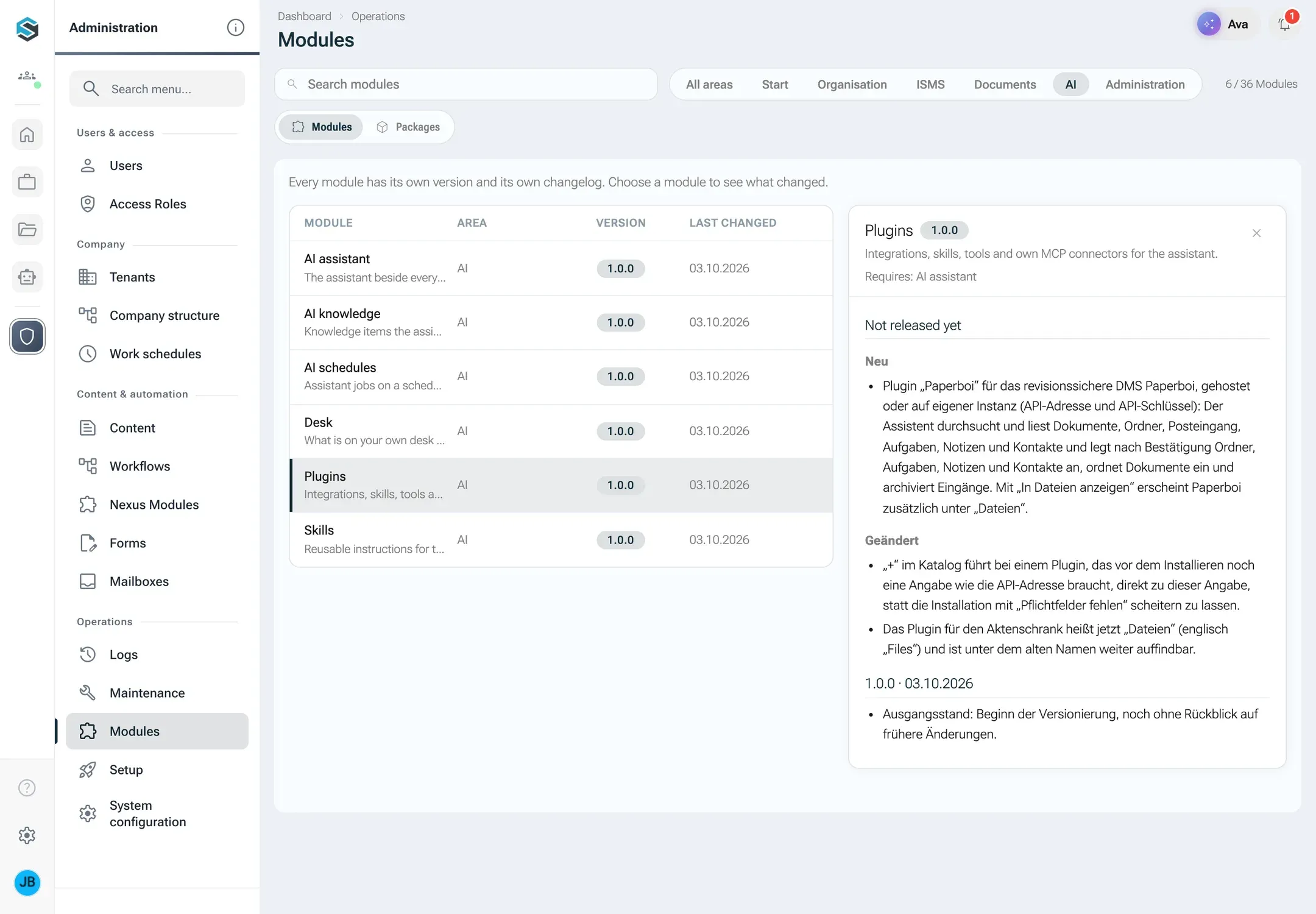
Search with Search modules, or narrow the list to one area with All areas, Start, Organisation and the other area buttons. The list shows Module, Area, Version and Last changed. Click a module to open its changelog on the right: which modules it needs (Requires), the changes that are built but not part of a version yet (Not released yet), and then every version with its date. The changelog entries themselves are written in German. Modules installed as an NXM package carry the chip Package, and the tab Packages lists the packages; see Modules (NXM).
What’s new
Section titled “What’s new”After an update, nexxus opens a window once on your next visit: What’s new, with the release notes of the new version. The main new features come first, with a picture or a small animation, followed by the other changes by module. You do not see sections about areas that are switched off or modules you have no rights for. Got it closes the window. Afterwards the release notes stay in the window behind your avatar at the bottom of the rail, What’s new, and a dot on your avatar marks a version you have not read yet. If you have never seen the window, you get the newest version only. The AI Assistant answers “what’s new?” with the same release notes. You get them in the language the app shows you, else in English, else in German. English release notes exist from version 0.13.0 on, older versions show in German. A version without Polish release notes shows its English ones to a Polish reader.
Every release has a release note. The module changelogs above remain the detailed record of every single change.
When a process is unique to your company, you add to these in two ways: with apps, small apps your team builds with the AI Assistant, or with NXM modules, full business modules that developers package and install in a tenant.
Two switches decide what someone sees
Section titled “Two switches decide what someone sees”Switches
- Areas of the tenantAn admin switches whole areas on or off, for everyone
- Roles of the personEach page opens with a permission
Built-in modules
The same in every installation
- Time
- Projects
- Billing
- ISMS
- Files
- AI
Shows up in
- The menuOnly entries you may open, from areas that are on
- The AI Assistant's toolsIt only uses what you could use yourself
Areas are switched in the setup, step Areas, or later under AdministrationOperationsSetup (see First run). Twelve can be switched off; what one needs, nexxus switches on with it:
| Area card | Modules it switches |
|---|---|
| Time tracking | Time tracking, Working time account |
| Absences | Absences |
| Customers & suppliers | Partners |
| Projects | Projects |
| Invoices | Invoices, the billing roles of Organisation |
| Contingents & credit | Contingents, Credits |
| Teams & working time models | Teams and working time models of Organisation |
| Files | Files |
| Information security | ISMS |
| Apps & workspace | Workspaces, apps |
| Chat | Team chat |
| Content | Content |
Everything else is always on: the dashboard and the desk, the AI assistant with its knowledge, schedules, skills and connectors, users and roles, settings and notifications.
Roles carry permissions. Each page below names the permission that opens it; the role editor under AdministrationUsers & accessAccess Roles finds a permission by its key. Pages marked admins open only for administrators. Details in Roles and permissions.
| Module | What it does | Menu entry and route | Opens with |
|---|---|---|---|
| Dashboard | Start page with greeting, key figures and the way into the assistant | Dashboard /dashboard | everyone signed in |
| Reports | The query layer behind the key figure tiles: figures from projects, time, absences, ISMS and more, always with the reader’s rights. Also the tile assistant and the AI Assistant’s report tools. | Tiles on the dashboard | core.analytics.read |
| Desk | What lies on your own desk today: tasks, approvals and AI avatars in one place | Desk /schreibtisch | workspaceItem.read or ai.session.use |
| Calendar | Holidays, vacation, absences, your own appointments and the dated records of installed modules in one calendar | Calendar /kalender | calendar.use |
| Workspaces | Boards with Kanban, tasks, assignees, comments and My tasks | Workspace /workspace | workspaceItem.read |
| Apps | Small apps whose documents live in Files, plus your own apps as .nxa packages | Apps /dms-apps | dmsApps.read |
More: Build your dashboard, Calendar, Apps.
Organisation
Section titled “Organisation”| Module | What it does | Menu entries and routes | Opens with |
|---|---|---|---|
| Time tracking | Time entries, monthly timesheets with approval, and the sync with Toggl | Monthly timesheets /monthlyTimesheet, Toggl sync /togglSyncLog | Your own months: timesheet.monthlyTimesheet.use; everyone’s: timesheet.monthlyTimesheet.read. Toggl sync: admins |
| Absences | Vacation requests, vacation quotas, public holidays and the team calendar | Vacation requests /vacationRequest, Public holidays /holiday | absence.vacationRequest.use; holidays: absence.holiday.read |
| Working time account | Working time agreements and overtime bookings per person | No menu entry of its own. Admins see it in the user record, tab Time & vacation. | via Users (admins) |
Business
Section titled “Business”| Module | What it does | Menu entries and routes | Opens with |
|---|---|---|---|
| Partners | Customers and suppliers with branches and contacts. Your own companies are partners too. | Customers /partner/customers, Suppliers /partner/suppliers, and under Administration Own companies /own-companies | partner.partner.read |
| Projects | Projects with groups, assignments, rates and links | Projects /project | project.project.read |
| Invoices | Invoices with positions, PDF with ZUGFeRD | Invoices /invoice | billing.invoice.read |
| Contingents | Contingent agreements with customers. A monthly run creates draft invoices. | Contingents /contingentAgreement | contingent.agreement.read |
| Credits | Credit accounts and their transactions | Credit accounts /creditAccount | credit.account.read |
| Organisation | Teams, work schedules, billing roles, skill levels and employee profiles | Billing roles /billingRole, and under Administration Teams /team and Work schedules /workSchedule | organisation.billingRole.read, organisation.team.read, organisation.workSchedule.read |
Invoices need the modules Projects and Partners.
Partners, projects, invoices, opportunities and every record of an installed module have the tabs Tasks and Timeline. Under Tasks you add tasks that belong to exactly this record. They also show in My tasks, with a chip for the record. The tab is there while the area Apps & workspace is switched on. The Timeline keeps what happened: a note, a call, an email, a meeting or a status update, newest first. Both are as open as the record itself: whoever may see it may read them, whoever may edit it may write. You can change and delete your own timeline entries, not those of others.
| Module | What it does | Menu entries and routes | Opens with |
|---|---|---|---|
| ISMS | Information security under ISO 27001, NIS2 and Art. 32 GDPR: compliance programmes per framework with their Statement of Applicability, assets with their protection needs, risks rated by the tenant’s risk method and recorded in risk assessments, measures with executions and evidence, self-declarations collected in campaigns, and security incidents with their reporting deadlines | Compliance programmes /ismsProgram, Assets /ismsAsset, Risks /ismsRisk, Risk assessments /ismsRiskAssessment, Measures /ismsMeasure, Declaration campaigns /declarationCampaign, Self-declarations /ismsDeclaration, Security incidents /ismsIncident, Risk method /ismsRiskMethod | isms.program.read, isms.asset.read, isms.risk.read, isms.riskAssessment.read, isms.measure.read, isms.declarationCampaign.read, isms.incident.read, isms.riskMethod.read; your own declarations: isms.declaration.use; reporting incidents and seeing your own reports: isms.incident.report |
Documents
Section titled “Documents”| Module | What it does | Menu entry and route | Opens with |
|---|---|---|---|
| Files | Documents and folders with shares, versions, attributes, public links and preview | Files /dokumente | dms.document.read; what you see inside is decided by the shares of each document |
More: Files.
| Module | What it does | Menu entry and route | Opens with |
|---|---|---|---|
| Team chat | Channels and direct messages for the team, replies in threads, mentions, reactions, files with preview and code blocks. Notifications come for mentions, direct messages and replies. | Chat /chat | teamChat.read to read, teamChat.write to write |
The chat is an area of its own. Switched off, it disappears from the menu, and its messages stay.
Website
Section titled “Website”| Module | What it does | Menu entries and routes | Opens with |
|---|---|---|---|
| Content | A headless CMS for your own website. Blocks define which fields a content type or a block has. Entries sit in a folder tree and have a draft and a published state; translations sit next to their field. Images and files come with it. Your website fetches published content with a delivery token from /api/content/v1. | Content /content, Blocks /content-blocks, Media /content-assets, Delivery /content-delivery | content.entry.read; Blocks: content.block.read; Media: content.asset.read; Delivery: content.settings.read |
Website is an area of its own, and its card is called Content. Switched off, it disappears from the menu and for the AI Assistant, the delivery answers with 404, and the content is kept.
| Module | What it does | Menu entries and routes | Opens with |
|---|---|---|---|
| AI assistant | The assistant beside every page, conversations, avatars, models and providers, tools and usage | AI sessions /ai, Avatars /ai-avatare, AI Providers /ai-providers, MCP overview /ai-mcp, AI usage /ai-usage, AI actions /ai-actions | ai.session.use; providers: aiAssistant.providerConfig.read; MCP overview, AI usage, AI actions: admins |
| AI knowledge | Knowledge entries the assistant finds and learns from conversations | Knowledge /ai-knowledge | ai.knowledge.read |
| AI schedules | Tasks for the assistant on a schedule or when an email arrives | Schedules /ai-schedules | ai.session.use |
| Skills | Reusable instructions for the assistant, with files and shares | Skill Management /ai-skills | ai.session.use |
| Connectors | Integrations, skills, tools and your own MCP connections for the assistant | Connectors /plugins | ai.plugin.read |
The AI assistant is always on and cannot be switched off for a tenant. Who may use it is decided by roles. The last four modules need the AI assistant. More: Connect your AI, Work with the AI Assistant, Connectors.
Administration
Section titled “Administration”These modules are always on.
| Module | What it does | Menu entries and routes | Opens with |
|---|---|---|---|
| Users and rights | Users, roles and permissions, business units, tenants, invitations, and acting as another person for support | Users /user, Access Roles /accessRoles, Business Units /businessUnits, Tenants /tenants | Users and Tenants: admins; authentication.accessRole.read, authentication.businessUnit.read |
| Sign-in | Sign-in with password, sign-in link, second factor, trusted devices, single sign-on and Microsoft Entra ID | The sign-in page, the tab Security in your profile | everyone |
| My profile | Name, picture, password, your own activity, notifications, your own notification rules and personal API tokens | My profile /profil, from your avatar | everyone signed in |
| Setup and system configuration | The setup in eight steps, areas, appearance, logo and the settings of the tenant | Setup /einrichtung, System configuration /system-config | admins |
| Email and notifications | Outgoing email, templates, system mails, mailboxes and the notifications in the bell | System Mails /system-mails, Mailboxes /mailboxes, Email delivery /emails | communication.systemMail.read, communication.email.read; Mailboxes: admins |
| Form builder | Forms with categories, field templates, filled-in records and locks | Forms /form, Field templates /form-field-template, Categories /form-category, Records /form-record | formBuilder.read, formBuilder.fieldTemplate.read, formBuilder.category.read, formBuilder.record.read |
| Tags and text blocks | Tags for records and reusable text blocks | Tags /tags, Text Blocks /textBlock | communication.tag.read, core.textBlock.read |
| Logs and operations | Audit log, application and event logs, cron jobs, migrations and the vector viewer | Audit Log /auditLogs, Event logs /eventLogs, App Logs /appLog, Cron Jobs /cronJob, Migrations /migrations, Vector Viewer /vectorViewer | admins |
| Platform | What every module stands on: the permission check, uploads, activity, comments, search, number sequences, custom fields, PDF rendering and the module overview itself | Modules /modules | admins |
How to connect a mailbox, including Microsoft 365, is described in Connect mailboxes.
Where the AI Assistant fits in
Section titled “Where the AI Assistant fits in”Every module above is also available to the AI Assistant, within the same limits. It sees the areas that are switched on and uses only tools whose permission the asking person has. A switched-off area is invisible to it, and a person without the permission for invoices cannot have the AI Assistant read or change an invoice either. Before it changes anything, the server builds a confirmation that you approve.