
Modules (NXM)
Build your first module
Build a small NXM module from scratch, with one business object, a list, a dialog, a page of its own and sample data. Then package it, install it in a tenant and ship an update with a data migration.
Brandt & Söhne lends laptops, monitors and phones to its staff. Today the list lives in a spreadsheet that nobody trusts: who has the MacBook, and when is it due back? In this tutorial you build Leihgeräte (loan equipment), an NXM module that gives the company its own business object for devices, a list with filters, a dialog to lend a device, a page with all returns that are due, and tools for the AI Assistant. At the end you ship version 1.1.0 and watch nexxus migrate the stored data.
You write five files, pack them into one .nxm file and upload it. Everything the module shows comes from these files. No code runs inside nexxus.
Write
module.json, a changelog, two HTML views, sample data.
Build
The packaging script turns the folder into a .nxm file.
Upload
nexxus checks the package and shows what it brings.
Install
You agree, assign roles and the module is in the menu.
Update
Version 1.1.0 renames a value and adds a field.
Before you start
Section titled “Before you start”- An administrator account on a nexxus instance. Only administrators upload and install packages.
- An instance that accepts your package. The package you build here is unsigned. Instances that run with the Spring profile
development,localordemoaccept unsigned packages; elsewhere an administrator of the tenant switches on Allow unsigned packages on the tab Publishers, or you sign the package. Both are explained in Package, install and update. - Node.js to run the packaging script
module-package.mjs. It ships with the nexxus sources underbackend/scripts/and has no dependencies. Copy it next to your package folder. - A text editor.
Plan the module
Section titled “Plan the module”Before you write a line, decide four things. They end up in the manifest and are hard to change later.
| Decision | Choice in this tutorial | Why |
|---|---|---|
| Key | acme.leihgeraete | <publisher>.<name>, lower case. The key never changes. All permission keys, tool names and routes derive from it. |
| Area | projekte | Business area of the module. projekte shows under Organisation in the left bar. |
| Business objects | one entity, geraet (device) | Each entity becomes its own list and record pages. |
| Who may do what | roles verwaltung (manage and lend) and einsicht (read only) | Roles are created at install. Nobody holds them until an administrator assigns them. |
Create the folder
Section titled “Create the folder”One folder per version. The folder name must be the version number, otherwise the script warns Hinweis: Der Ordner heißt nicht wie die Version 1.0.0.
Directoryacme.leihgeraete/
Directory1.0.0/
- module.json the manifest
- CHANGELOG.md
Directoryui/
- ausleihen.html dialog to lend a device
- faellig.html page with due returns
Directorydemo/
- geraet.json sample data, installed on request
Write the manifest
Section titled “Write the manifest”module.json describes everything: the entity and its fields, permissions, roles, views, menu entries, actions and what the AI Assistant may do. Create it with this content.
{ "key": "acme.leihgeraete", "kind": "package", "publisher": "acme", "name": {"de": "Leihgeräte", "en": "Loan equipment"}, "description": {"de": "Geräte, die das Team ausleiht: wer hat was, bis wann.", "en": "Equipment the team borrows: who has what, until when."}, "icon": "devices", "area": "projekte", "version": "1.0.0", "platform": ">=0.2.0 <1.0.0", "permissions": [ {"key": "verleihen", "label": {"de": "Geräte verleihen", "en": "Lend equipment"}, "description": {"de": "Darf Geräte ausleihen und zurücknehmen.", "en": "May lend equipment and take it back."}} ], "roles": [ {"key": "verwaltung", "label": {"de": "Geräteverwaltung", "en": "Equipment management"}, "permissions": ["geraet.read", "geraet.write", "verleihen"]}, {"key": "einsicht", "label": {"de": "Einsicht", "en": "View"}, "permissions": ["geraet.read"]} ], "entities": [ { "key": "geraet", "label": {"de": "Gerät", "en": "Device"}, "labelPlural": {"de": "Geräte", "en": "Devices"}, "icon": "devices", "titleField": "bezeichnung", "searchFields": ["bezeichnung", "inventarnummer"], "fields": [ {"key": "inventarnummer", "type": "string", "sequence": "GER-{n:4}", "label": {"de": "Inventarnummer", "en": "Inventory no."}}, {"key": "bezeichnung", "type": "string", "required": true, "maxLength": 120, "label": {"de": "Bezeichnung", "en": "Name"}}, {"key": "kategorie", "type": "enum", "indexed": true, "default": "laptop", "label": {"de": "Kategorie", "en": "Category"}, "values": [ {"key": "laptop", "label": {"de": "Laptop", "en": "Laptop"}}, {"key": "monitor", "label": {"de": "Monitor", "en": "Monitor"}}, {"key": "telefon", "label": {"de": "Telefon", "en": "Phone"}}, {"key": "sonstiges", "label": {"de": "Sonstiges", "en": "Other"}}]}, {"key": "status", "type": "enum", "indexed": true, "readonly": true, "default": "verfuegbar", "label": {"de": "Status", "en": "Status"}, "values": [ {"key": "verfuegbar", "label": {"de": "Verfügbar", "en": "Available"}}, {"key": "verliehen", "label": {"de": "Verliehen", "en": "On loan"}}]}, {"key": "ausgeliehen_an", "type": "ref", "target": "core:user", "label": {"de": "Ausgeliehen an", "en": "Lent to"}}, {"key": "rueckgabe_am", "type": "date", "indexed": true, "label": {"de": "Rückgabe am", "en": "Due back"}}, {"key": "notiz", "type": "text", "label": {"de": "Notiz", "en": "Note"}} ] } ], "views": [ {"key": "geraet.list", "type": "list", "entity": "geraet", "label": {"de": "Geräte", "en": "Devices"}, "columns": [{"field": "inventarnummer"}, {"field": "bezeichnung"}, {"field": "kategorie"}, {"field": "status", "display": "badge"}, {"field": "ausgeliehen_an"}, {"field": "rueckgabe_am"}], "filters": ["kategorie", "status", "ausgeliehen_an"], "sort": {"field": "inventarnummer", "dir": "asc"}, "create": true}, {"key": "geraet.record", "type": "record", "entity": "geraet", "label": {"de": "Daten", "en": "Data"}, "sections": [ {"key": "geraet", "label": {"de": "Gerät", "en": "Device"}, "fields": ["inventarnummer", "bezeichnung", "kategorie", "status"]}, {"key": "ausleihe", "label": {"de": "Ausleihe", "en": "Loan"}, "fields": ["ausgeliehen_an", "rueckgabe_am", "notiz"]}], "actions": ["ausleihen-dialog", "zurueckgeben"]}, {"key": "ausleihen-dialog", "type": "custom", "slot": "record.action", "target": "geraet", "html": "ui/ausleihen.html", "label": {"de": "Ausleihen", "en": "Lend"}, "icon": "assignment_ind", "when": {"field": "status", "in": ["verfuegbar"]}}, {"key": "faellig", "type": "custom", "slot": "page", "html": "ui/faellig.html", "label": {"de": "Fällige Rückgaben", "en": "Due returns"}} ], "menu": [ {"key": "geraete", "label": {"de": "Geräte", "en": "Devices"}, "icon": "devices", "view": "geraet.list", "order": 1}, {"key": "faellig", "label": {"de": "Fällige Rückgaben", "en": "Due returns"}, "icon": "assignment_late", "view": "faellig", "order": 2} ], "actions": [ {"key": "ausleihen", "entity": "geraet", "type": "update", "label": {"de": "Ausleihen", "en": "Lend"}, "icon": "assignment_ind", "permission": "verleihen", "when": {"field": "status", "in": ["verfuegbar"]}, "set": {"status": "verliehen", "ausgeliehen_an": "{{payload.ausgeliehen_an}}", "rueckgabe_am": "{{payload.rueckgabe_am}}"}}, {"key": "zurueckgeben", "entity": "geraet", "type": "update", "label": {"de": "Zurückgeben", "en": "Return"}, "icon": "assignment_return", "permission": "verleihen", "when": {"field": "status", "in": ["verliehen"]}, "confirm": {"de": "Gerät als zurückgegeben buchen?", "en": "Book the device as returned?"}, "set": {"status": "verfuegbar", "ausgeliehen_an": null, "rueckgabe_am": null}, "aiTool": true} ], "aiTools": {"entities": ["geraet"]}, "assistant": { "instructions": {"de": "Du hilfst bei den Leihgeräten des Teams. Den Status ändern nur die Aktionen „Ausleihen“ und „Zurückgeben“.", "en": "You help with the team's loan equipment. Only the actions Lend and Return change the status."}, "prompts": [ {"view": "geraet.list", "label": {"de": "Wer hat welches Gerät?", "en": "Who has which device?"}, "prompt": {"de": "Liste alle verliehenen Geräte mit Person und Rückgabedatum.", "en": "List every device on loan with person and due date."}}, {"view": "faellig", "label": {"de": "Erinnerung entwerfen", "en": "Draft a reminder"}, "prompt": {"de": "Entwirf eine freundliche Erinnerung an alle, deren Rückgabe fällig ist.", "en": "Draft a friendly reminder to everyone whose return is due."}} ] }}Why the manifest looks like this
Section titled “Why the manifest looks like this”A few decisions in this file are worth copying into your own modules:
statusisreadonly. Nobody can set a device to “on loan” by editing the form. Only the two actions change it, and each action checks its permissionverleihenand itswhencondition on the server. A form that sends the value back unchanged still saves.- Lending needs input, returning does not. The action
ausleihenneeds a person and a date, so it runs from the dialog viewausleihen-dialog, which collects them and calls the action. The actionzurueckgebenneeds nothing, so it sits directly in the record’s action bar, with a confirmation question first. The record view’sactionslist decides exactly what the bar shows. inventarnummeris asequence. When a device is created without a number, nexxus assigns the next one:GER-0001,GER-0002and so on. A sequence field is unique and read-only by definition, and you can sort by it.- Every filter and sort field is indexed.
kategorie,statusandrueckgabe_amcarry"indexed": true. References such asausgeliehen_anare indexed automatically. Filtering or sorting by a field that is not indexed is refused when you upload. - The AI Assistant can work with devices.
aiTools.entitiesgives it tools to search and readgeraetand the actions to create and update one (acme.leihgeraete:geraet.create,acme.leihgeraete:geraet.update)."aiTool": trueonzurueckgebenadds the actionacme.leihgeraete:zurueckgeben. The AI Assistant never runs an action itself: it proposes it as a card in the chat, and the person’s click runs it.
The complete list of fields and options is in Package structure.
Add the changelog
Section titled “Add the changelog”Every package carries a changelog with a heading for its own version. nexxus shows it on the package page and in the update dialog.
# Changelog: Leihgeräte
## [1.0.0] - 2026-10-12
- Geräte mit Inventarnummer, Kategorie und Status; ausleihen und zurückgeben mit Rückgabedatum.- Seite „Fällige Rückgaben“.
Write the dialog view
Section titled “Write the dialog view”ui/ausleihen.html is a custom view in the slot record.action. nexxus shows it as a dialog on a device’s page and draws the dialog header itself. The view only draws the fields and its button. It runs in a sandbox and talks to nexxus through the view SDK, window.nx, which is already loaded when the first script of the view runs.
<!doctype html><html><head><meta charset="utf-8"></head><body> <div class="nx-stack"> <label class="nx-field"> <span class="nx-field__label" id="l-person"></span> <select class="nx-select" id="person"></select> </label> <label class="nx-field"> <span class="nx-field__label" id="l-datum"></span> <input class="nx-input" type="date" id="datum"> </label> <div class="nx-row"><span class="nx-spacer"></span><button class="nx-btn nx-btn--primary" id="ok"></button></div> </div> <script> (async () => { const ctx = await nx.ready(); const $ = id => document.getElementById(id); $('l-person').textContent = nx.t({de: 'Ausleihen an', en: 'Lend to'}); $('l-datum').textContent = nx.t({de: 'Rückgabe am', en: 'Due back'}); $('ok').textContent = nx.t({de: 'Ausleihen', en: 'Lend'}); for (const person of await nx.lookup('core:user', {})) { // first 20; pass {q} to search const option = document.createElement('option'); option.value = String(person.id); option.textContent = person.label; $('person').append(option); } $('ok').onclick = async () => { try { const {record} = await nx.invoke('ausleihen', { recordId: ctx.record.id, payload: {ausgeliehen_an: Number($('person').value), rueckgabe_am: $('datum').value || null}, }); nx.dialog.close(record); } catch (e) { nx.ui.toast(e.message, {kind: 'error'}); } }; })(); </script></body></html>What it does:
nx.ready()returns the context. In a dialog on a record,ctx.recordholds the entity and the id of the device.nx.lookup('core:user', {})lists people of the tenant (the first 20 without a search term; service and system accounts are left out). A real dialog would search with{q}as the user types.nx.invoke('ausleihen', ...)runs the action as the person who clicked. nexxus checks the permission and thewhencondition again. If something is refused, the error message shows as a toast.nx.dialog.close(record)closes the dialog. The record page reads the device again and shows the new state.- Labels come from
nx.t, so the view speaks the person’s language. Text goes in withtextContent, neverinnerHTML. - The
nx-*classes come from the UI kit that nexxus injects into every view, so the dialog looks like the rest of the app, in light and dark mode.
All functions of the SDK are listed in Views and the view SDK.
Write the page view
Section titled “Write the page view”ui/faellig.html is a page of its own (slot page). The menu entry faellig points to it. It searches devices on loan whose return date is today or earlier.
<!doctype html><html><head><meta charset="utf-8"><style>body { padding: 16px; }</style></head><body> <p class="nx-muted" id="hint"></p> <div class="nx-list" id="list"></div> <div class="nx-empty" id="empty" hidden><div class="nx-empty__title" id="empty-title"></div></div> <script> (async () => { await nx.ready(); const $ = id => document.getElementById(id); $('hint').textContent = nx.t({de: 'Verliehene Geräte, deren Rückgabe heute oder früher fällig ist.', en: 'Devices on loan due back today or earlier.'}); $('empty-title').textContent = nx.t({de: 'Alles zurück.', en: 'Everything is back.'}); const today = new Date().toLocaleDateString('sv-SE'); // YYYY-MM-DD in local time const {items} = await nx.records.search('geraet', { filter: {status: 'verliehen', rueckgabe_am: {to: today}}, sort: 'rueckgabe_am', size: 100, }); $('empty').hidden = items.length > 0; for (const g of items) { const item = document.createElement('button'); item.className = 'nx-list__item'; item.textContent = `${g.title} · ${g.refs?.ausgeliehen_an?.label ?? '-'} · ${g.data.rueckgabe_am}`; item.onclick = () => nx.nav.open({entity: 'geraet', id: g.id}); $('list').append(item); } nx.assistant.setContext({ summary: nx.t({de: `${items.length} fällige Rückgaben`, en: `${items.length} due returns`}), records: items.map(g => ({entity: 'geraet', id: g.id})), }); })(); </script></body></html>The search filters on two indexed fields. A date range with only to includes that day. g.title is the device’s bezeichnung (its titleField), and g.refs carries the display name of each referenced person. nx.nav.open opens the device’s page. nx.assistant.setContext tells the AI Assistant which devices the person is looking at, so a question like “remind them” refers to the right people.
Add sample data
Section titled “Add sample data”Sample data is optional. When the administrator ticks Create sample data during the install, nexxus creates these rows. Placeholders fill in values that only exist in the target tenant.
[ {"key": "thinkpad", "data": {"bezeichnung": "ThinkPad T14", "kategorie": "laptop", "status": "verfuegbar"}}, {"key": "macbook", "data": {"bezeichnung": "MacBook Air", "kategorie": "laptop", "status": "verliehen", "ausgeliehen_an": {"$currentUser": true}, "rueckgabe_am": {"$date": "-2wd"}}}, {"key": "monitor", "data": {"bezeichnung": "Monitor 27 Zoll", "kategorie": "monitor", "status": "verliehen", "ausgeliehen_an": {"$currentUser": true}, "rueckgabe_am": {"$date": "+1w"}}}]{"$currentUser": true}becomes the administrator who installs.{"$date": "-2wd"}is two working days before the install day,"+1w"one week after it. The MacBook is therefore always overdue when someone tries the module, and the monitor never is.- Sample data may set
statusalthough it is read-only: data files are written by the installer, not by a person.
All placeholders are described in Data and upgrades.
Build the package
Section titled “Build the package”-
Open a terminal in the folder that contains
acme.leihgeraete/andmodule-package.mjs. -
Build the archive:
Terminal window node module-package.mjs build acme.leihgeraete/1.0.0The script checks that
module.jsonhaskind,keyandversionand thatCHANGELOG.mdhas the heading## [1.0.0]. It writesacme.leihgeraete-1.0.0.nxmwith a fileMANIFEST.sha256that lists the hash of every file, and prints the file name,5 Dateien, the size andunsigniert. -
Optionally read the archive back:
Terminal window node module-package.mjs verify acme.leihgeraete-1.0.0.nxmThis checks the hashes and the changelog heading. It does not check the manifest’s content: nexxus does that when you upload.
The same folder always produces the same archive, byte for byte.
Upload and install
Section titled “Upload and install”-
Sign in as an administrator and open AdministrationOperationsModules. Switch to the tab Packages.
-
Click Upload package (.nxm) and choose
acme.leihgeraete-1.0.0.nxm. nexxus uploads and checks the file. Then the toast Loan equipment 1.0.0 uploaded. appears and the package page opens. The English UI shows the English texts of the manifest (name.en,label.en), the German UI the German ones. The Polish UI shows the English ones too, because this manifest has nopltexts. -
Read the card What the package brings. For this package it lists:
Row Content Business objects Device Menu entries Devices, Due returns Views Devices · List, Data · Data tab, Lend · Dialog on a record, Due returns · Page Roles Equipment management, View, each with its permissions Data outside the package none External services none Tools for the assistant nx_acme_leihgeraete_geraet_search,_get,acme.leihgeraete:geraet.create,.updateandacme.leihgeraete:zurueckgebenPermissions Read Devices ( acme.leihgeraete.geraet.read), Edit Devices (acme.leihgeraete.geraet.write), Lend equipment (acme.leihgeraete.verleihen)Because the package is unsigned, a yellow note says Not signed. Check where it comes from before you install it.
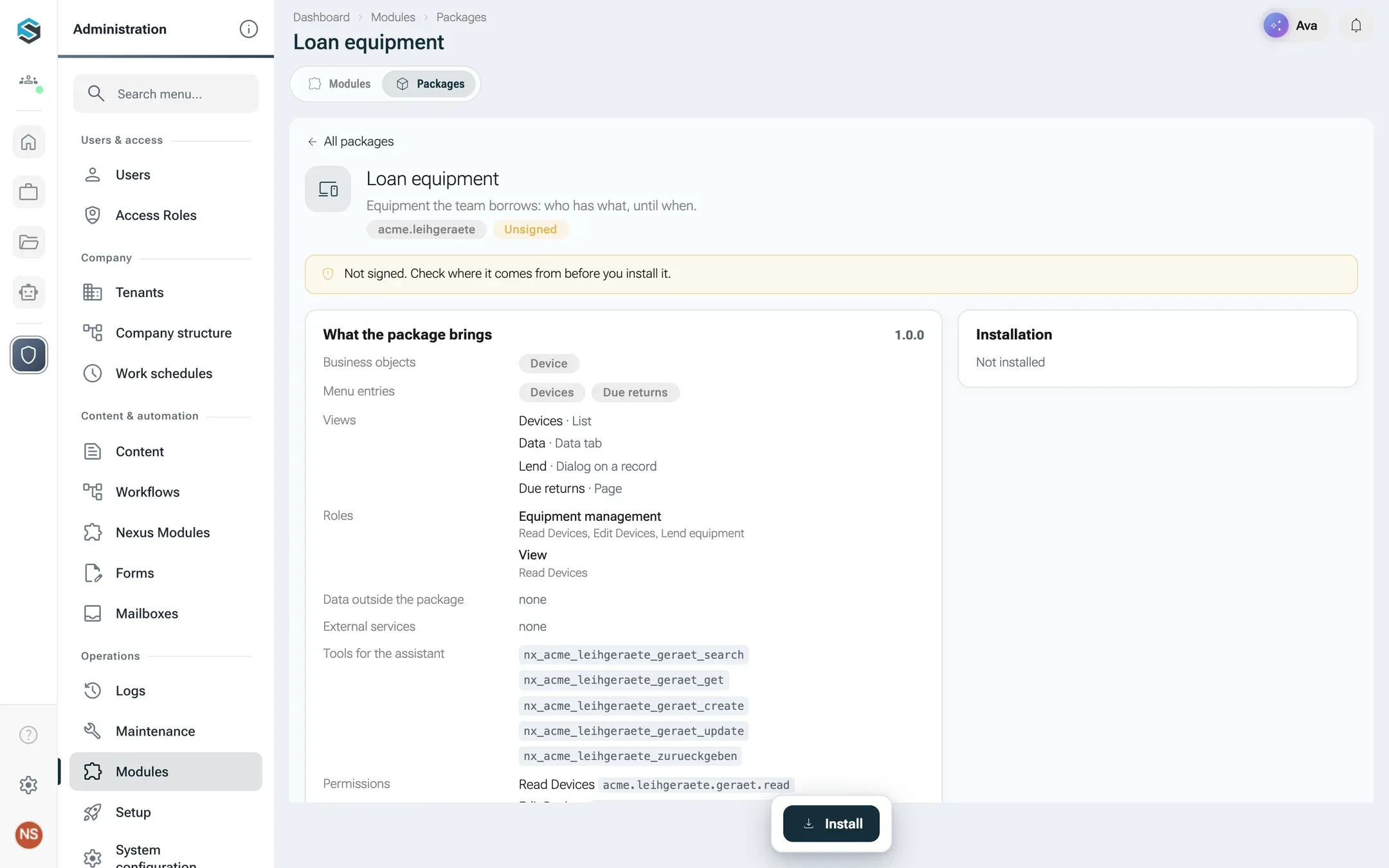
What the tutorial package brings, read from its manifest. -
Click Install in the action bar. The dialog Install Loan equipment opens. Under Your consent it says The package uses no data outside its own., since the package asks for no core data and no external service.
-
Under Assign roles, pick the people for each role and confirm each picker with its green check button. At Brandt & Söhne, Tom Keller from IT gets Equipment management and Mia Schulz gets View. You can leave both empty and assign the roles later in the role editor.
-
Tick Create sample data and click Install. The toast Loan equipment is installed. confirms it.
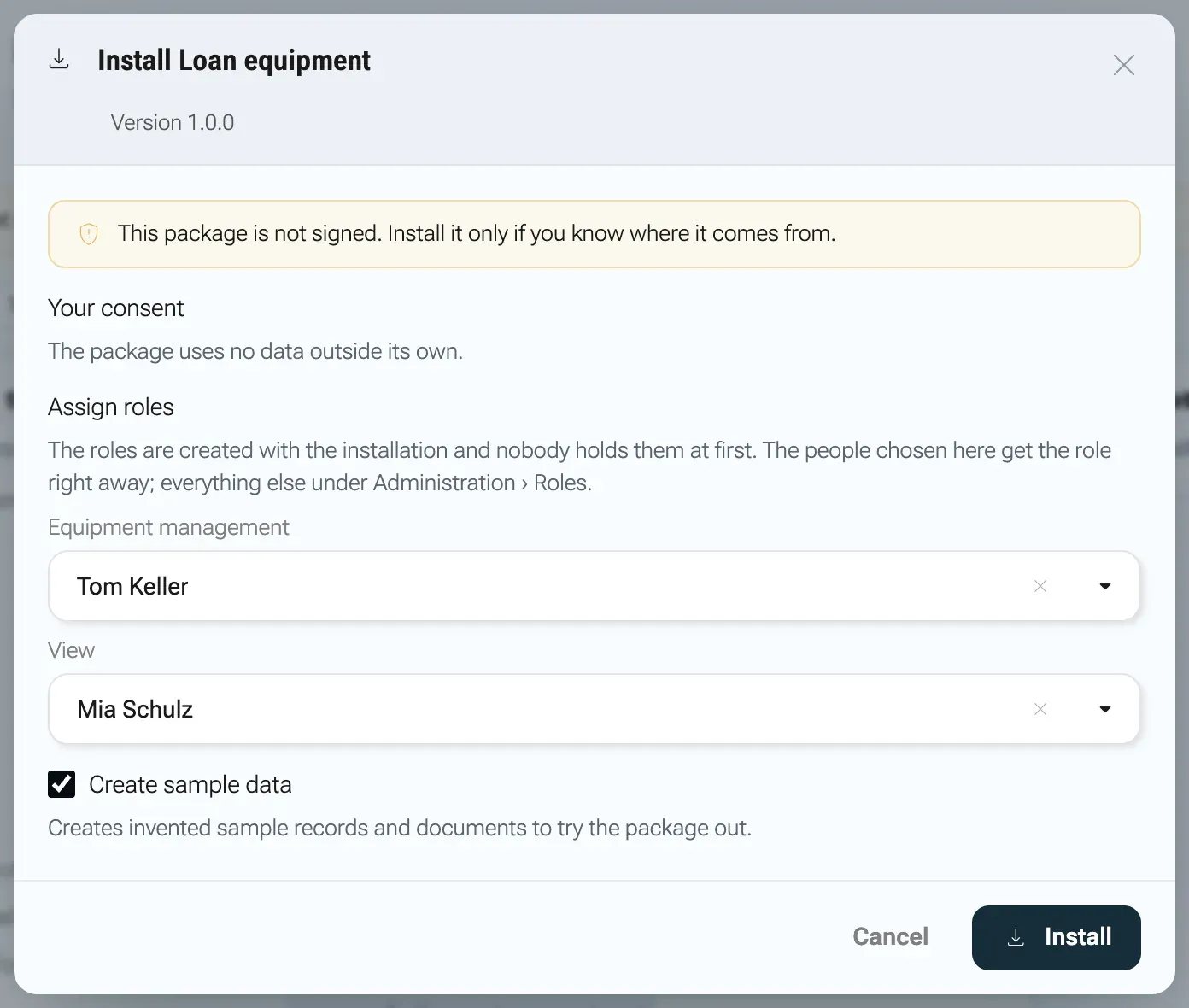
No data outside its own, so there is nothing to consent to.
Try it out
Section titled “Try it out”-
Open the left bar’s area Organisation. Below the built-in sections there is a new section Loan equipment with the entries Devices and Due returns. No reload is needed.
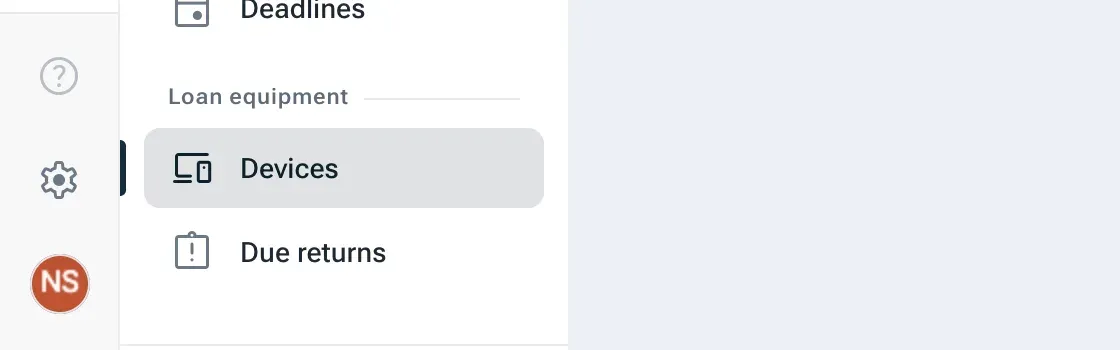
The module appears in the menu without a reload. -
Click Devices (route
/x/acme.leihgeraete/geraet). The list shows the three sample devices with numbers fromGER-0001up, the search field Search Devices, the menus Filter (category, status, person) and Sort, and the button New Device.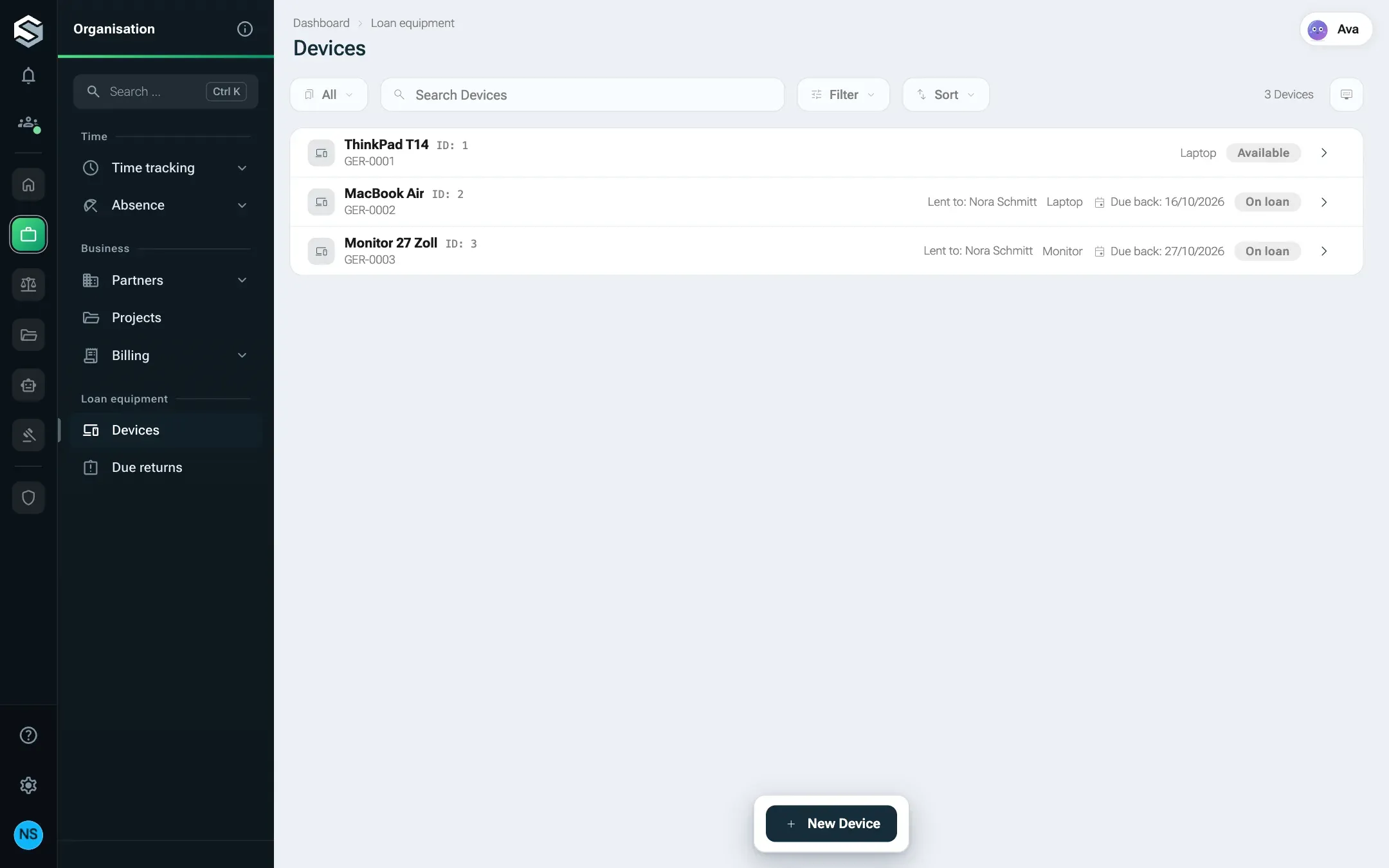
The list comes from the manifest's list view. -
Click New Device. The tab Data shows the sections Device and Loan. The inventory number reads Assigned on creation. Enter a name and click Create.
-
On the new device, click Lend in the action bar. The dialog from
ausleihen.htmlopens with the fields Lend to and Due back. Pick a person, for example Mia Schulz, and a date, and click Lend. The dialog closes and the status shows On loan. The action bar now offers Return instead.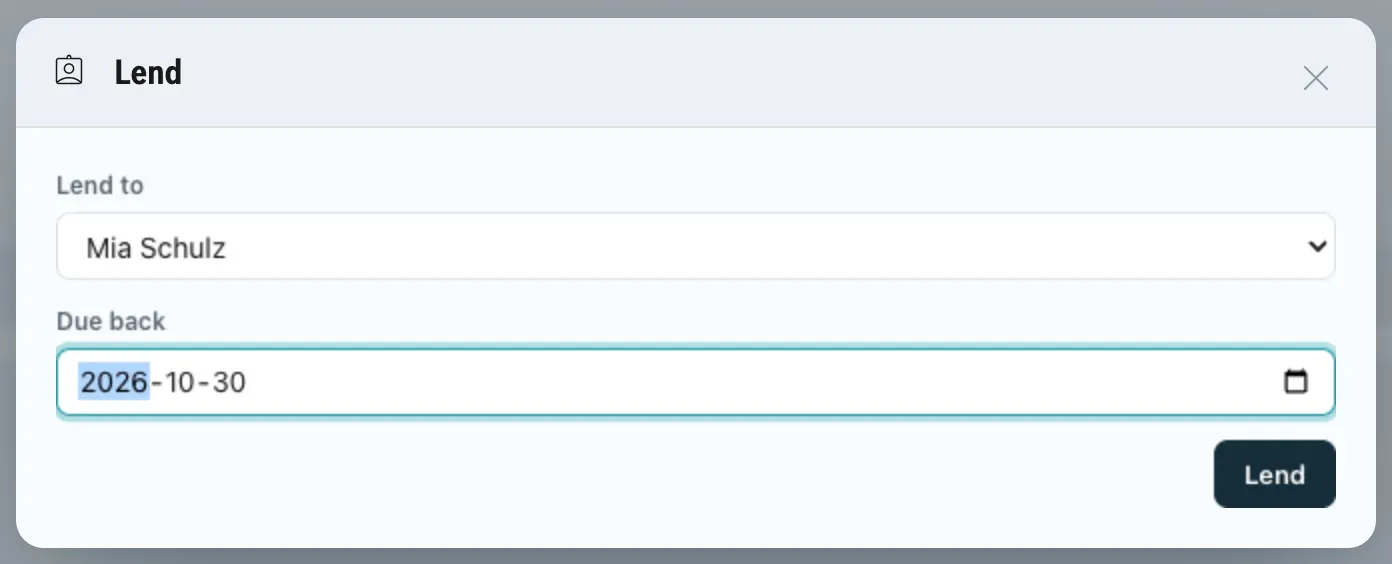
The dialog is a custom view; nexxus draws its header. -
Click Return. nexxus asks Book the device as returned?. Click Run. The toast reads “Return” done.
-
Open Due returns (route
/x/acme.leihgeraete/p/faellig). The sample MacBook is listed, because its return date lies two working days back.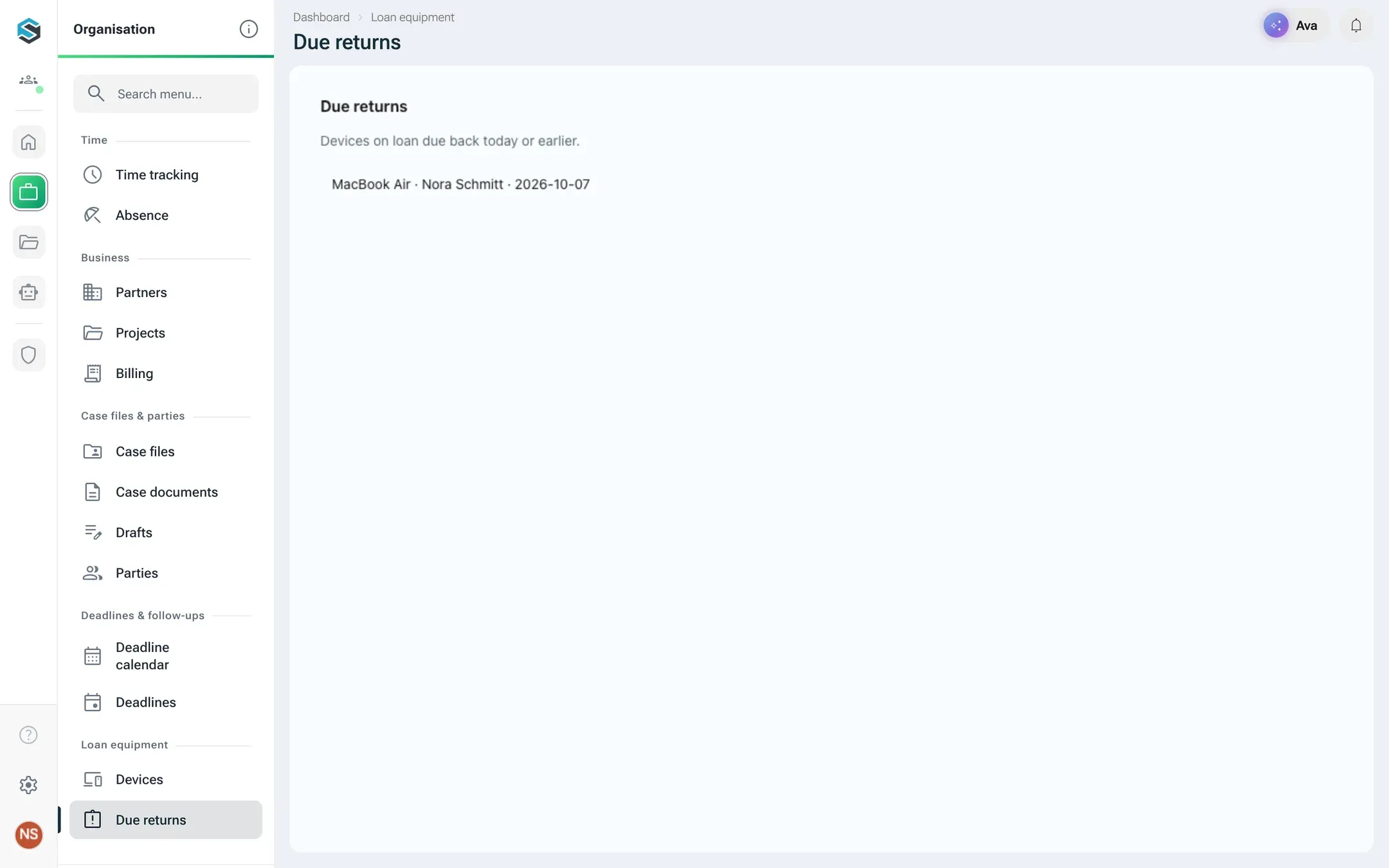
A custom page that searches devices whose return is due. -
Open the AI Assistant on the device list. The example prompt Who has which device? appears as a chip. Ask the AI Assistant to book the MacBook as returned: before anything changes, the chat shows an action card with the three checks Input, State and Permission and the button Execute. The server ran the checks already; a red one names what is missing, and the button stays off. Action names come from the package and stay German. Depending on how you ask, the AI Assistant may pick another action of the module, for example changing the device; the card then shows that one. Ask for two changes at once and one card carries both, with Execute all 2.
People without the administrator role see the module only when they hold one of its roles: Equipment management for everything, View for reading. See Roles.
Ship version 1.1.0
Section titled “Ship version 1.1.0”Brandt & Söhne wants two changes: “Telefon” should read “Smartphone”, and every device needs a location. A released version never changes, so you create version 1.1.0 next to it.
-
Copy the folder
acme.leihgeraete/1.0.0toacme.leihgeraete/1.1.0. -
In the copy’s
module.json, set"version": "1.1.0". In the fieldkategorie, replace the valuetelefonwith:{"key": "smartphone", "label": {"de": "Smartphone", "en": "Smartphone"}} -
Add a new field after
statusand add"standort"to thefieldsof the sectiongeraetingeraet.record:{"key": "standort", "type": "enum", "indexed": true, "default": "buero", "label": {"de": "Standort", "en": "Location"},"values": [{"key": "buero", "label": {"de": "Büro", "en": "Office"}},{"key": "homeoffice", "label": {"de": "Homeoffice", "en": "Home office"}}]} -
Tell nexxus how to move the stored data. Add at the top level of
module.json:"migrations": {"1.1.0": {"pre": [{"op": "renameValue", "entity": "geraet", "field": "kategorie", "from": "telefon", "to": "smartphone"}],"post": [{"op": "setDefault", "entity": "geraet", "field": "standort", "value": "buero"}]}}presteps run before nexxus switches to the new version,poststeps after it.renameValueturns every storedtelefonintosmartphone.setDefaultgives every existing device the locationbuero. -
Add a section on top of
CHANGELOG.md:## [1.1.0] - 2026-10-19- Kategorie „Telefon“ heißt jetzt „Smartphone“; bestehende Geräte werden umgestellt.- Neues Feld Standort (Büro oder Homeoffice); bestehende Geräte stehen im Büro. -
Build it with
node module-package.mjs build acme.leihgeraete/1.1.0and uploadacme.leihgeraete-1.1.0.nxmon the tab Packages. -
The package page shows the chip Update to 1.1.0. Click Upgrade to 1.1.0. The dialog Upgrade Loan equipment shows From 1.0.0 to 1.1.0, the new changelog section under What changes and, under Data changes, a dry run on today’s data:
renameValueongeraet.kategorie(before the switch) andsetDefaultongeraet.standort(after the switch), each with the number of records it changes. With only the sample data, that is 0 and 3 (plus the device you created). There is no section New consent, because 1.1.0 asks for no new data access.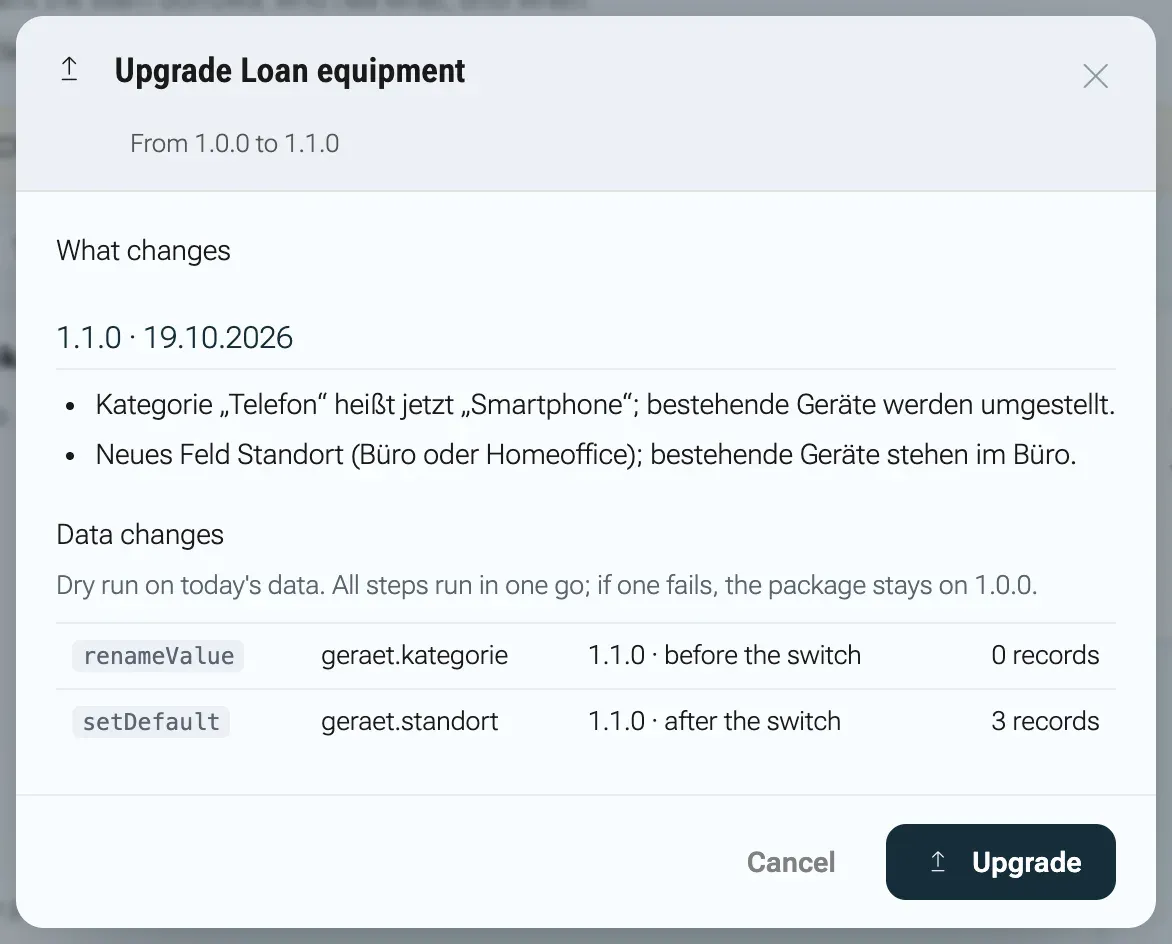
The dry run counts the records each step will change. -
Click Upgrade. The toast reads Loan equipment is upgraded to 1.1.0.
Not every change is allowed in a minor version. Had you made standort required without a default, the update dialog would refuse with the server message Das neue Pflichtfeld 'geraet.standort' hat keinen Standardwert. (the new required field has no default). The rules are listed in Data and upgrades.
What happens behind the scenes
Section titled “What happens behind the scenes”On upload, nexxus unpacks the archive, validates module.json against the package schema and then against the rules a schema cannot express: every column, filter, section and action names a field that exists, menu entries point to lists or pages, roles name existing permissions, files named in the manifest are in the archive. All problems are reported at once. Then it checks MANIFEST.sha256 and the signature. The package is stored for your tenant only.
On install, in one transaction, nexxus:
- creates the installation with the state Active and records your consent,
- creates one access role per manifest role, named after the German names of module and role:
Leihgeräte – GeräteverwaltungandLeihgeräte – Einsicht, and assigns the people you picked, - creates a company-wide skill for the AI Assistant from
assistant.instructions, namedLeihgeräte: Arbeitsweise(way of working), - writes the sample data, resolving placeholders and assigning inventory numbers.
After the commit the menu, the routes and the AI Assistant’s tools are there for everyone with the right permissions. The permissions also appear in the role editor, with the German labels the server builds: „Geräte lesen“, „Geräte bearbeiten“ and „Geräte verleihen“ (read, edit and lend devices).
At runtime, every list, form and action goes through the same server checks, whether a person clicks, a view calls the SDK or the AI Assistant uses a tool. The views run in a sandbox without network access and without access to the page around them.
On update, the pre steps, the switch to 1.1.0 and the post steps run in one transaction. If one step fails, everything rolls back and the module stays on 1.0.0. Roles that existed in 1.0.0 receive permission keys that are new in 1.1.0. Permissions an administrator removed stay removed.
When something goes wrong
Section titled “When something goes wrong”When an upload is refused, the catalogue page shows “acme.leihgeraete-1.0.0.nxm” was not accepted. with the server’s reason and one line per problem. The server writes these messages in German. The ones below are those you meet most often while building.
| Message | Cause and fix |
|---|---|
module.json menu.faellig: nur Listen und Seiten (slot page) gehören ins Menü | A menu entry points to a view that is neither a list nor a custom view with slot page. Point it to such a view. |
module.json views.geraet.list: Filter 'notiz' ist nicht indexed | You filter or sort by a field without "indexed": true. Add the flag. text and json fields cannot be indexed. |
module.json views.geraet.list: sort 'bezeichnung' ist nicht indexed | Same for the list’s sort. |
module.json entities.geraet: searchFields 'rueckgabe_am' muss Text sein | Search fields must be string, text or enum. |
CHANGELOG.md: keine Überschrift '## [1.0.0]' für die Version aus module.json | The changelog has no heading for the manifest’s version. Add ## [1.0.0]. The script stops earlier with CHANGELOG.md: Überschrift "## [1.0.0]" fehlt. |
module.json: area 'lager' ist kein Menübereich (...) | area must be one of the business areas listed in the message. |
Das Archiv enthält kein module.json. | module.json is neither at the top of the archive nor in a single top folder. Build with the script or zip the version folder itself. |
Das Paket ist nicht signiert. Unsignierte Pakete sind auf dieser Plattform nicht zugelassen. | The instance refuses unsigned packages. Sign the package, see Package, install and update. |
acme.leihgeraete 1.0.0 gibt es schon mit anderem Inhalt; eine neue Fassung braucht eine neue Versionsnummer. | You changed files of a version that was already uploaded. Released versions are immutable: raise the version number in module.json and the changelog, with a new version folder or, in a package folder released by git tags, with a new tag. Uploading the identical file again is fine. |
Errors while using the module:
- Mia Schulz, who holds only the role View, opens the dialog Lend and gets the toast
Keine Berechtigung: Ihnen fehlt das Recht 'acme.leihgeraete.verleihen'.(no permission). Custom views are shown to everyone who may read the entity, and they cannot see the person’s rights yet. The server refuses the action. Give Mia Schulz the role Equipment management, or accept that readers see the button. - The menu section does not appear: the person holds none of the module’s roles, or the module is deactivated. Administrators always see it while the module is active. Switching the business area
projekteoff does not hide it.