
Set up your workspace
Connect your AI
Connect one or more language model providers, decide which models your team may use, and set the models for search, dictation and reading aloud. This guide walks the whole setup, from the API key to the first answer from the AI Assistant.
nexxus does not come with a language model of its own. You bring the model: a cloud provider such as IONOS or OpenAI, or a model that runs on your own server. Each workspace (tenant) keeps its own keys and its own model list, so one company’s keys never reach another.
Connecting a provider is only half the job. The other half is deciding what your people see. A provider like OpenAI offers dozens of models, and you probably want your team to choose between two or three of them, under names that make sense to them (“Fast answers”, “Thorough analysis”), at prices you know. That is what this page is about.
Take Brandt & Söhne, a 60-person installation company. Their admin, Jana Brandt, connects IONOS for everyday questions, because the data stays in a German data centre, and OpenAI for image generation. Employees see two models in the AI Assistant’s model picker, called “Standard” and “Thorough”. Nobody sees the technical model ids, and Jana sees what each answer cost.
How a model gets to your team
Section titled “How a model gets to your team”A model goes through four states before anyone can chat with it. The provider must be connected and switched on. You load the provider’s models into nexxus. You switch on the models the AI Assistant may use. And you publish the ones your team should see.
Connect
Enter the API key and switch the provider on.
Sync models
nexxus loads the list of models from the provider.
Activate
The AI Assistant may use the model. Admins can already pick it.
Publish
Everyone sees it in the model picker, under a public name.
A provider delivers more than chat models. nexxus sorts every synced model into one of four kinds and uses one model per kind for the whole workspace:
Providers
- European cloudsIONOS Inference, Scaleway Generative API
- Other cloudsOpenAI, Anthropic, Google Gemini, Moonshot AI, Inceptron
- Your own serversOllama, vLLM, LM Studio, LiteLLM, a company proxy
AI settings of your workspace
One page per provider, one model per purpose
- Chat
- Embeddings
- Speech-to-text
- Text-to-speech
Used for
- AI AssistantAnswers, tools, proposals
- Search by meaningKnowledge and document content
- VoiceDictation and reading answers aloud
Which provider to choose
Section titled “Which provider to choose”nexxus offers eight provider types. Seven are fixed services with a known address. The eighth, OpenAI-kompatibel (eigene URL) (OpenAI-compatible, own URL), connects anything that speaks the OpenAI API, which covers most self-hosted model servers. The provider names come from the AI gateway and read the same in every app language.
| Provider type in the app | Address used by default | API key | Can be added more than once |
|---|---|---|---|
| OpenAI | https://api.openai.com/v1 | required | no |
| Anthropic (Claude) | https://api.anthropic.com | required | no |
| Scaleway Generative API | https://api.scaleway.ai/v1 | required | no |
| IONOS Inference | https://openai.inference.de-txl.ionos.com/v1 | required | no |
| Google Gemini | https://generativelanguage.googleapis.com | required | no |
| Moonshot AI (Kimi) | https://api.moonshot.ai/v1 | required | no |
| Inceptron | https://openrouter.inceptron.io/v1 | required | no |
| OpenAI-kompatibel (eigene URL) | none, you enter it | optional | yes, one entry per endpoint |
If your data should stay in Europe, IONOS (Germany) and Scaleway (France) are the European providers in the list. If it should not leave your network at all, run the model yourself and connect it as an OpenAI-compatible endpoint (see Models on your own server).
A few things only work with a particular provider today. Keep them in mind when you plan:
- Image generation (the connector Image) always uses the OpenAI provider of your workspace with the model
gpt-image-1. Without an OpenAI provider, the AI Assistant cannot create images. - Embeddings and speech-to-text fall back to OpenAI models when you select none (details in One model per purpose).
Before you start
Section titled “Before you start”- You hold the admin role, or a role with the permission block AI Providers set to Write. With Read (management) alone you can open the page but not save, test or sync.
- You have an API key from the provider. For an own endpoint that needs no key, you need its address instead.
- The nexxus AI gateway is running. If it is not, the provider list stays empty (see When something goes wrong).
The AI Assistant belongs to every workspace. In the setup step Areas it is listed under Always included as AI assistant and cannot be switched off. What leaves your workspace, you control through the provider you choose, the connectors and the embeddings switch (see Data protection and consent).
Add a provider
Section titled “Add a provider”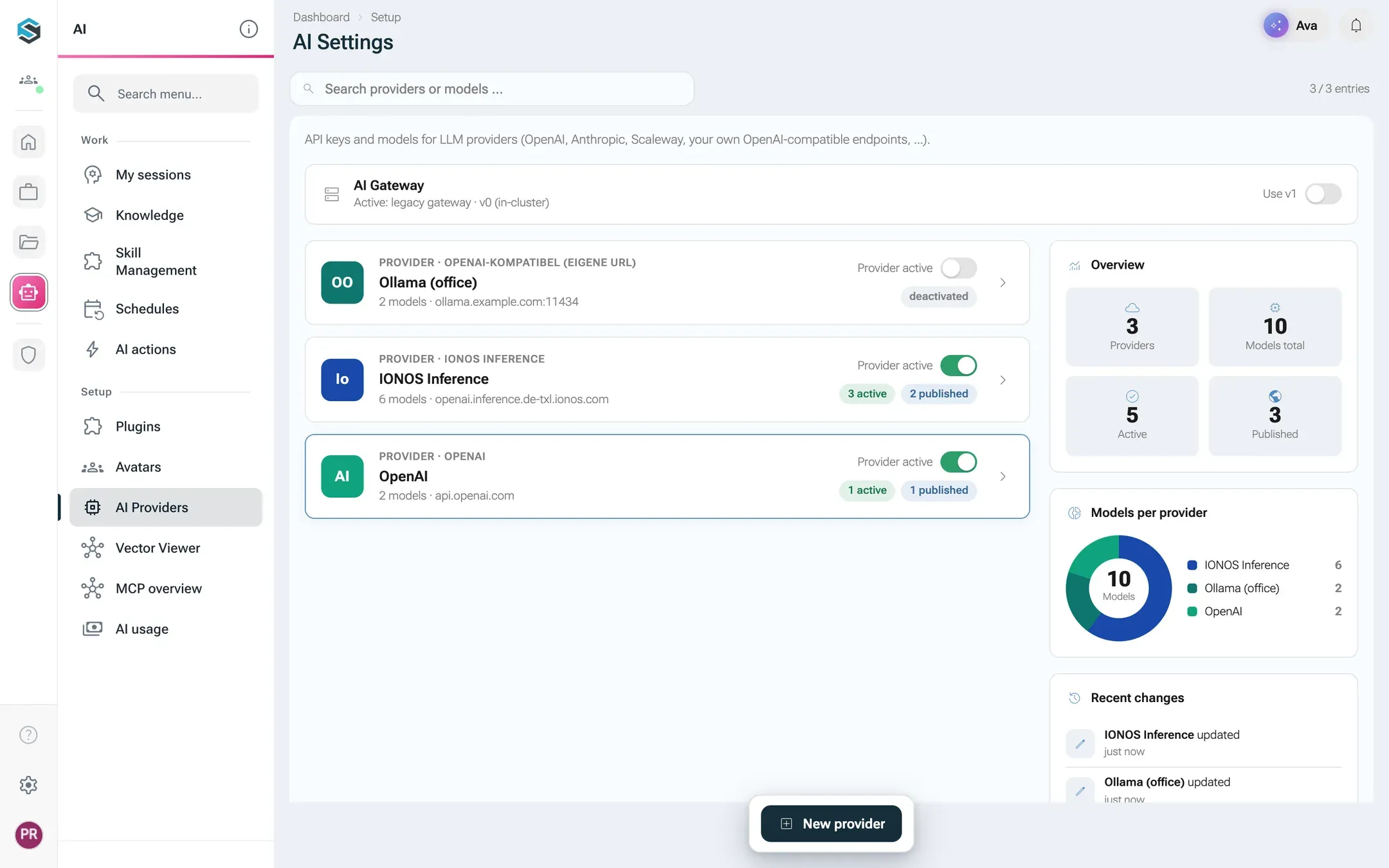
-
Open AISet up AIAI Providers. The page is titled AI Settings and lists the providers you have connected, each with a switch Provider active.
-
Click New provider at the bottom of the page. A menu Choose provider type opens with every type you have not connected yet. Pick one, for example IONOS Inference.
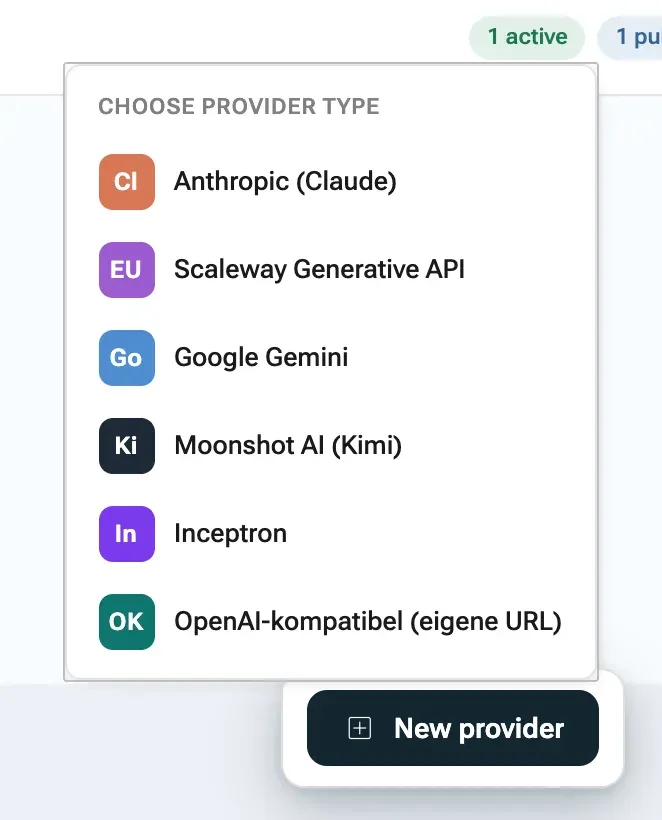
Only types you have not connected yet appear. The OpenAI-compatible type is always offered. -
The provider page opens. Switch to the tab Credentials and paste the key into API key. Leave Base URL empty unless you route the provider through a proxy: nexxus then uses the address from the table above.
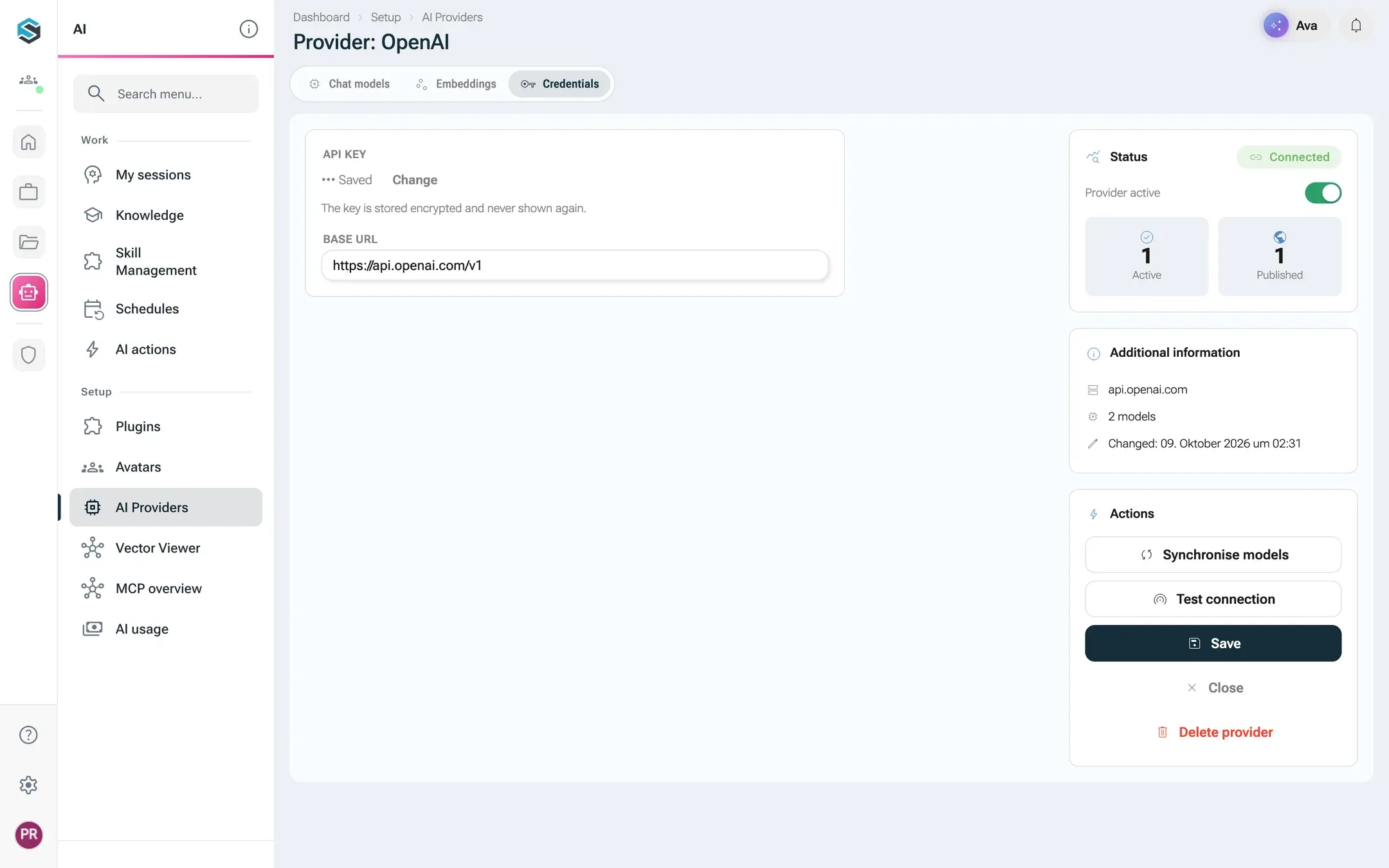
The key is stored encrypted and never shown again. -
In the panel on the right, turn on Provider active. As long as it is off, the AI Assistant cannot use any model of this provider.
-
Optional: click Test connection. nexxus asks the provider for its model list with your key. A green message such as “Authenticated. 42 models reachable.” means the key works.
-
Click Synchronise models. nexxus loads all models of the provider into the tab Chat models and saves the provider in the same step. The message Models synchronised and saved confirms it. New models arrive switched off.
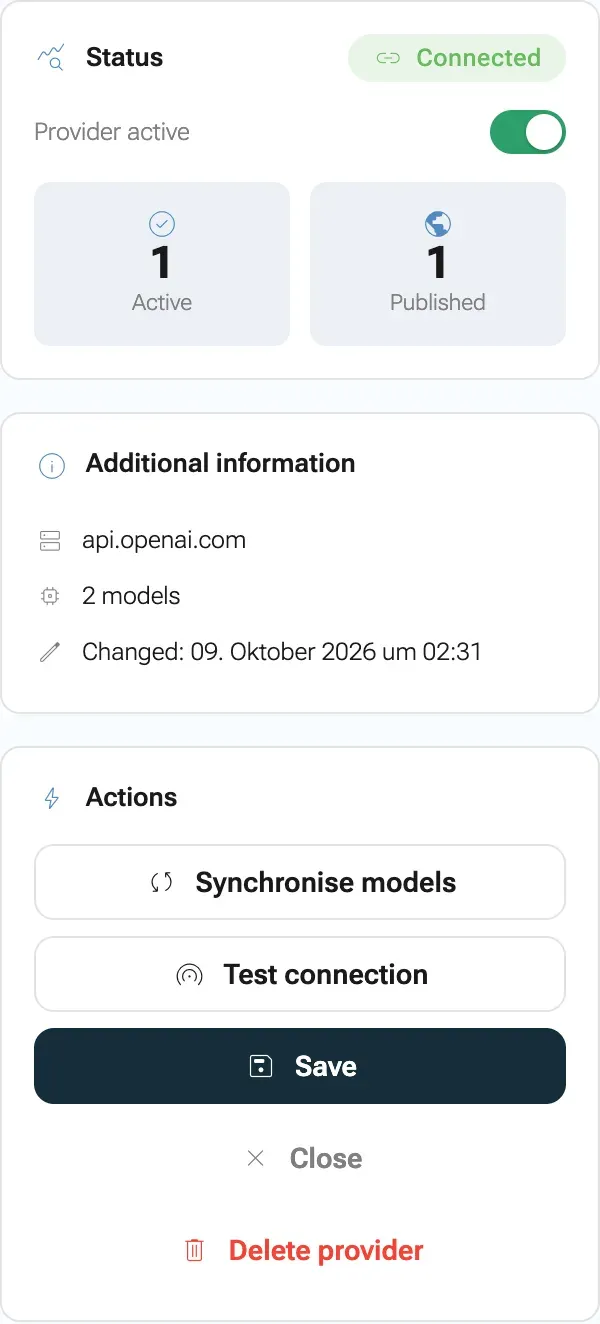
Synchronise models loads the provider's models and saves in the same step. -
On Chat models, turn on Active for each model the AI Assistant may use. Then turn on Published for the models your team should see, and give each a public name and a one-line description. The next section explains every column.
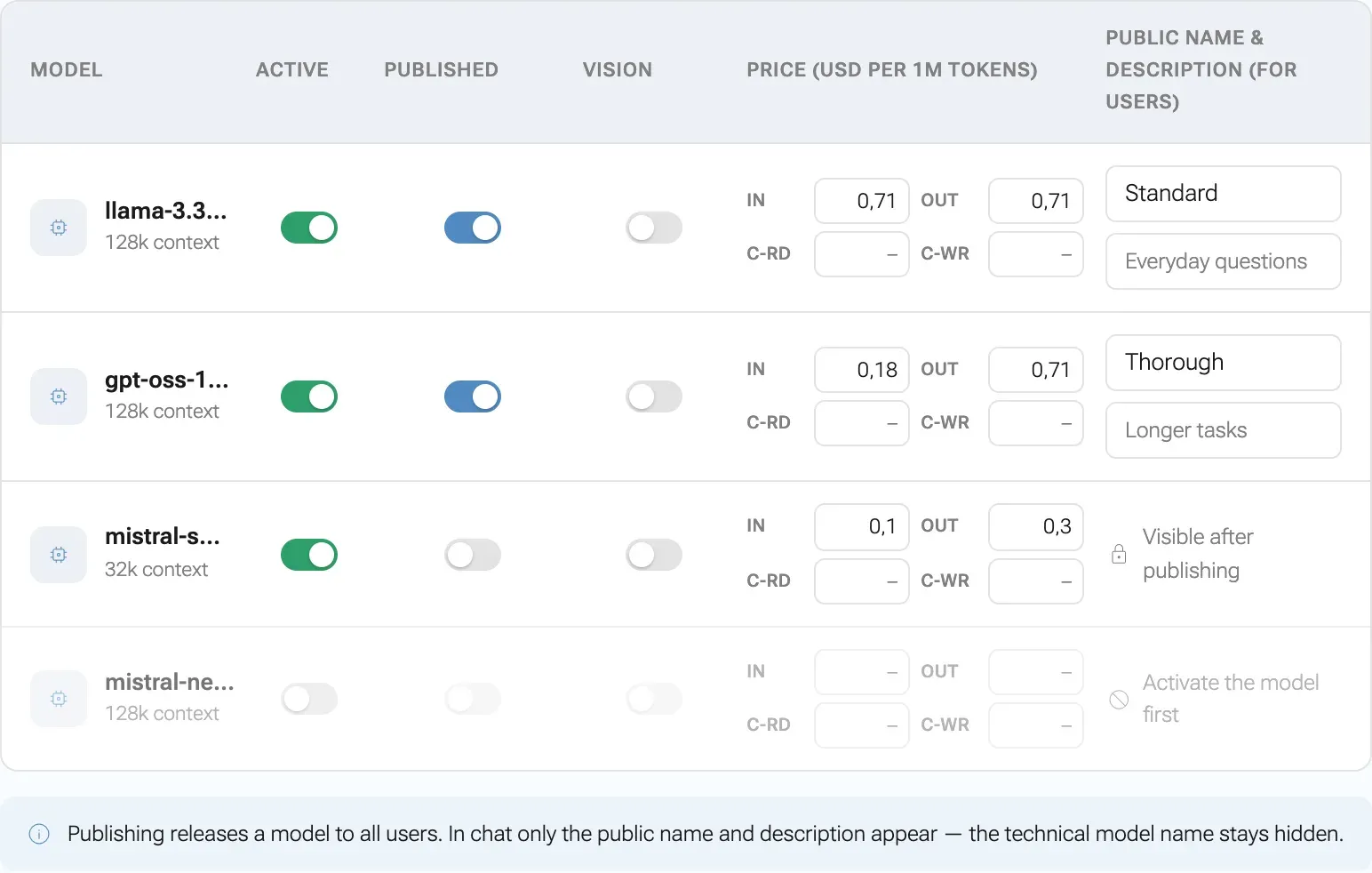
Active lets the AI Assistant use a model, published shows it to everyone under its public name. -
Click Save. The message Saved confirms it.
-
Open the AI Assistant with the button at the top right and click the model button in the input area. Your published models are listed under their public names. Ask a first question.
To change a provider later, click its card in the list. The switch Provider active on the card takes effect immediately, without opening the provider.
Decide what your team sees
Section titled “Decide what your team sees”The table on Chat models has one row per model and these columns:
| Column | What it does |
|---|---|
| Model | The technical model id, with the context size when the provider reports it (for example “128k context”). |
| Active | The AI Assistant may use the model. Turning it off also unpublishes it. |
| Published | Everyone in the workspace sees the model in the picker. Only possible for an active model. |
| Vision | The model can see images. For models nexxus knows, this is fixed and greyed out. For models behind your own endpoint or proxy, you set it. |
| Price (USD per 1M tokens) | What the model costs, so nexxus can calculate the cost of each answer. See Costs. |
| Public name & description (for users) | The name and one-line description your team sees. Only shown for published models. |
What the two switches mean for different people:
| Admins | Everyone else | |
|---|---|---|
| Active, not published | sees the model in the picker | does not see it |
| Active and published | sees it | sees it, under its public name |
| Not active | does not see it | does not see it |
That makes “active, not published” a good state for trying out a new model yourself before you hand it to the team.
A published model without a public name is saved with its technical id as name. Give it a real name: your colleagues choose by that name, and the hover card in the picker shows your description.
The model a conversation starts with
Section titled “The model a conversation starts with”nexxus has no separate “default model” setting. A new conversation starts with the model the person picked last time (their browser remembers it). If they never picked one, it starts with the model marked Recommended in the picker. The AI gateway chooses that one: the first published chat model of your active providers, unless your operator has set an installation-wide default model that is also active for your workspace.
If you want everyone to start with one particular model, publish only that one at first and keep the others active but unpublished until your team knows its way around.
One model per purpose
Section titled “One model per purpose”Besides chat models, providers offer models for embeddings, speech-to-text and text-to-speech. The AI gateway recognises them by their id when you sync (for example text-embedding-3-small, whisper-1, tts-1), and nexxus lists them on their own tabs. The tabs only appear when the provider has such models.
| Tab | Purpose | If you select nothing |
|---|---|---|
| Embeddings | Turns knowledge entries and document content into vectors for search by meaning. Must produce 1536 dimensions. | OpenAI text-embedding-3-small, through your OpenAI provider |
| Speech-to-text | Turns dictation in the chat into text. | OpenAI gpt-4o-transcribe, through your OpenAI provider |
| Text-to-speech | Reads the AI Assistant’s answers aloud. | the browser’s built-in voice, at no cost |
Each tab has a switch Use per model. Your workspace uses exactly one model per purpose, across all providers. If another provider already holds the selection, the tab says so: “Currently selected: … from … Selecting one here replaces it.” Saving here takes the selection away from the other provider.
Changing the embedding model has a consequence: every stored vector has to be calculated again. nexxus asks before it does that. The full story is on Search by meaning. Dictation and reading aloud are covered in Voice.
Models on your own server
Section titled “Models on your own server”Ollama, vLLM, LM Studio, LiteLLM and most company proxies offer an OpenAI-compatible API. You connect each of them as its own entry of the type OpenAI-kompatibel (eigene URL), and you can add as many as you like.
-
Click New provider and pick OpenAI-kompatibel (eigene URL). The page opens directly on Credentials.
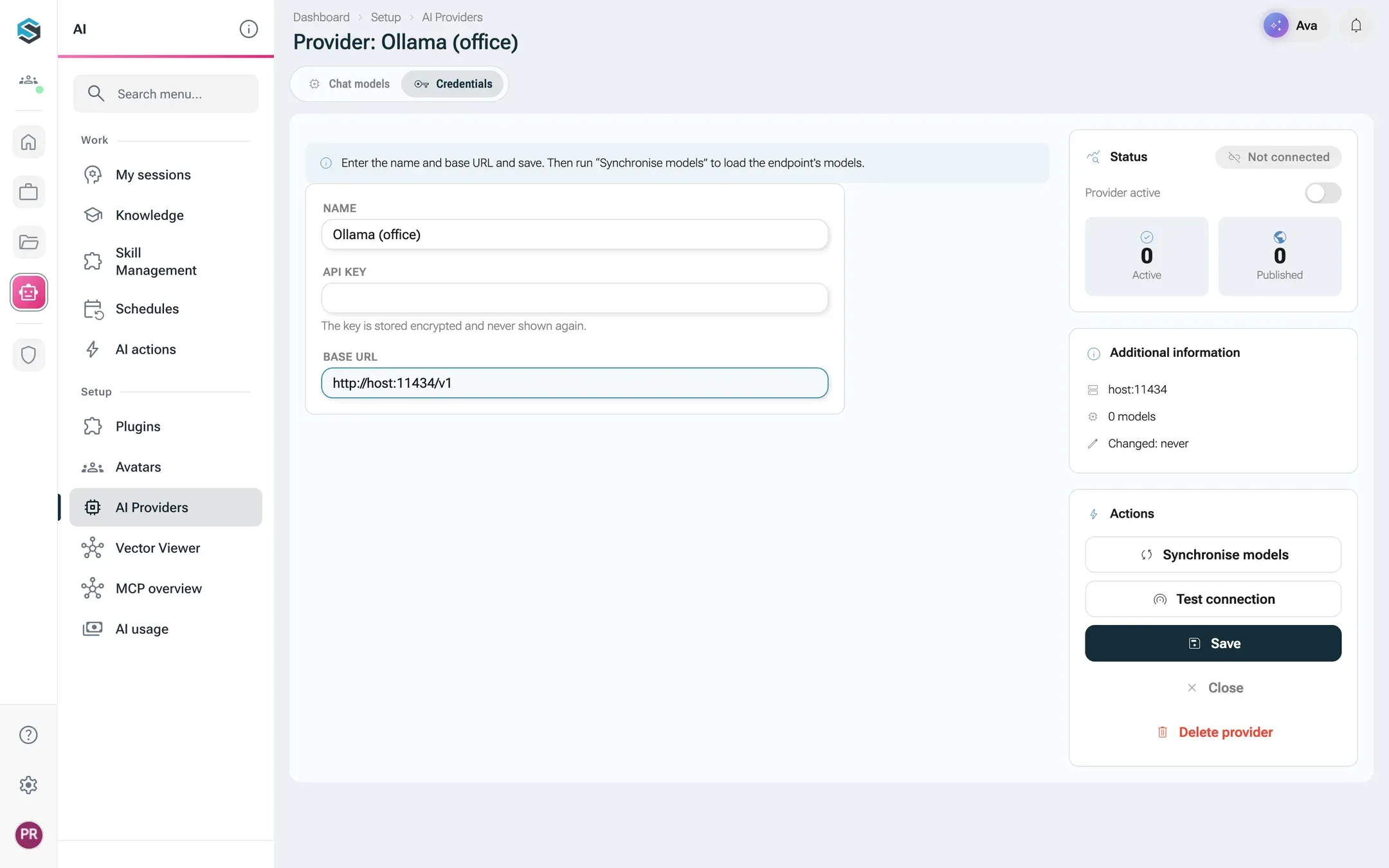
The base URL must be reachable from the AI gateway, not only from your browser. -
Enter a Name, for example “Ollama (office)”. Your team sees it next to the models, so make it recognisable.
-
Enter the Base URL including
/v1, for examplehttp://host:11434/v1. -
Leave API key empty if the server needs no key. nexxus then sends no authorisation header at all.
-
Turn on Provider active, click Save, then Synchronise models, and continue as for any other provider.
Two limits apply to own models. nexxus cannot always tell whether such a model sees images, so set Vision yourself. And for embeddings, the model must deliver vectors with 1536 dimensions. Many small embedding models deliver 768 or 1024, and nexxus refuses them when you save.
AI costs money per token, and nexxus can show you what each answer cost, per person, per model and per month. For that it needs the prices.
Enter prices
Section titled “Enter prices”In the column Price (USD per 1M tokens) each active model has four fields, all in US dollars per million tokens, the way providers publish their price lists:
| Field | Meaning |
|---|---|
| In | Input tokens: what the AI Assistant sends to the model. |
| Out | Output tokens: what the model writes back. |
| C-Rd | Tokens read from the provider’s prompt cache. |
| C-Wr | Tokens written into the prompt cache. |
Two rules keep the numbers honest:
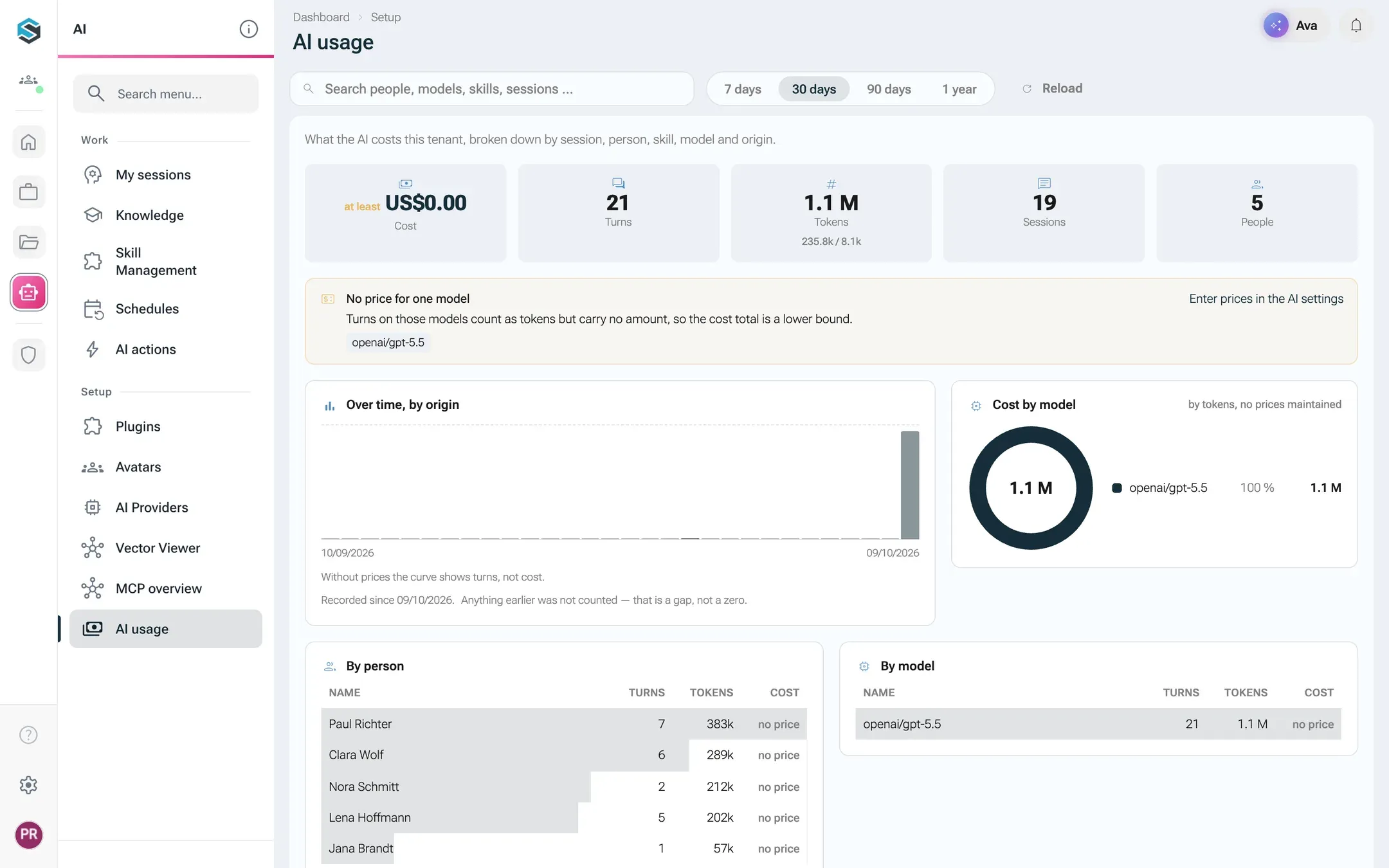
- An empty field means “not maintained”, not “free”. Answers from a model without a price are counted in tokens, and the usage page says that a price is missing. It does not book them as zero.
- Cache prices are charged on top of input. nexxus receives input, cache reads and cache writes as separate counts. If your provider charges for cached tokens and you leave the cache fields empty, the total comes out too low. (OpenAI charges for cache reads only.)
The cost of each answer is calculated when the answer is recorded, at the price valid at that moment. Changing a price later does not rewrite past answers.
Show costs in euros
Section titled “Show costs in euros”Prices stay in dollars because providers publish them that way. To see euros on the usage page, set an exchange rate in AdministrationOperationsSystem configuration, section AI costs, field Rate: euros per US dollar, for example 0.92. Leave it empty or set 0 to go back to dollars.
Who sees what
Section titled “Who sees what”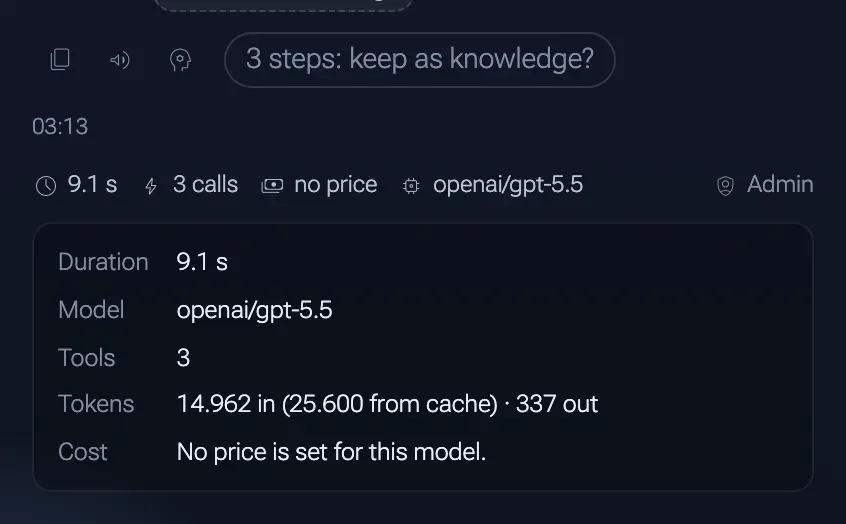
- Admins see a line under every finished answer in the AI Assistant’s column with the duration, the number of tool calls, the cost and the model. Clicking it shows the tokens (input, from cache, output) and the cost in detail. Nobody else sees this line.
- Everyone else sees a Usage cost scale in the model picker: Low, Medium, High or Very high. nexxus mixes three parts input price and one part output price per million tokens: under 1 dollar is low, up to 5 medium, up to 15 high, above that very high. A model without a price has no scale.
- The page AISet up AIAI usage (admins only) breaks down the costs of the last 7, 30 or 90 days or the last year by person, model, skill, origin (chat, schedule, skill) and the most expensive sessions. If prices are missing, it says how many models lack one and marks totals as a lower bound.
Data protection and consent
Section titled “Data protection and consent”What leaves your workspace, and when:
- The conversation goes to the provider you connected. The AI Assistant sends the question, the page context and whatever tools found to the chat model you selected. There is no extra confirmation for this step: choosing the provider is your decision as admin. Pick a European provider or your own server if the data must stay in Europe or in house.
- Names and identifiers can go out as placeholders. With pseudonymisation on, the gateway replaces them by table and pattern before the request leaves and puts them back in the answer, without a model. See Pseudonymisation.
- Other external services ask first. When the AI Assistant wants to use a tool that sends data to another service, the conversation pauses and the person sees a dialog Allow external service? For image generation the text comes from the server in German: “Für das Bild geht die Beschreibung an den Bilddienst des eingerichteten KI-Anbieters (standardmäßig OpenAI, außerhalb der EU). Einverstanden?” (the image description goes to the image service of the configured AI provider, OpenAI outside the EU by default; do you agree?). The answer counts for the rest of that conversation.
- Connector actions that change something elsewhere are confirmed one by one, on a card with Confirm and Decline.
- Search by meaning can be switched off. If no text should go to an embedding provider, turn off embeddings in the system configuration. See Search by meaning.
How this looks from a user’s side is described in Working with the AI Assistant.
Check that everything works
Section titled “Check that everything works”- On the provider page, the panel Status shows Connected when the provider is active and holds a key (or needs none). This is not a live check. Use Test connection for that.
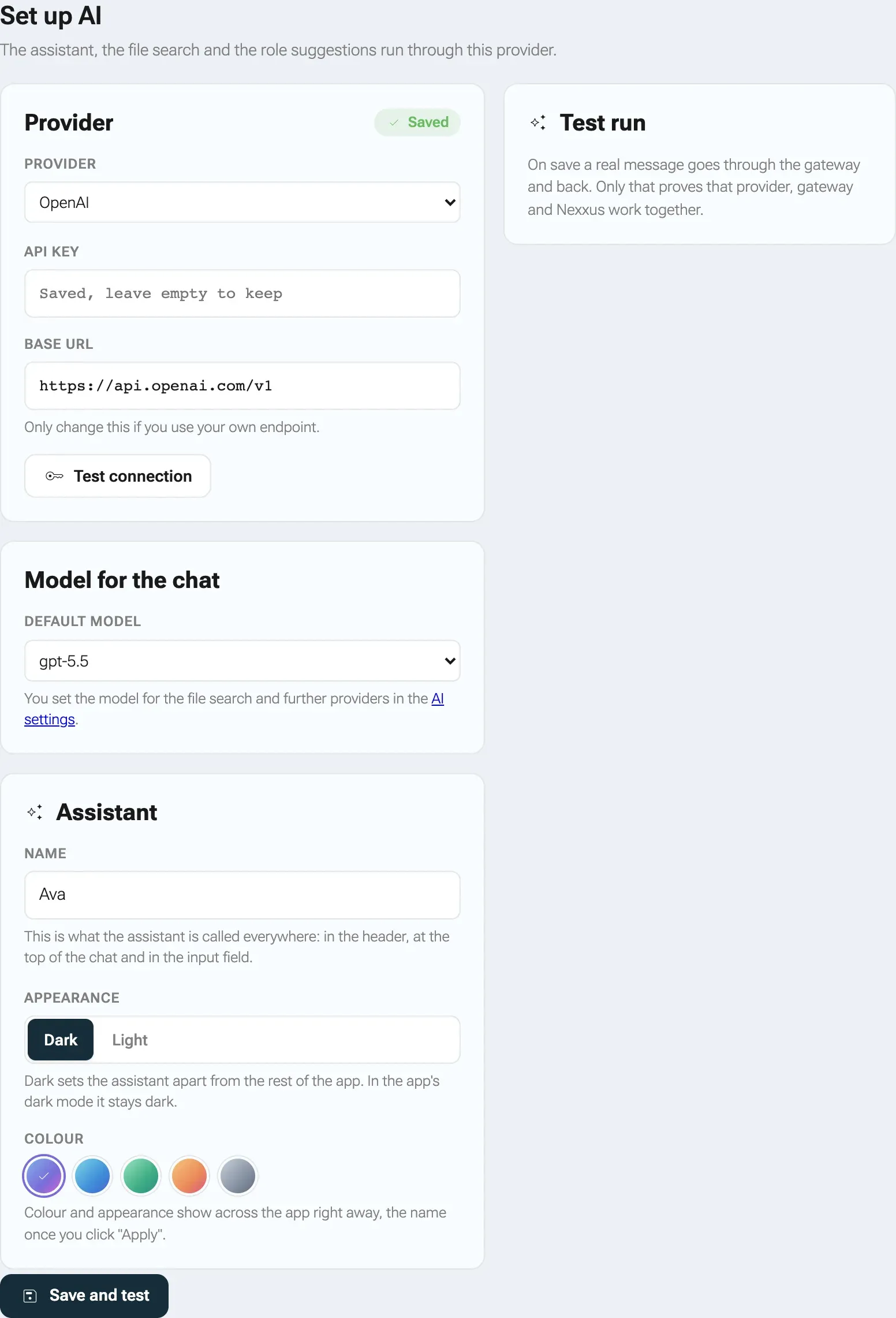
- In AdministrationOperationsSetup, the step AI has a button Save and test that sends a real message through the AI gateway and back. It shows three checks, Provider and model, the gateway check and Model answers, plus the answer itself.
- If the AI gateway stops responding, the menu entry AI Providers gets a red dot. Hover it to see the reason.
The card AI Gateway at the top of the provider list shows which gateway generation your workspace uses. Leave the switch Use v1 as it is unless your operator asks you to change it.
What happens behind the scenes
Section titled “What happens behind the scenes”- Keys are encrypted. nexxus stores API key, base URL and model filter of each provider encrypted with AES-256-GCM and never shows the key again. The form only says ••• Saved with a button Change. Tests and syncs use the stored key when you do not type a new one.
- The AI gateway holds no keys of its own. For each request it asks nexxus for the active providers of your workspace and their keys, and caches them for about 30 seconds. Saving or deleting a provider clears that cache at once.
- Model kinds come from the model id. When you sync, the AI gateway sorts each model by its name: ids containing “embed” go to embeddings, “whisper” or “transcribe” to speech-to-text, “tts” to text-to-speech. Image, audio and moderation models are hidden. Everything else is a chat model.
- Several own endpoints each get their own internal id, built from the type and the name you gave (for example
openai-compatible-ollama-office). Renaming is not possible in the setup wizard; use the provider page. - Deleting a provider with Delete provider removes it from the list and from the AI Assistant. If it held the embedding model, nexxus recalculates all vectors with the fallback model, and the delete dialog says so.
When something goes wrong
Section titled “When something goes wrong”The validation messages come from the server and are German in every app language.
| Message or symptom | Cause and fix |
|---|---|
| “Für diesen Provider ist ein API-Key erforderlich.” (an API key is required for this provider) | Every type except the OpenAI-compatible one needs a key when you create it. Enter the key on Credentials. |
| “Bitte einen Namen für den Endpunkt angeben.” (please name the endpoint) | A new OpenAI-compatible endpoint needs a Name. |
| “Bitte die Basis-URL des Endpunkts angeben, z. B. http://host:11434/v1.” (please enter the base URL) | A new OpenAI-compatible endpoint needs its address. |
| “Die Basis-URL muss eine http(s)-Adresse sein, z. B. http://host:11434/v1.” (the base URL must be an http(s) address) | The address must start with http:// or https:// and contain a host. |
Synchronisation failed followed by missing_api_key | No key is stored or typed. Add it on Credentials. |
Synchronisation failed followed by http_401 or http_403 | The provider rejected the key. Check it at the provider. |
Synchronisation failed followed by Gateway HTTP and a number | The AI gateway could not handle the request. Ask your operator to check the gateway. |
| Test result “API key is required.” | Same as missing_api_key. |
| Test result “HTTP 404 from” followed by an address | The base URL is wrong. For OpenAI-compatible endpoints it must end with /v1. |
| The list says The gateway is not reporting any providers. Is it running? | You have not connected a provider yet, or the AI gateway does not answer. If New provider shows no types, it is the gateway. |
| Red dot on AI Providers, tooltip Gateway unreachable | The AI gateway is down or unreachable from nexxus. Your operator needs to look at it. |
| A colleague cannot find a model in the picker | The model is active but not published, or the provider is switched off. |
| New provider is greyed out | All provider types are connected already. The OpenAI-compatible type stays available, so this only happens when the gateway sends no catalog. |
| The setup test says “Kein Anbieter mit eingeschaltetem Modell.” (no provider with an active model) | No active provider has an active chat model. Activate one on Chat models. |
| Saving the embedding model fails with “returns 768 dimensions, the vector store needs 1536” | The model produces vectors of the wrong size. Choose a model with 1536 dimensions. See Search by meaning. |
For operators
Section titled “For operators”If you run nexxus yourself, these settings belong to the AI setup:
| Setting | Purpose |
|---|---|
NEXXUS_SECRETS_KEY | Base64 key of 32 bytes for encrypting provider keys and other secrets. Create one with openssl rand -base64 32. Required: without it nexxus refuses to start. Only a developer machine (./gradlew bootRun, or the profile local, dev or test) falls back to a built-in development key. |
AI_GATEWAY_URL, AI_GATEWAY_V0_URL, AIASSISTANT_GATEWAY_URL | Address of the AI gateway. Several parts of nexxus read different names, so set all three to the same value, as the reference Kubernetes setup does. |
AI_GATEWAY_TOKEN, AI_GATEWAY_V0_TOKEN, AIASSISTANT_GATEWAY_TOKEN | The shared token between nexxus and the gateway, in both directions. Same value in all three. It must match the entry for this installation in the gateway’s project list. |
AI_GATEWAY_AUTH_MODE | token (default) or jwt. Decides which gateway generation workspaces use unless an admin switches it on the provider page. |
AI_GATEWAY_V0_AUTH | token (default) or jwt. With jwt every call to the static-token generation carries a short-lived signed token instead of the shared token. The gateway then takes the workspace and the person from that token and refuses a request that names others. The installation’s entry in the gateway’s project list needs the same secret as jwtSecret. |
NEXXUS_AI_GATEWAY_JWT_SECRET | Shared signing secret for the JWT gateway generation and for AI_GATEWAY_V0_AUTH=jwt. At least 32 characters. |
AI_GATEWAY_V1_URL | Address of the JWT gateway generation. |
AI_EMBEDDINGS_ENABLED | false locks search by meaning off for every workspace. |
The AI gateway calls back into nexxus for keys, tools and knowledge, so it must be able to reach the nexxus backend. Its own defaults for embeddings (EMBEDDING_PROVIDER, EMBEDDING_MODEL) and an optional installation-wide chat model (DEFAULT_CHAT_MODEL, written as provider/model) live in the gateway’s configuration.