
Set up your workspace
Roles and rights
Decide who may do what in nexxus. This page explains the two role layers, permission keys, where the first roles come from, how to edit and assign roles, how rights open pages, and what the AI Assistant may do with a person's rights.
Rights in nexxus answer one question for every page, button and API call: may this person do this here? The answer comes from the roles the person holds. Everything else follows from it: what appears in the menu, which buttons show, what the server accepts, and what the AI Assistant may do when that person asks.
Back at Brandt & Söhne: the fitters book their own hours and request leave, but must not see their colleagues’ timesheets. The two team leads plan projects and approve leave. The bookkeeper reads everyone’s months for payroll and writes invoices. And an external auditor comes in once a year and should read the security documentation without changing anything. Four roles cover all of it.
Two layers of roles
Section titled “Two layers of roles”nexxus keeps two kinds of roles apart.
System roles are coarse. They decide whether someone may reach a part of the application at all, and one of them, ADMIN, lifts every other restriction. You see them on a user’s tab Master data under Roles.
Access roles are where the everyday rights live. Each one is a set of permission keys such as “read projects” or “write invoices”. You create and name them yourself, and assign them to people, either for the whole workspace or for one business unit.
A person holds
- A system roleADMIN, STAFF or a few technical ones
- Access rolesSets of permission keys, tenant-wide or per business unit
Rights check
The same check for every request
- Menu
- Pages
- Buttons
- API
Decides
- What the person seesMenu entries, pages and buttons
- What the server acceptsEvery read and every change
- What the AI Assistant may doOnly what the person may do
The system roles
Section titled “The system roles”| System role | What it does |
|---|---|
| ADMIN | Holds every permission key. Only administrators invite people, manage access roles, assign roles, impersonate users, change the system configuration and read the logs. |
| SUPERADMIN | Everything an administrator can, plus technical maintenance such as database migrations. Only a super administrator can grant or remove this role, and only a super administrator changes, deletes or resets the password of an account that holds it or SYSTEM. The account created in the first run holds it. |
| STAFF | The basic role for people who work in the app. Every invited account and, by default, every account created by a Microsoft sign-in gets it. |
| SYSTEM | A technical account for AI work that runs without a person. Nobody can sign in with it. |
Most people in your workspace hold STAFF and one or more access roles. Keep the number of administrators small: an administrator sees everything.
Three things called “role”
Section titled “Three things called “role””Three settings in nexxus carry similar names and mean different things:
- An access role (Access Roles) decides what someone may do.
- A team (Teams) says where someone works. Teams appear on the employee profile and in reports and grant no rights.
- A billing role (Billing roles) says how someone appears on an invoice, for example “Development” with the short name DEV, with an hourly rate per level. It grants no rights either.
Permission keys
Section titled “Permission keys”A permission key names a module and an action, separated by a dot: project.project.read, timesheet.monthlyTimesheet.use. Most modules offer three levels:
| Key | In the role editor | What it opens |
|---|---|---|
<module>.read | Read (management) | The management view: list, detail page, all fields |
<module>.apiRead | Pick (name only, no management) | Only id and name, for pickers and share dialogs, without the management pages |
<module>.write | Write | Create, change and delete |
Some modules have extra keys. The most important one is .use, shown as Own records or Use. It separates a person’s own data from everyone’s:
timesheet.monthlyTimesheet.uselets a person keep and submit their own monthly timesheets.timesheet.monthlyTimesheet.readopens everyone’s months, which is a right for HR and payroll.absence.vacationRequest.uselets a person request their own leave. A team lead decides on their team’s requests with the same key.isms.declaration.uselets a person submit their own self-declarations.
In the same way, isms.incident.report (Report) separates reporting security incidents from handling them: with it, everybody reports what they notice and sees their own reports. All of the tenant’s incidents, with the assessment and the reports to the authorities, need isms.incident.read, a right for the incident team.
The AI area has its own keys, for example ai.session.use (Open and use chats), ai.knowledge.read (Read knowledge) and the connector keys from ai.plugin.read to ai.plugin.admin. Every key is listed in the permissions reference.
Roles add up. Someone with several roles gets the sum of their keys. A role adds rights, it never takes any away. The full list of keys per module is in the permissions reference.
Where the first roles come from
Section titled “Where the first roles come from”nexxus ships no fixed access roles. Your first roles come from the setup wizard, in two ways.
Templates for your areas
Section titled “Templates for your areas”Which role templates the assistant offers depends on the areas switched on in the step Areas: a template appears as soon as one of its areas is on, and it brings only permissions from areas that are on. „Mitarbeiter:in“ (employee) is always there and marked as the default role: every new person who is invited without a role, and every account created by a Microsoft sign-in, gets it.
The template names come from the server and are always German:
| Template | Appears with | What for |
|---|---|---|
| „Mitarbeiter:in“ (employee) | always | book time, file documents, see projects |
| „Teamleitung“ (team lead) | projects, time tracking or absences | steer projects, time and documents |
| „Verwaltung“ (administration) | invoices, contingents & credit or teams & working time models | staff, partners and invoices |
| „ISMS-Verantwortliche“ (ISMS lead) | information security | maintain assets, risks and measures, approve evidence |
| „Auditor“ | information security | read everything in the security area |
| „Gast“ (guest) | projects or files | read only, for example for external auditors |
The employee, team lead and ISMS lead templates include the keys to use the AI Assistant and connectors (open chats, read knowledge, use and connect connectors). „Verwaltung“, „Gast“ and „Auditor“ do not: give those people a second role if they should work with the AI Assistant. Every template except „Gast“ and „Auditor“ includes the .use keys for own monthly timesheets, leave and declarations. The templates create ordinary roles: you can rename and change them afterwards like any other.
Roles proposed by the AI Assistant
Section titled “Roles proposed by the AI Assistant”Instead of the templates you can describe your company in a sentence or two and let the AI propose roles. This needs a connected AI provider (see Connect your AI).
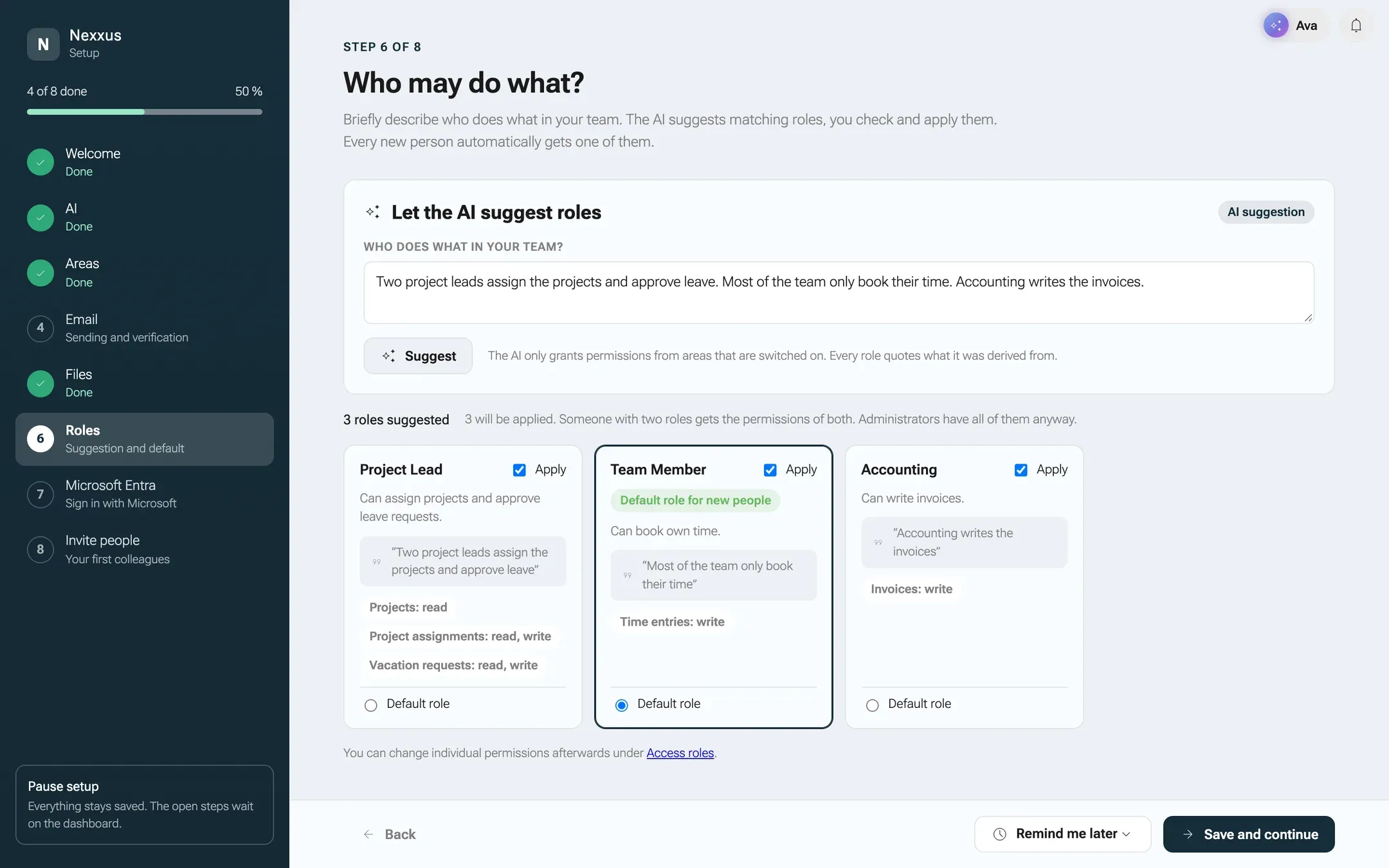
-
Open AdministrationOperationsSetup and choose the step Roles. The page asks Who may do what?
-
In the card Let the AI suggest roles, describe your team under Who does what in your team? For Brandt & Söhne: “Two team leads plan the projects and approve leave. The fitters book their hours. Our bookkeeper writes invoices and does payroll. Once a year an external auditor checks our ISMS.”
-
Click Suggest. The AI only grants permissions from areas that are switched on, and every role quotes the part of your text it was derived from.
-
Check each proposed role. Its chips show the permissions per module, for example “Projects: read, write”. Untick Apply for roles you do not want, and mark one as Default role.
-
Click Apply roles. nexxus creates the roles. A role with the same name as an existing one updates that role instead of creating a second.
The AI never proposes an administrator role and gives each role as few rights as the description allows. If the AI is not reachable or proposes nothing usable, the page falls back to the templates for your areas and says so.
Create and edit a role
Section titled “Create and edit a role”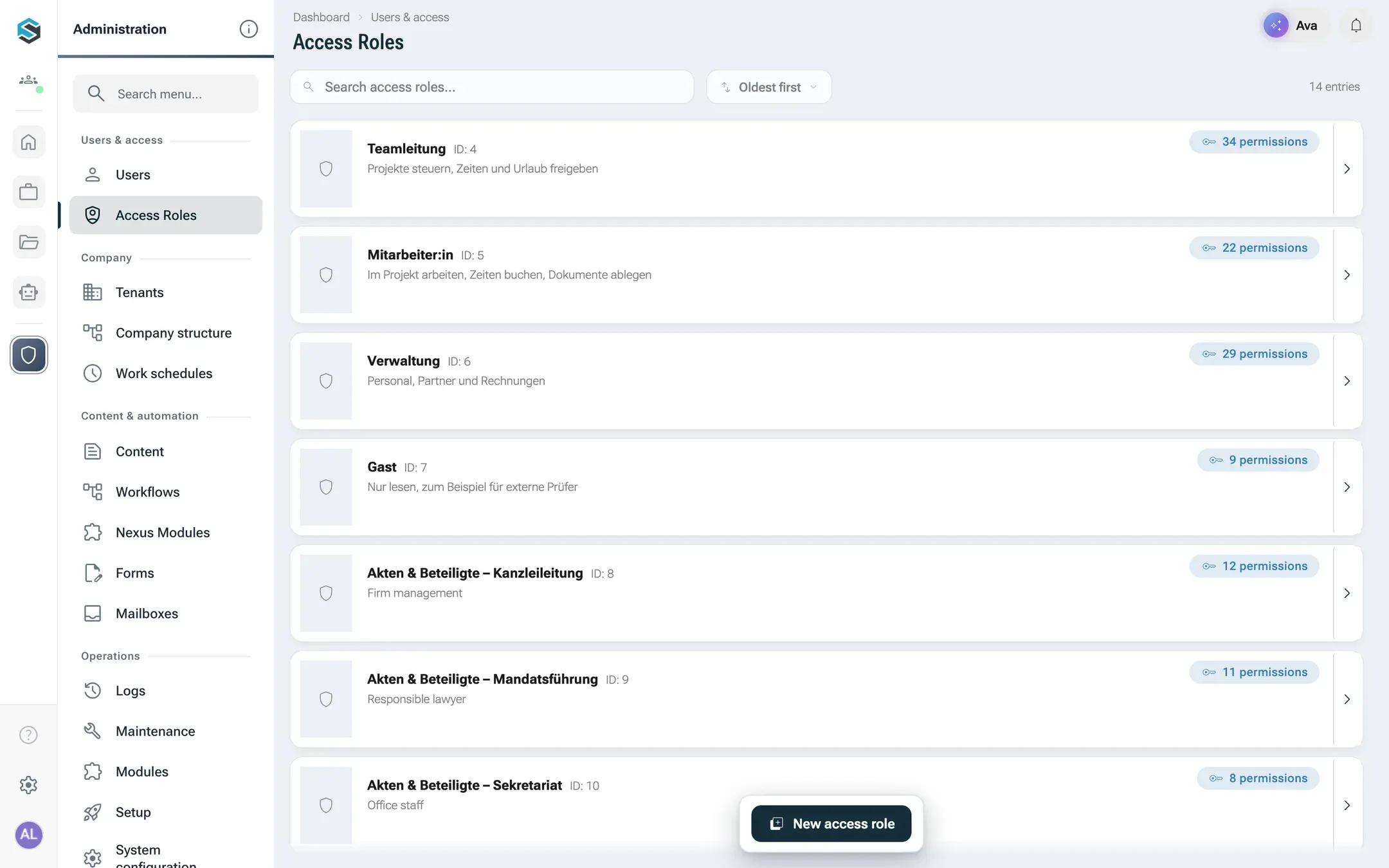
-
Open AdministrationUsers & accessAccess Roles. The list shows every role with the number of its permissions.
-
Click New access role. nexxus creates a role called New role without any permission and opens it.
-
Under General, give the role a Name and a Description. People are assigned the role under this name.
-
Under Permissions, tick what the role may do. The tree follows your tenant’s main menu as it is arranged under AdministrationOperationsSetup, step Main menu: the same areas in the same order, the modules in the order of their pages. So a module sits where you would look for it in the menu. A package sits with the area that holds most of its pages, a module without a page of its own at the end of its area, and the modules of switched-off areas under Not in the menu (areas switched off). Clicking an area or a module toggles everything below it.
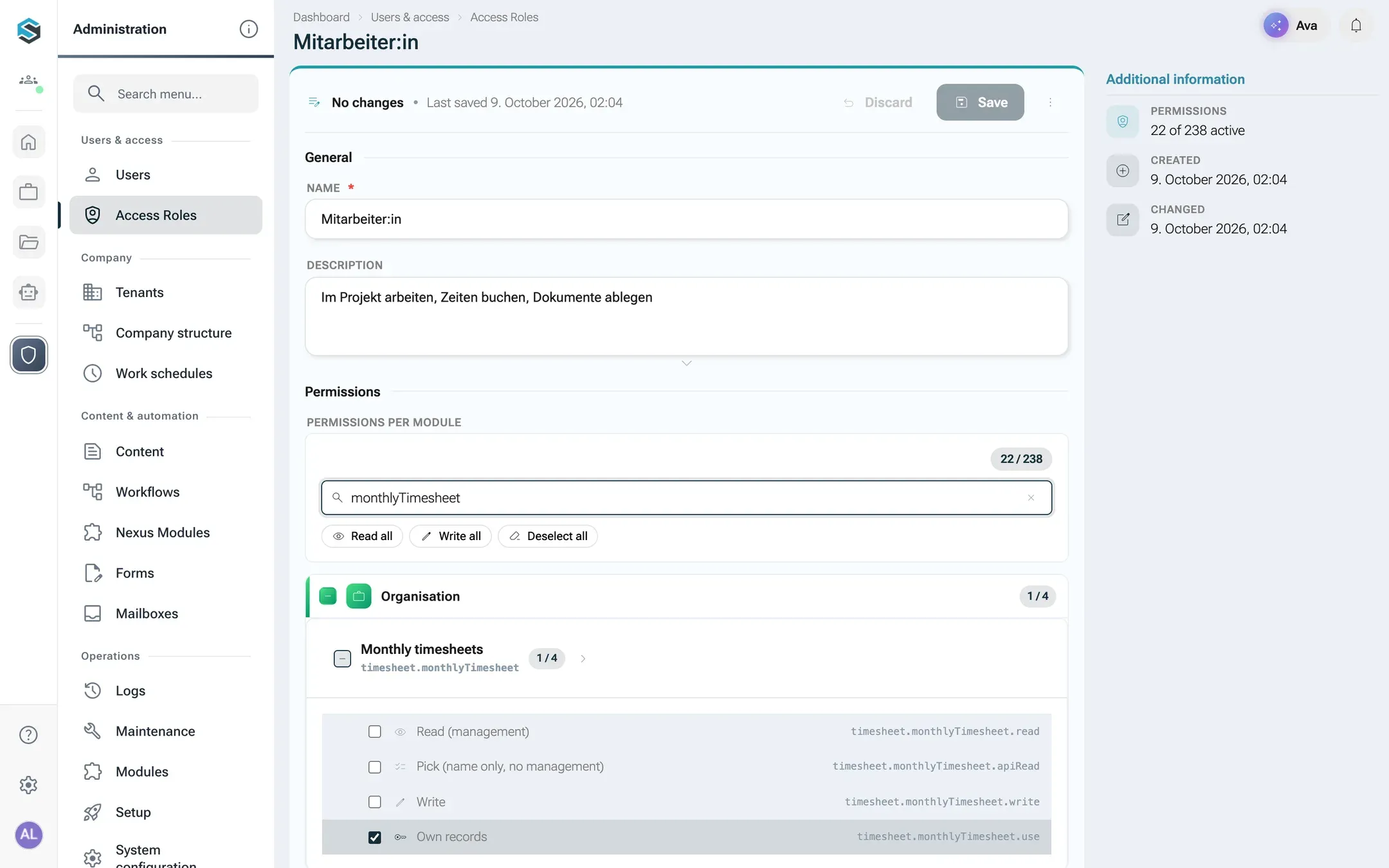
Own records versus everyone's: `.use` and `.read` on monthly timesheets. - The filter field finds permissions by key, label or module.
- Read all ticks every read key, Write all every write key, Deselect all clears the role.
- Each permission shows its label and its key. Hover over it for a description.
-
Click Save in the bar above the form. Until you do, the bar counts the changed fields; afterwards it reads No changes and Last saved with the time. The ⓘ next to the title opens Additional information, which shows how many permissions are active, for example “22 of 238 active”.
To remove a role, open it, choose Delete from the menu More actions (⋮) in the bar above the form, next to Save, and confirm Delete access role? Before you delete a role that people still hold, take it away from them on their tab Access roles, so you know exactly who loses what.
A role can also have its own main menu. You arrange it under AdministrationOperationsSetup, step Main menu, field Menu for; see A menu for one role. Saving the role in the role editor leaves its menu as it is.
Who may change roles. Only administrators create and delete access roles, change which permissions a role holds, and assign roles to people.
Roles from modules. A module (NXM) can bring roles of its own. They appear in the list with the module’s name in front: the module „Kanzlei“, for example, brings „Kanzleileitung“, „Mandatsführung“, „Sekretariat & Fristenkontrolle“ and „Einsicht“. You assign them like any other role. A module that runs services of its own also creates a role for the account those services run under. Its name is the module’s name followed by „Dienstkonto“ (service account). It carries the chip System, its page says System role: name and deletion are locked., and the module itself keeps its permissions up to date.
Assign roles to people
Section titled “Assign roles to people”A person gets access roles in three ways:
- In the invitation. The dialog Invite person takes roles and their scope, Tenant-wide by default (see Invite users).
- On the tab Access roles of the user detail page. The first row, Tenant-wide, holds the roles that applies to all business units. Below it comes one row per business unit, indented by its level in the org chart. Pick a role in a row and click Assign. Each role appears as a chip with its number of permissions; hover over it to see the keys, and click the × to remove it.
- Automatically. People invited without a role, and accounts created by a first Microsoft sign-in, get the default role from the setup. A Microsoft sign-in also gets the system role set under Role for new accounts (STAFF unless you change it).
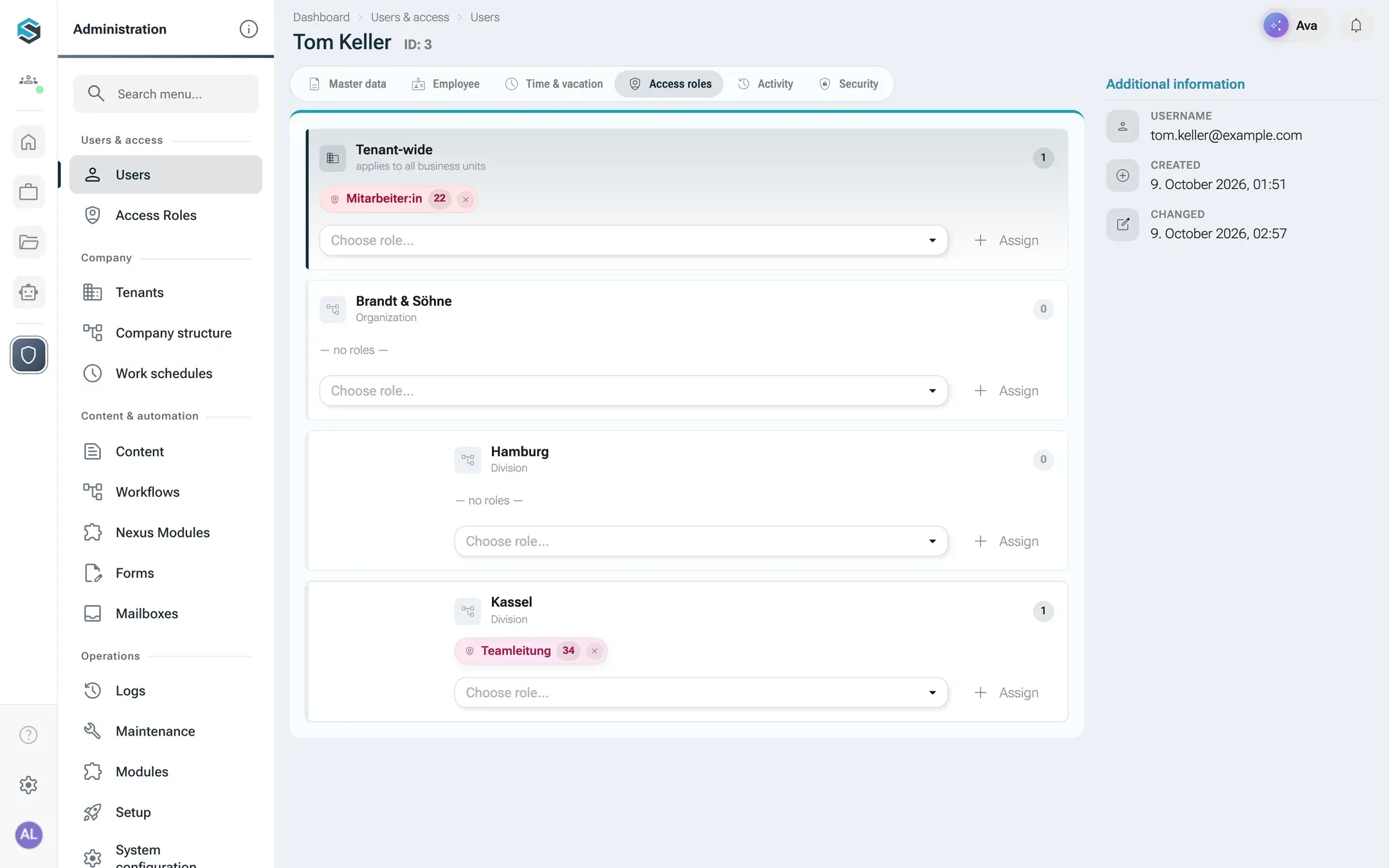
Assign roles tenant-wide unless you deliberately want to limit a role to one business unit. Pages and menu entries open for the roles a person holds tenant-wide. Business units matter for areas that are organised by unit, such as documents and the knowledge the AI Assistant may use.
Assignments have no end date. To take a role away, remove it.
How rights open pages
Section titled “How rights open pages”Only two pages are open to everyone who can sign in: the dashboard and My profile. Every other page needs a permission key, and nexxus checks it in three places with the same answer: the menu shows the entry, the page opens, and the server accepts the request.
Menu
Entries without the right do not appear.
Page
Typing the address leads back to the dashboard.
Server
Every request is checked again, with the same key.
Record
Tenant, owner and sharing are checked on top.
A few examples of which key opens which page:
| Page | Key |
|---|---|
| Own monthly timesheets | timesheet.monthlyTimesheet.use or .read |
| Own vacation requests | absence.vacationRequest.use |
| Documents | dms.document.read |
| Chat with the AI Assistant, avatars, skills, schedules | ai.session.use |
| Knowledge | ai.knowledge.read |
| Connectors | ai.plugin.read |
| Projects | project.project.read |
| Customers, suppliers, own companies | partner.partner.read |
| Access roles | authentication.accessRole.read |
| Business units, teams | authentication.businessUnit.read, organisation.team.read |
Some pages are for administrators only, whatever keys a role holds: the user list, tenants, setup, system configuration, the audit and event logs, cron jobs, the MCP overview and AI actions.
Switched-off areas. An area you switch off in the setup step Areas disappears from the menu and from what the AI Assistant may do, for everyone. Its data stays. The server answers requests for it with „Dieser Bereich ist ausgeschaltet.“ (this area is switched off). Some parts cannot be switched off; the step lists them under Always included: Dashboard, Calendar, AI assistant, Users & roles, Settings and Notifications. The keys of the AI area therefore always count, whatever is switched off.
What someone without the right sees
Section titled “What someone without the right sees”- No menu entry for pages they may not open.
- Typed addresses lead back to the dashboard, without a message.
- Buttons for actions they may not take are hidden.
- A refused request shows a message naming the missing key, for example „Keine Berechtigung: Ihnen fehlt das Recht ‘partner.partner.write’.“ (no permission: you lack the right ‘partner.partner.write’). That makes it easy to tell an administrator what is missing.
- A page that cannot load its data shows Access denied with the buttons Back and Reload.
What the AI Assistant may do with a person’s rights
Section titled “What the AI Assistant may do with a person’s rights”The AI Assistant works on behalf of the person who is asking, never on its own. Every chat request carries that person’s identity to the server, and every tool it uses runs the same checks as the screen the person clicks in.
The person asks
For example: set the customer Nordwind AG to inactive.
The AI Assistant finds the action
It only sees actions the person may take.
Dry run as the person
Input, state of the record and rights are checked. Nothing is saved.
The person clicks Execute
Only now does the server run the action, and checks everything again.
- The AI Assistant only offers what the person may do. The list of actions it can choose from is filtered by the person’s keys and by the areas that are switched on.
- Changes need a click. Before anything changes, the chat shows a card with three checks: Input valid, Record in the right state and Permission granted. Only Execute carries the change out. A bundle of steps runs as one unit with a single click (for example Execute all 3): If a step fails, the earlier ones are rolled back too.
- A missing right blocks the card. If the person lacks a key, the check Permission granted fails, the card shows why, and it cannot be executed.
- Documents follow the same sharing rules. The AI Assistant only reads documents the person could open in the files area.
- Connectors act with the person’s own account. When the AI Assistant works in Microsoft 365, Slack or another connected service, it uses the account the person connected and sees only what that account may see. See Connectors.
- No tool queries the database directly. The AI Assistant reads and changes data only through the same checks as the pages, for administrators too.
Administrators can see the full list of changes the AI Assistant can make on AIWork with AIAI actions. The page reads the list from the running code, so it is always complete. The column Permission shows which key each action needs.
What happens behind the scenes
Section titled “What happens behind the scenes”- One registry of keys. Every module declares its permission keys when the server starts. The role editor reads this registry, so it always shows the keys of the running version. Keys that no module declares are dropped when a role is saved.
- Reads and writes. The server derives the key from the request: reading needs
.read, everything else.write, unless an action names its own key. Areas with their own sharing, such as documents and workspace boards, check access per record instead. - Tenant first. Every record carries its tenant. A role only ever applies within the tenant of the person who holds it.
- The default role is stored in the setup and reused for invitations without a role and for first Microsoft sign-ins.
When something goes wrong
Section titled “When something goes wrong”| What you see | Cause and fix |
|---|---|
| A new colleague sees only the dashboard | They hold no access role that opens a page, or only roles for a single business unit. Assign a role tenant-wide on their tab Access roles. |
| „Keine Berechtigung: Ihnen fehlt das Recht ’…’.“ | The person lacks the key named in the message. Add it to one of their roles, or give them a role that has it. |
| „Die Rechte einer Rolle ändert nur ein Administrator.“ (only an administrator changes a role’s rights) | Only administrators change which permissions a role holds. |
| „Eine Rolle, die Sie selbst tragen, kann nur ein Administrator ändern.“ (only an administrator can change a role you hold) | You cannot edit a role you hold yourself. Ask another administrator. |
| The suggestion failed in the setup step Roles | The AI provider is not reachable. Check Connect your AI, or apply the templates for your areas. |
| Select at least one role. | Tick Apply for at least one proposed role. |
| „Dieser Bereich ist ausgeschaltet.“ | The area is switched off in the setup step Areas. Switch it on there. |