
Set up your workspace
Sign-in and OAuth
How people sign in to nexxus, and the five things "OAuth" can mean here. Includes the full guide for sign-in with Microsoft Entra ID with the exact redirect URI, the redirect URI for connectors, AI clients such as Claude Code, nexxus as an identity provider for other applications, and what is not supported.
People sign in to nexxus with a password, with a one-time link by email, or with their Microsoft account. Which of these your team uses is up to you. If your company already runs Microsoft 365, the Microsoft sign-in saves everyone a separate password, and new colleagues get their account on their first click.
The word “OAuth” turns up in several places in nexxus, and each time it means something different. This page sorts them out, then walks through the Microsoft setup step by step.
How people sign in
Section titled “How people sign in”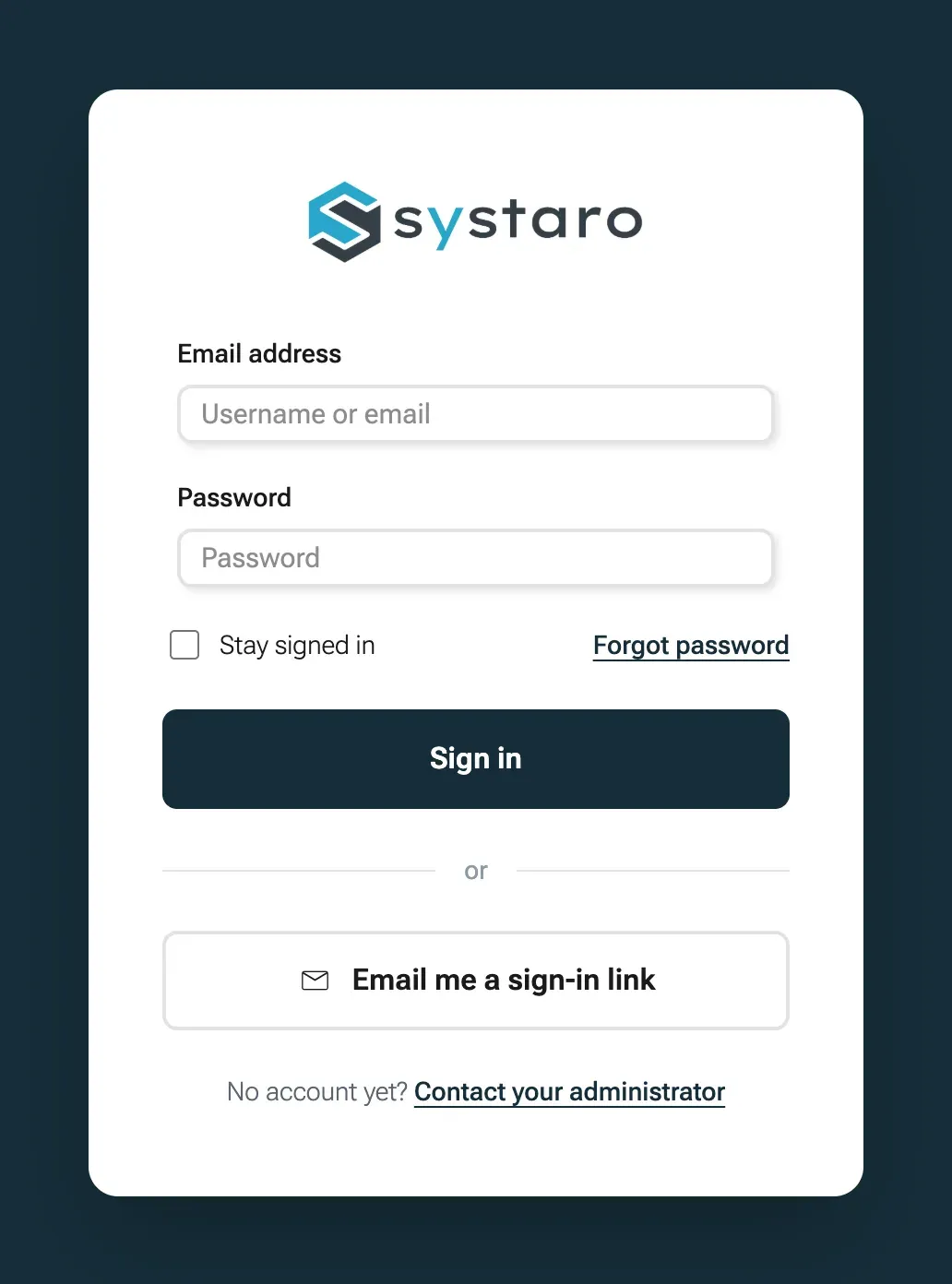
| Way | What the person does | Set up by |
|---|---|---|
| Password | Types username and password, optionally ticks Stay signed in | Nothing to set up. The password comes from the invitation |
| Sign-in link by email | Clicks Email me a sign-in link, enters their email address and opens the link | Works as soon as mail sending is set up |
| Microsoft | Clicks Sign in with Microsoft | An administrator, once, as described below |
All three lead to the same kind of session, with the same roles. If the account has an authenticator app, nexxus asks for its code after the password and after the sign-in link. Microsoft sign-ins leave multi-factor authentication to Microsoft. Details on codes, remembered browsers and sessions are in Security.
Scripts and tools sign in without a browser, with a personal API token. See Security.
Five things called OAuth
Section titled “Five things called OAuth”Signing in to nexxus
- Sign in with MicrosoftYour Entra ID confirms who the person is
- AI clients (MCP)Claude Code and other MCP clients work as the person
nexxus
One backend, one public address
- /api/entra/code
- /api/plugins/oauth/callback
- /oauth2
- /api/mcp
nexxus signs in elsewhere
- Connector connectionsThe AI Assistant acts in Microsoft 365, Google, Slack with the person's account
- MCP connectors with OAuthExternal MCP servers that sign people in
- Other applicationsSign in with the nexxus account (API only)
| Meaning | What it does | Where you set it up | Address you register |
|---|---|---|---|
| Sign in with Microsoft | People sign in to nexxus with their Microsoft account | AdministrationOperationsSetup, step Microsoft Entra, or the system configuration | https://<your nexxus address>/api/entra/code |
| Connector connections | The AI Assistant works in another service with the person’s own account | AISet up AIConnectors, on the connector’s page | https://<your nexxus address>/api/plugins/oauth/callback |
| MCP connectors with OAuth | The AI Assistant uses an external MCP server that signs people in itself | AISet up AIConnectors, tab My connectors | Nothing: nexxus registers itself at the server |
| nexxus as identity provider | Another application lets people sign in with their nexxus account | API only, no page in the app | The other application’s own redirect URI, entered in nexxus |
| AI clients (MCP) | Claude Code or another MCP client works in nexxus as the signed-in person | AdministrationOperationsSystem configuration, then each person under My profileAI clients | Nothing: the client registers itself at nexxus |
<your nexxus address> is the public address of the nexxus backend. On most installations the app and the backend share one address, such as https://nexxus.example.com. The setup step and the connector page both show the exact value with a Copy button, so you never need to type it.
Sign in with Microsoft (Entra ID)
Section titled “Sign in with Microsoft (Entra ID)”With Microsoft sign-in, the login page shows a button Sign in with Microsoft. The person signs in at Microsoft as they do for Outlook or Teams, comes back to nexxus and is signed in. If nexxus does not know the person yet, it creates the account on the spot, with the default role from your setup.
Click
Sign in with Microsoft on the nexxus login page.
Microsoft
The person signs in at Microsoft, with MFA if your directory requires it.
nexxus finds the account
By Microsoft identity, then by email address, or creates a new one.
Signed in
With the roles held in nexxus. Microsoft only says who the person is.
Before you start
Section titled “Before you start”- You hold the system role ADMIN in nexxus.
- Someone can register an application in your Microsoft Entra directory. Usually that is your IT. They need one value from you (the redirect URI) and give you three values back.
- You know the public address of nexxus. The setup step shows the redirect URI built from it.
- Your installation has one tenant. With more than one tenant, the login page does not offer Microsoft sign-in.
Step 1: Register an app in Microsoft Entra
Section titled “Step 1: Register an app in Microsoft Entra”These steps happen in the Microsoft Entra admin center, whose menus are in English.
-
Open the Microsoft Entra admin center at
https://entra.microsoft.com, go to Entra ID › App registrations › New registration. Give the app a name your people recognise, for example “nexxus”. Under Supported account types, choose Single tenant only. -
In the new app, open Authentication › Add Redirect URI, choose the platform Web and enter the redirect URI:
https://<your nexxus address>/api/entra/codeIt must match exactly, including
httpsand without a slash at the end. Copy it from the nexxus setup step (Step 2) to be safe. -
Open API permissions. nexxus needs the delegated Microsoft Graph permission User.Read, which reads the signed-in person’s own profile. If it is not listed, add it under Add a permission › Microsoft Graph › Delegated permissions.
-
Open Certificates & secrets › Client secrets › New client secret. Copy the Value right away: Microsoft shows it only once. Note the expiry date. Secrets expire after 24 months at most, and sign-in stops working when the secret has expired.
-
On the Overview page, copy the Application (client) ID and the Directory (tenant) ID.
Step 2: Enter the values in nexxus
Section titled “Step 2: Enter the values in nexxus”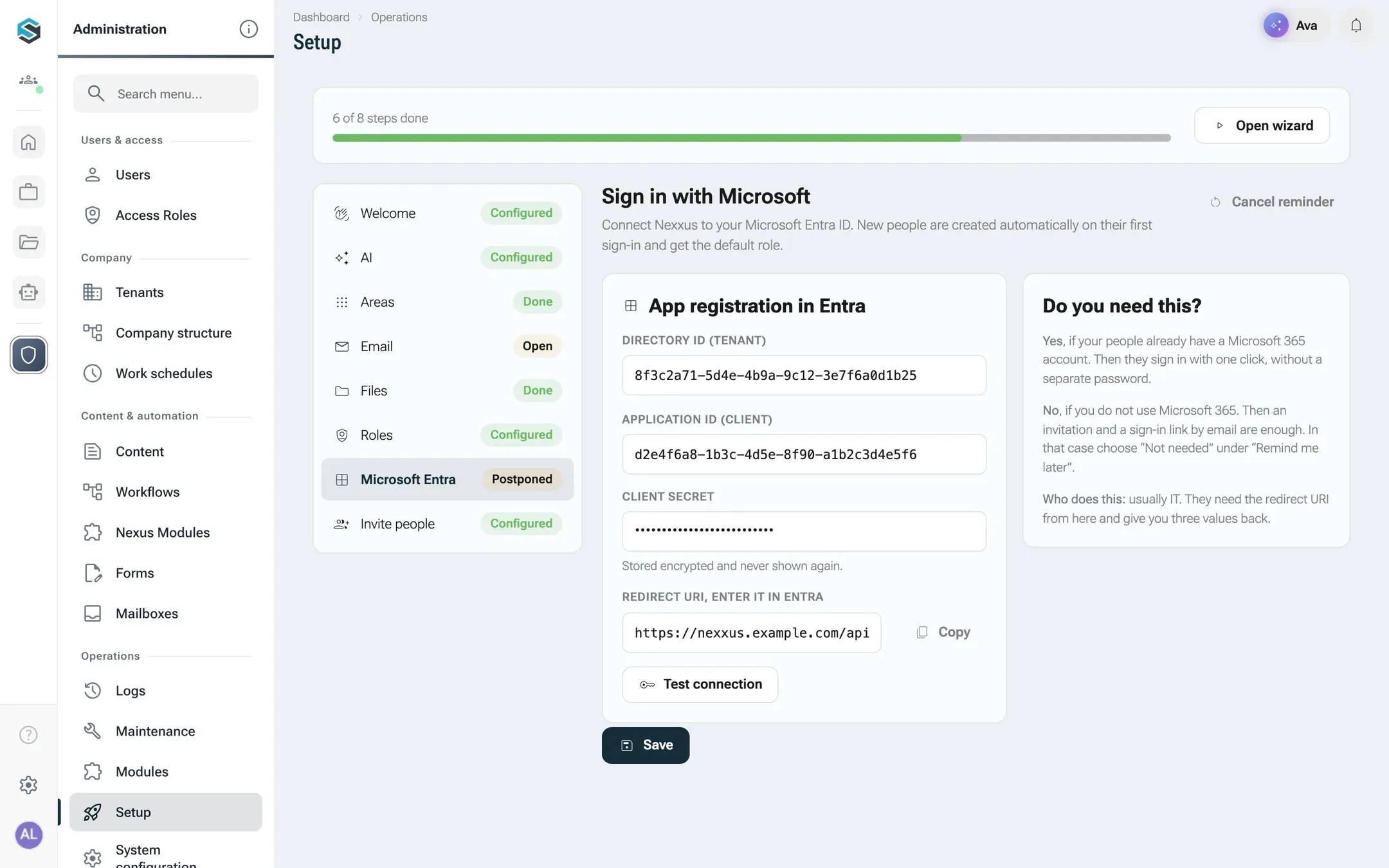
-
Open AdministrationOperationsSetup and choose the step Microsoft Entra. The page is titled Sign in with Microsoft.
-
In the card App registration in Entra, enter the three values from Microsoft:
Field in nexxus Value from Microsoft Directory ID (tenant) Directory (tenant) ID Application ID (client) Application (client) ID Client secret The Value of the client secret The secret is Stored encrypted and never shown again. Once saved, the field stays empty: leave it empty to keep the stored secret.
-
Check Redirect URI, enter it in Entra. nexxus fills it in from its own address. It must be identical to the redirect URI in the Microsoft app. Use Copy to pass it on.
-
Click Test connection. nexxus asks Microsoft whether the directory exists and whether the app with this secret gets a token. Three checks appear:
Check Good result If it fails Details „Verzeichnis-ID, Anwendungs-ID und Geheimnis müssen gespeichert sein.“ (directory ID, application ID and secret must be saved) Directory „Verzeichnis gefunden.“ (directory found) „Microsoft kennt diese Verzeichnis-ID nicht.“ (Microsoft does not know this directory ID) Application and secret „Anwendung und Geheimnis angenommen.“ (application and secret accepted) Microsoft’s own error description, for example for a wrong or expired secret -
Click Save. The message Sign-in with Microsoft saved confirms it. Saving here also switches the button on the login page on.
If you do not use Microsoft 365, choose Not needed under Remind me later. The step disappears, and invitations plus the sign-in link by email are all your team needs.
Step 3: Fine-tune in the system configuration
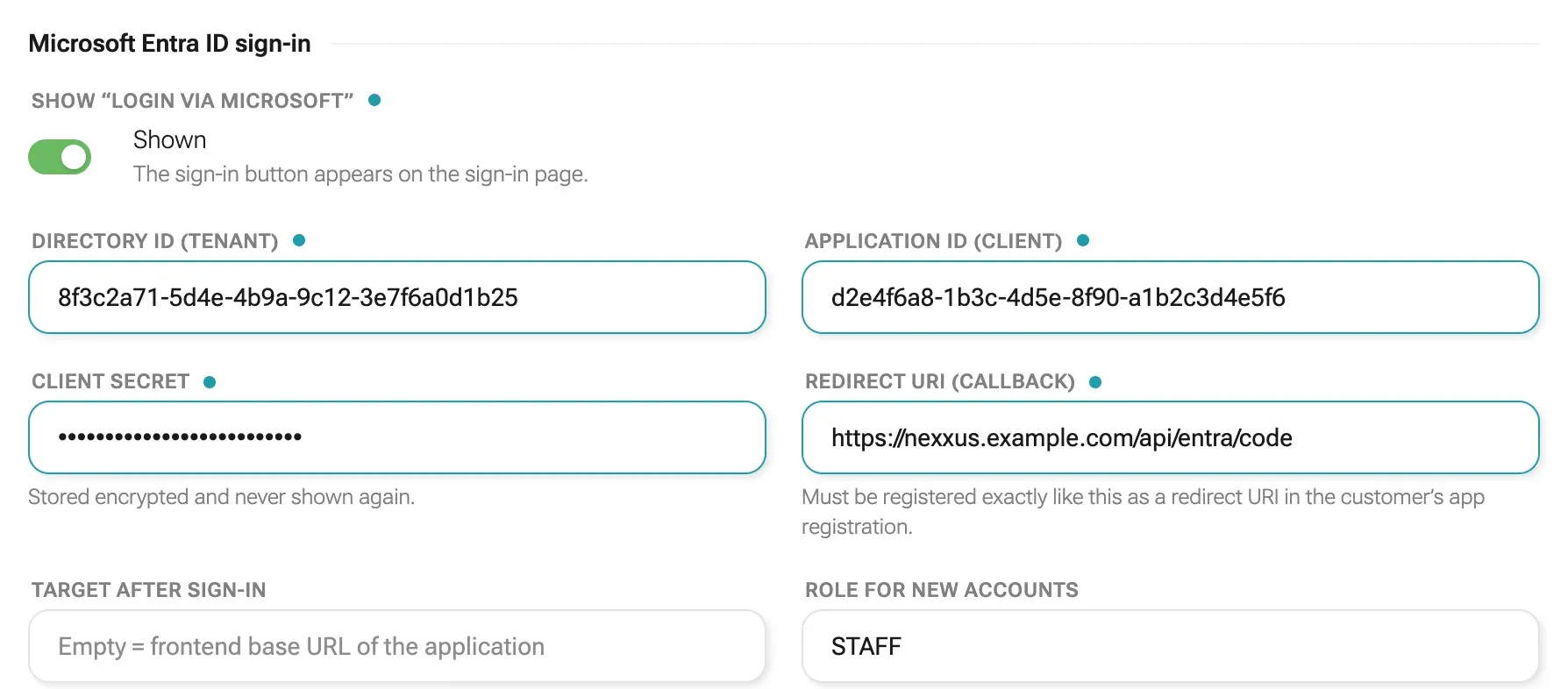
Section titled “Step 3: Fine-tune in the system configuration”The same settings, and two more, are in AdministrationOperationsSystem configuration, section Microsoft Entra ID sign-in. Changes apply at once, without a deployment.
| Field | Meaning |
|---|---|
| Show “Login via Microsoft” | Switches the button on or off (Shown / Hidden). Off means the server hands out no sign-in address at all. |
| Directory ID (tenant), Application ID (client), Client secret | As in the setup step. Remove saved secret deletes the stored secret on the next save. |
| Redirect URI (callback) | Must be registered exactly like this as a redirect URI in the customer’s app registration. |
| Target after sign-in | Where the browser goes after a successful sign-in. Empty means the address of the app. |
| Role for new accounts | The system role that accounts created by a Microsoft sign-in receive. STAFF unless you change it. It must exist. |
If the button is switched on but the directory ID, application ID or redirect URI is missing, the page warns you and the button stays hidden until all three are set.
Step 4: Try it
Section titled “Step 4: Try it”Sign out, or open a private browser window, and go to the login page. Below the password form you see Sign in with Microsoft. Sign in with a Microsoft account of your directory. You land in nexxus, and the person’s tab Activity records the sign-in via Microsoft.
Who gets an account
Section titled “Who gets an account”At every Microsoft sign-in, nexxus looks for the matching account in this order:
- By Microsoft identity. An account that has signed in with Microsoft before is found by its Microsoft object id.
- By address. Otherwise nexxus compares the Microsoft address (the
mailfield, or the user principal name) with the usernames and then with the email addresses of existing accounts. A person you invited before is linked to their Microsoft identity this way, without a second account. - New account. If nothing matches, nexxus creates an account: the username is the user principal name, the names come from Microsoft, it gets the system role from Role for new accounts and the default access role from the setup, tenant-wide. It has no usable password; the person always signs in with Microsoft.
Everyone in your directory who may sign in to this app gets an account at their first sign-in. To limit Microsoft sign-in to certain people, restrict who may use the app in Microsoft Entra.
The account remains an ordinary nexxus account. You assign roles in nexxus as usual (see Roles and rights). By default, Microsoft sign-ins are remembered on the browser for 30 days, so people do not sign in again every morning.
Two-factor authentication with Microsoft
Section titled “Two-factor authentication with Microsoft”nexxus does not ask Microsoft users for its own authenticator code. Multi-factor authentication for these sign-ins is set up in Microsoft Entra, where your IT already manages it for Outlook and Teams.
One rule still applies: if a role is in the Mandatory two-factor authentication list and the account has no authenticator app yet, nexxus leads the person through the setup of one after the Microsoft sign-in. See Security.
When Microsoft sign-in goes wrong
Section titled “When Microsoft sign-in goes wrong”Errors on the way back from Microsoft are short English texts in the browser.
| What you see | Cause and fix |
|---|---|
| No Sign in with Microsoft button | The switch Show “Login via Microsoft” is off, or the directory ID, application ID or redirect URI is missing. On installations with more than one tenant the button is not offered. |
| Microsoft reports that the redirect URI does not match | The redirect URI in the Microsoft app differs from the one in nexxus. Copy it again from nexxus and enter it exactly. |
Token exchange with Microsoft failed | The client secret is wrong or has expired. Create a new secret in Microsoft and enter it in nexxus. |
Could not load the Microsoft profile | nexxus could not read the person’s profile from Microsoft Graph. Check that the app has the delegated permission User.Read. |
Sign-in could not be mapped to an account | The address belongs to a nexxus account that is already linked to a different Microsoft identity, or the role under Role for new accounts does not exist. |
Invalid state | The sign-in was started in another browser, or the browser lost its session on the way, for example because cookies were cleared. Start again from the login page. |
| Cancelled at Microsoft | nexxus returns to the login page. Nothing is logged as an error. |
Connector connections
Section titled “Connector connections”A connector lets the AI Assistant work in another service, such as reading mail in Outlook or posting in Slack, with the account of the person who asks. The person connects their account once with OAuth; nexxus keeps the tokens encrypted and never hands them to the AI model.
For this you register an app at the provider once, with one redirect URI for every connector and provider:
https://<your nexxus address>/api/plugins/oauth/callbackThe connector page shows it under Setup as Redirect URI (enter it in the provider’s app), together with step-by-step instructions for the provider and the permissions the app must allow. Installing a connector and entering its client ID and secret needs the key ai.plugin.admin; connecting an own account needs Connect own account (ai.plugin.connect).
The full walk-through per connector, including the Microsoft, Google and Slack apps, is in Set up a connector.
MCP connectors with OAuth
Section titled “MCP connectors with OAuth”Some MCP servers sign people in with OAuth themselves. When you add such a server under My connectors › New › MCP connector, choose OAuth (dynamic registration) under Sign-in. There is nothing to register by hand: at the first connection nexxus discovers the server’s sign-in service, registers itself there as an application called “Nexxus” and leads the person through the server’s own sign-in. The redirect URI is the same /api/plugins/oauth/callback.
AI clients such as Claude Code
Section titled “AI clients such as Claude Code”nexxus is an MCP server. Claude Code, claude.ai and other MCP clients connect to https://<your nexxus address>/api/mcp, sign the person in through OAuth and then work with that person’s rights. An administrator allows this once per organisation; each person connects their own client. The whole guide is in Connect Claude Code.
nexxus as an identity provider for other applications
Section titled “nexxus as an identity provider for other applications”nexxus can be the sign-in for other applications of yours, through standard OpenID Connect (authorization code flow, with PKCE for browser and mobile apps). A person who is already signed in to nexxus passes straight through, without typing a password again.
Endpoints
Section titled “Endpoints”| Endpoint | Purpose |
|---|---|
/.well-known/openid-configuration | Discovery document. Point the other application here. |
/oauth2/authorize | Starts the sign-in |
/oauth2/token | Exchanges the code for tokens |
/oauth2/jwks | Public keys to check the token signature (RS256) |
/userinfo | Profile of the signed-in person |
/connect/logout | Sign-out started by the other application |
/oauth2/consent | The consent page, shown when the application asks for approval (requireConsent) |
/oauth2/register | Self-registration (RFC 7591), for AI clients only. Register your own applications through the API below. |
A person who is not signed in to nexxus yet is sent to the normal nexxus login page and comes back to the requesting application afterwards. The login works as it does everywhere else: with the code from the authenticator app, the sign-in link, or Microsoft.
The consent page comes from the server and is in German. It names the application, the account it signs in as, and what the application may see, for example „Ihre E-Mail-Adresse sehen“ (see your email address). Verbinden agrees, Abbrechen refuses.
Register an application
Section titled “Register an application”Call the API as an administrator, for example with an administrator’s API token:
curl -X POST "https://<your nexxus address>/api/sso-client/" \ -H "Authorization: Bearer cx_..." \ -H "Content-Type: application/json" \ -d '{ "name": "Wiki", "redirectUris": "https://wiki.example.com/oauth/callback", "scopes": "openid,profile,email" }'The answer contains the generated clientId (starting with sso_) and, for confidential clients, the secret in generatedClientSecret. The secret is shown only in this answer; nexxus stores a hash. To get a new one later:
curl -X POST "https://<your nexxus address>/api/sso-client/action/regenerateSecret" \ -H "Authorization: Bearer cx_..." -H "Content-Type: application/json" \ -d '{"id": 3}'| Field | Type | Required | Meaning |
|---|---|---|---|
name | string | yes | Name of the application |
redirectUris | string | yes, unless the client only uses client credentials | Allowed redirect URIs, one per line, matched exactly |
clientId | string | no | Generated when empty (sso_ plus 24 characters). Cannot be changed later. |
postLogoutRedirectUris | string | no | Where the other application may send people after sign-out, one per line |
scopes | string | no | Comma-separated. Default openid,profile,email |
publicClient | boolean | no | true for browser and mobile apps: no secret, PKCE required. Default false |
requireConsent | boolean | no | Asks the person to approve the application on first sign-in. Default false |
allowClientCredentials | boolean | no | Also allows machine-to-machine tokens (confidential clients only). Default false |
enabled | boolean | no | Default true. A disabled client cannot sign anyone in. |
accessTokenTtlSeconds | number | no | Lifetime of access tokens. Default 900 (15 minutes) |
refreshTokenTtlSeconds | number | no | Lifetime of refresh tokens. Default 2592000 (30 days). Each refresh issues a new refresh token. |
description | string | no | Free text |
Confidential clients authenticate at the token endpoint with client_secret_basic or client_secret_post.
What the tokens contain
Section titled “What the tokens contain”The ID token carries these claims. /userinfo returns only the standard OpenID claims of the requested scopes (sub, email, names, preferred_username).
| Claim | Scope | Value |
|---|---|---|
sub | always | The username. Once an account is deleted, it can go to a new account. |
user_id | always | The person’s id in nexxus. It is never given out again: link your application’s accounts by it, not by sub. |
amr | always, when known | How the session was signed in (RFC 8176): pwd password, otp code from the authenticator app, swk a browser on which the code was typed within the last 30 days, email sign-in link, fed Microsoft, mfa two factors. Missing for a session restored by Stay signed in and while someone acts as another person. |
auth_time | with amr | When the session was signed in, in seconds since 1970 |
preferred_username | always | The nexxus username |
email, email_verified | email | Email address, and whether it was confirmed |
name, given_name, family_name | profile | Names |
roles | profile | The person’s system roles |
tenant_id | profile | The person’s tenant |
What is not supported
Section titled “What is not supported”- Other identity providers for the nexxus login. Google, Okta, Keycloak or any other OpenID Connect provider cannot be used to sign in to nexxus. Microsoft Entra ID is the only external sign-in.
- SAML is not supported, in either direction.
- SCIM or any other automatic provisioning from a directory. Accounts come from invitations, from direct creation or from a first Microsoft sign-in.
- Self-registration. No account yet? Contact your administrator on the login page does not open a sign-up form. An administrator creates every account.
- Registering applications for nexxus as identity provider in the app. This is API only, as described above.
What happens behind the scenes
Section titled “What happens behind the scenes”- 1Click "Sign in with Microsoft"Browser → nexxus
- 2Go to the Microsoft sign-in, with a PKCE challengeBrowser → Microsoft Entra
- 3The person signs in, with MFA if requiredMicrosoft Entra
- 4Back to /api/entra/code with a one-time codeMicrosoft Entra → nexxus
- 5Exchange the code, with client secret and PKCE verifiernexxus → Microsoft Entra
- 6Read the person's profilenexxus → Microsoft Graph
- 7Find or create the accountnexxus
- 8Signed in to nexxusnexxus → Browser
- Microsoft sign-in uses the authorization code flow with PKCE. nexxus exchanges the code on the server with the client secret, then reads the person’s profile from Microsoft Graph. It does not keep Microsoft’s tokens.
- The client secret of the Entra app is stored encrypted with the installation’s secrets key, and decrypted only for the exchange.
- The login button appears only when the server hands the login page a Microsoft sign-in address. It does so when the switch is on and the directory ID, application ID and redirect URI are set.
- The identity provider signs its tokens with an RSA key (RS256). The signed-in nexxus session is the single sign-on session: a person signed in to the nexxus app passes straight through, and a person who signs in on the way to another application is signed in to the nexxus app as well.
- Authorizations (the record that a person approved an application, and its refresh tokens) are kept in the database. nexxus stores every token value only as a SHA-256 hash, so a copy of the database contains no usable token.