
Set up your workspace
Security and sign-in protection
What protects accounts and data in nexxus. Password rules, two-factor authentication with backup codes, remembered browsers, mandatory 2FA per role, sessions, the sign-in link, rate limits, personal API tokens, the sign-in log, the audit log and tenant separation.
nexxus holds your customers, contracts and timesheets, and the AI Assistant can act on them. So the account that signs in matters. This page describes every protection around signing in and around your data, the settings that go with them, and what each person can do on their own profile.
The admin of Brandt & Söhne made two decisions on day one. Every administrator must use an authenticator app, and so must the two team leads, who approve leave and see project rates. Everyone else may choose. Four weeks later, the bookkeeper’s laptop is stolen from her car. She signs out the laptop from her phone on her profile page, the admin resets her authenticator app, and the audit log shows that nothing was changed under her account since the theft.
How a sign-in is protected
Section titled “How a sign-in is protected”Password
At least 12 characters, checked against known data breaches.
Second factor
A code from the authenticator app, a backup code, or a remembered browser.
Session
12 hours of inactivity, or 30 days with Stay signed in.
Logged
Every sign-in, failed attempt and sign-out, with time and address.
Password rules
Section titled “Password rules”nexxus follows the current recommendations of the German BSI and the US NIST: length and a check against leaked passwords, no forced character classes, no expiry.
- At least 12 characters.
- Not the username.
- Not in a known data breach. nexxus checks new passwords against the Have I Been Pwned collection of leaked passwords. Only the first five characters of the password’s SHA-1 hash leave the server, so the password itself is never sent. If the service cannot be reached, the password is accepted.
- No rules like “one digit, one special character”, because they lead to passwords like “Passwort1!”. No expiry, because forced changes lead to “Passwort2!”.
The rules apply everywhere a password is set: the first administrator, accepting an invitation, changing one’s own password and an administrator setting a new one. Passwords are stored as BCrypt hashes. The server’s messages are in German:
| Message | Meaning |
|---|---|
| „Das Passwort muss mindestens 12 Zeichen lang sein.“ | At least 12 characters |
| „Das Passwort darf nicht dem Benutzernamen entsprechen.“ | Must not be the username |
| „Dieses Passwort taucht in bekannten Datenlecks auf und kann nicht verwendet werden.“ | Appears in known data breaches |
Change your own password
Section titled “Change your own password”-
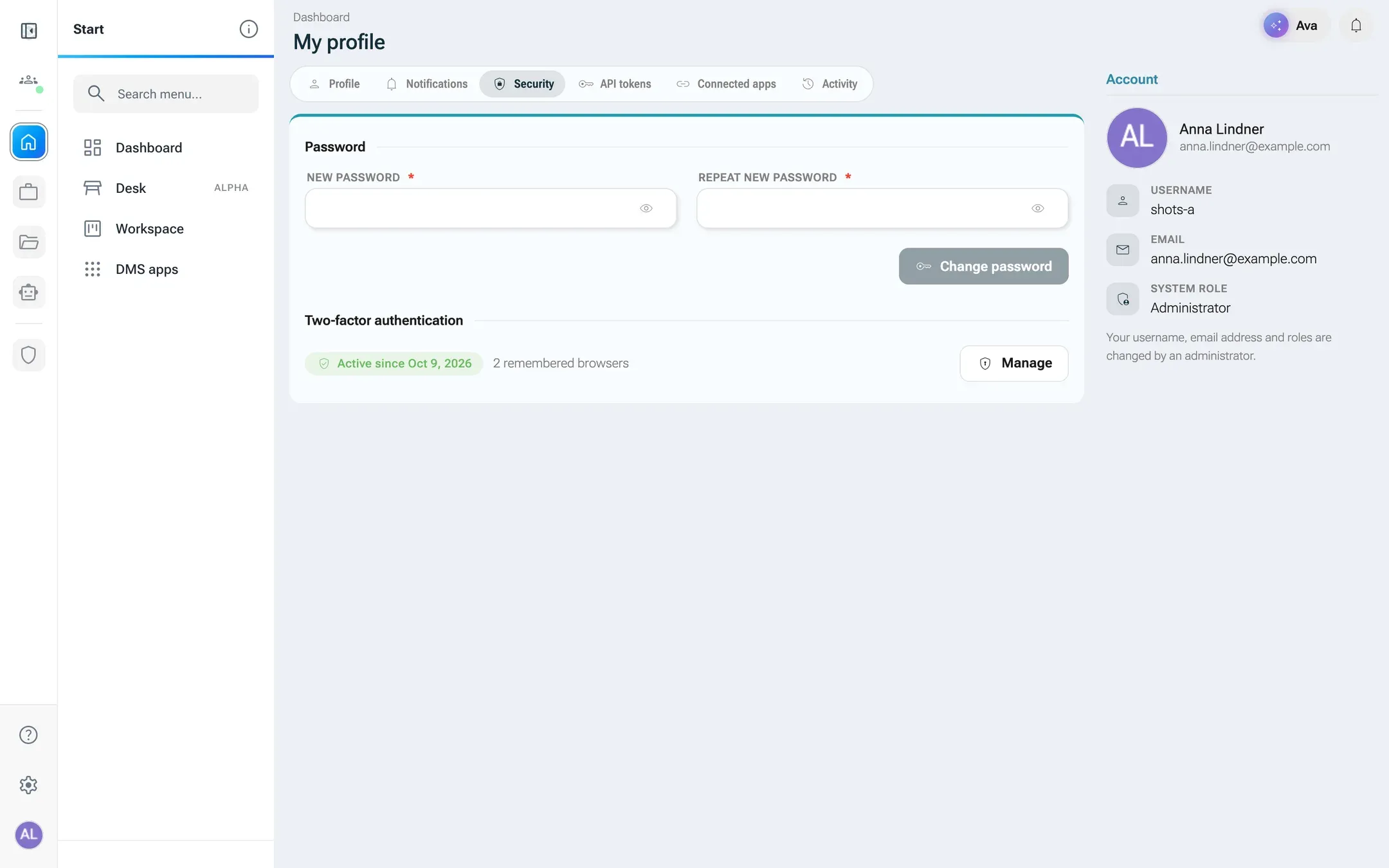
Click your avatar at the bottom of the rail on the left, choose My profile and open the tab Security.
-
Under Password, type the new password into New password and Repeat new password.
-
Click Change password. nexxus asks you to confirm it is you (see Confirm it is you): with the code from your authenticator app, or with your current password if you have no app.
-
The message Password changed. confirms it.
A new password ends every remembered sign-in (Stay signed in) on all devices, and every remembered browser asks for the second factor again: After a change, every remembered browser asks for the second factor again at the next sign-in.
People who always sign in with Microsoft or a sign-in link have no password. Their tab shows: Your account has no password. You sign in with a sign-in link or via Microsoft; a password is set by an administrator.
If someone forgets their password
Section titled “If someone forgets their password”Forgot password on the login page opens Reset password. The person enters their Email address and clicks Send link. nexxus sends a mail with the button Neues Passwort vergeben. Its link is valid for 60 minutes and once only, and opens the page Choose a new password, which names the account with name and address. After Save password the person signs in as usual, with the username already filled in.
- The page always answers Please check your inbox. The link is valid for 60 minutes., also for an address without an account. That way it does not reveal who has an account.
- The rules of the sign-in link apply: if the address belongs to more than one account, no mail goes out, and nexxus sends no more than three links per account in 15 minutes.
- If the new password breaks the rules, the page names the reason. The link then stays valid.
- Pending invitations and service accounts get no link. An invitation is accepted through its own link.
- The authenticator app stays set up and still asks for the code at sign-in. Like every new password, this one ends Stay signed in and the remembered browsers.
- Someone who had no password so far, because they sign in with a sign-in link or via Microsoft, gets one this way.
If no mail arrives, for example because no outgoing mail server is set up, an administrator sets the password:
- An administrator opens the person under AdministrationUsers & accessUsers, chooses Change password from the menu More actions (⋮) next to Save and sets a temporary password.
- With Require/lift password change the administrator makes the person choose their own password at the next sign-in.
Two-factor authentication
Section titled “Two-factor authentication”With two-factor authentication, a password alone is not enough to sign in. The person also types a six-digit code that their phone generates every 30 seconds. Any authenticator app works, for example Google Authenticator, Microsoft Authenticator, Aegis or 1Password.
Set it up
Section titled “Set it up”-
Open My profile and the tab Security. Under Two-factor authentication the status reads Not set up. Click Set up.
-
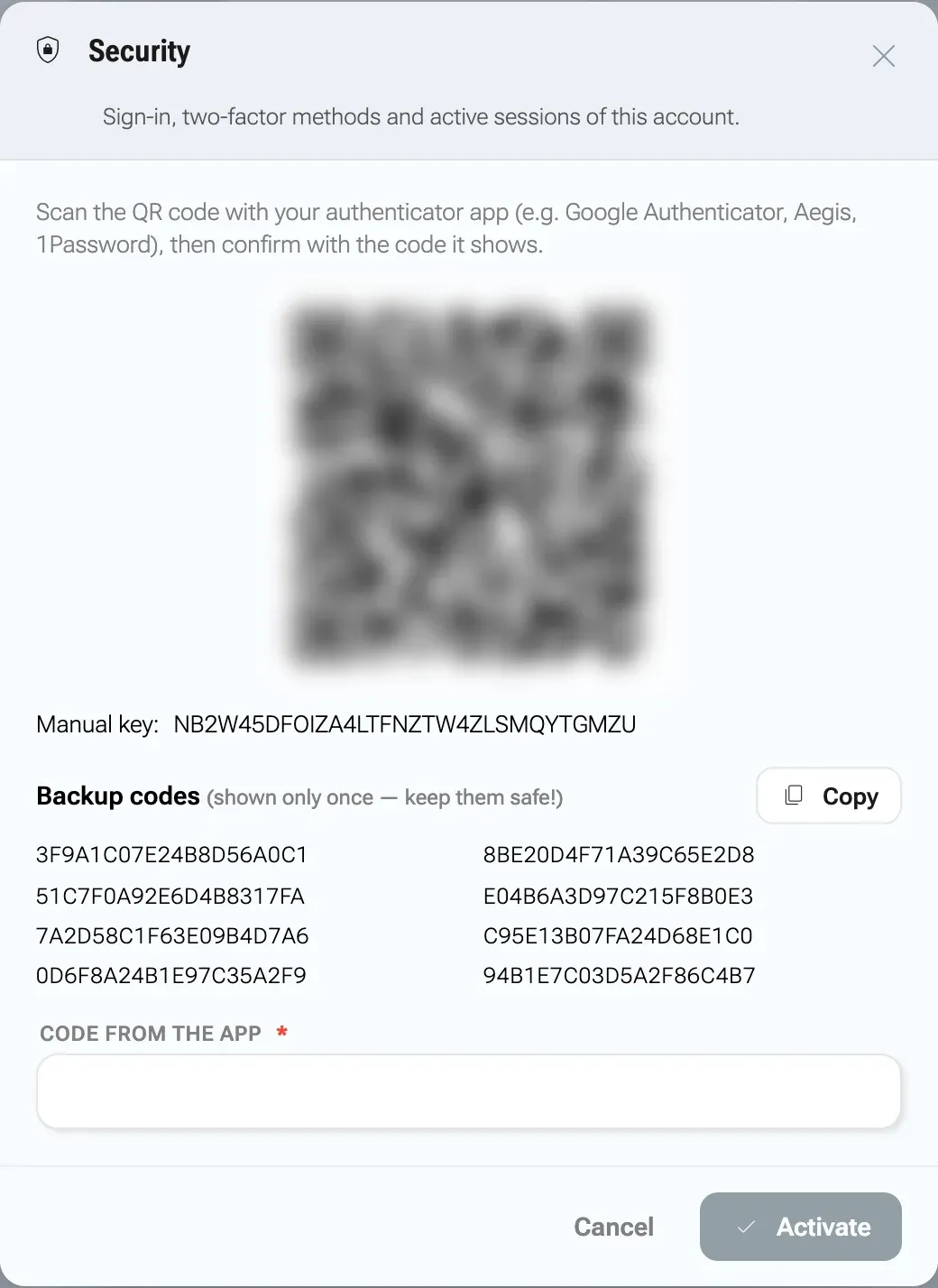
The dialog Security opens. Click Set up next to Two-factor authentication (authenticator app).
Save the backup codes now: they are shown only once. -
Scan the QR code with your authenticator app. If you cannot scan, type the Manual key: into the app.
-
Save the backup codes. There are eight, each 20 characters long, and nexxus shows them only now. Copy puts them on the clipboard. Keep them in a password manager or print them, but not on the same phone.
-
Type the current code from the app into Code from the app and click Activate. The message Authenticator app set up successfully. confirms it, and the profile shows Active since with the date.
Sign in with a code
Section titled “Sign in with a code”After the password, the login page asks for the code: Two-factor authentication, Enter the code from your authenticator app. Type the six digits; the form submits by itself when they are complete.
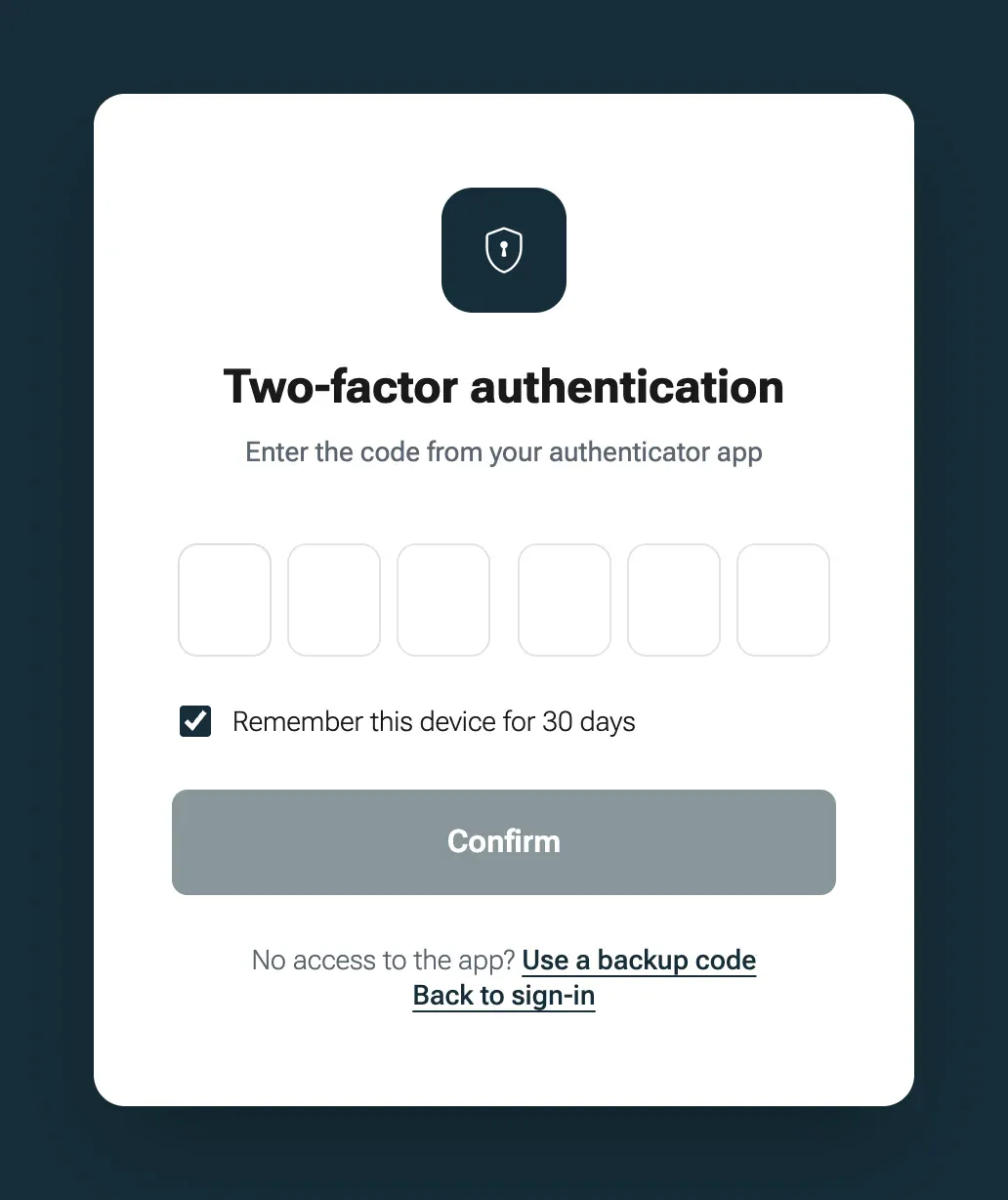
- No phone at hand? Click Use a backup code and type one of the backup codes. Each works once.
- Your own computer? Tick Remember this device for 30 days (see Remembered browsers).
- A wrong code sends you back to the password: The code you entered was invalid. Please sign in again. This is on purpose. After the password, the code step stays open for 2 minutes and on that one browser, and one wrong code closes it.
The sign-in link by email asks for the code too. Sign-ins with Microsoft do not: there, multi-factor authentication is set up in Microsoft Entra.
Turn it off
Section titled “Turn it off”Open the dialog Security with Manage and click Turn off. nexxus asks for a current code from the app or a backup code: To turn it off, enter a current code from your authenticator app or a backup code. Afterwards Authenticator app has been turned off. If your role makes the app mandatory, you are asked to set it up again at your next sign-in.
When the phone is lost
Section titled “When the phone is lost”If someone has lost both their phone and their backup codes, an administrator resets the app: open the person, tab Security, click Reset 2FA and confirm Do you really want to reset this user’s authenticator app? The user can then sign in again without a second factor. The reset also removes every remembered browser of the person, so a stolen laptop cannot skip the new factor.
Remembered browsers
Section titled “Remembered browsers”On your own computer, typing a code at every sign-in is tedious. Tick Remember this device for 30 days at the code entry, and this browser skips the code for 30 days. The password is always required. A remembered browser only replaces the code.
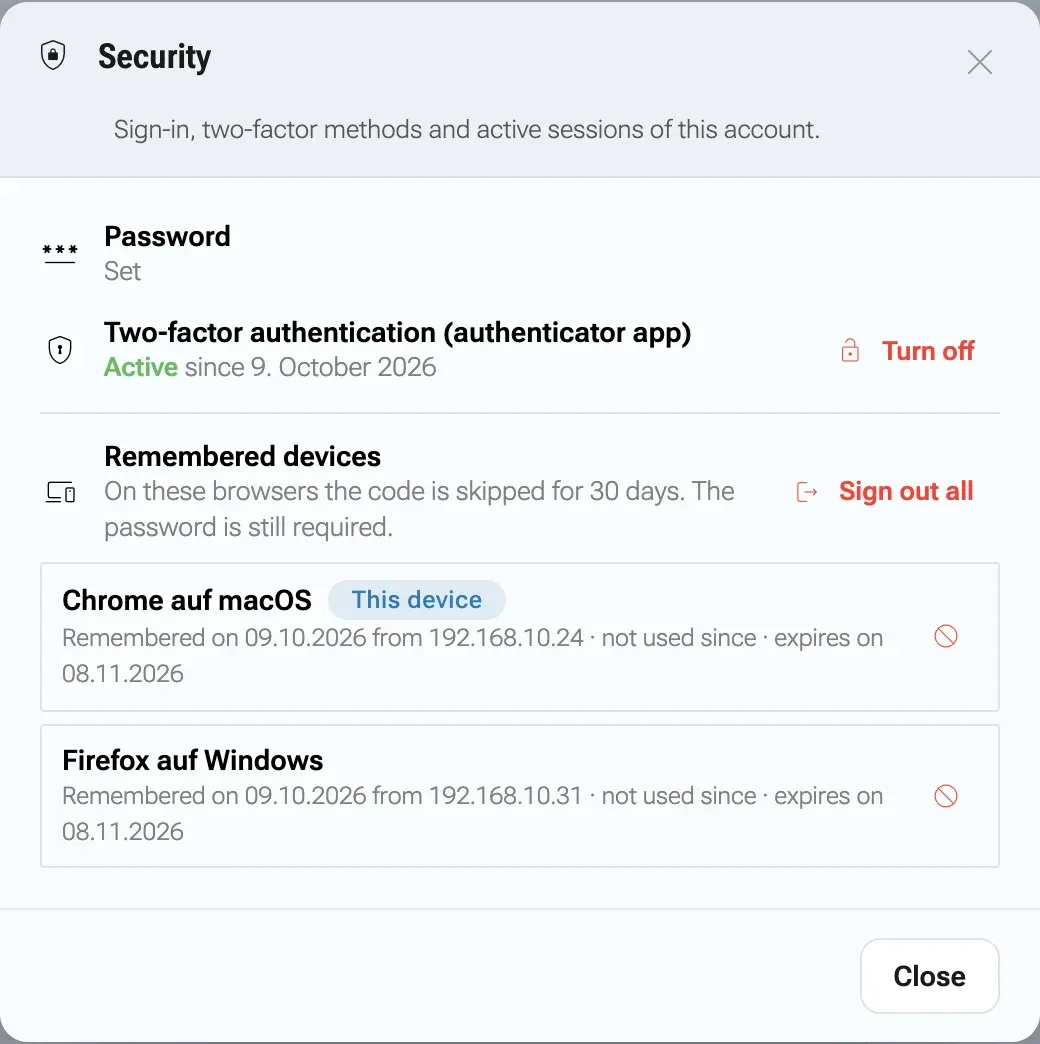
Your remembered browsers are listed in the dialog Security under Remembered devices: On these browsers the code is skipped for 30 days. The password is still required. Each entry shows a label such as „Chrome auf macOS“ (the server writes it in German), the chip This device for the browser you are using, when and from which address it was remembered, when it was last used and when it expires.
- The button Sign out device at the end of an entry removes one browser: it asks for the code again at the next sign-in.
- Sign out all removes every remembered browser, including this one.
- Both ask once whether you are sure, but neither asks for a code, so you can react fast when a laptop is gone.
nexxus removes all remembered browsers by itself when the password changes, when you set up a new authenticator app or turn it off, and when an administrator resets it. The cookie that marks a remembered browser changes at every use. If an old copy of it turns up, nexxus concludes it was copied and removes all remembered browsers of the account.
Mandatory two-factor authentication per role
Section titled “Mandatory two-factor authentication per role”You can make the authenticator app mandatory for certain roles. People with such a role cannot enter nexxus without one; at their next sign-in they are led through the setup once, on every sign-in path, including Microsoft and the sign-in link.
The list works with the system roles (ADMIN, STAFF and the others), not with access roles. Make it mandatory for ADMIN at least.
-
Open AdministrationOperationsSystem configuration and go to the section Mandatory two-factor authentication.

-
Choose the roles under Roles with a mandatory authenticator app. Empty means: not mandatory for anyone.
Before you add a role, make sure at least one account with that role can set up the app: Before adding a role, check that at least one account with this role has a smartphone at hand.
-
Click Save. nexxus asks you to confirm it is you: You are changing which roles need an authenticator app. This setting protects every account with these roles, so please confirm that it is you.
-
After saving, every administrator of the tenant with an email address gets a mail saying who changed the rule, when, and what it was before and after.
If you remove a role from the list, the page warns you before saving, for example Accounts with the role STAFF will be able to sign in without a second factor.
What the affected people see. After their password (or sign-in link, or Microsoft sign-in), the page Set up two-factor sign-in appears: Your role requires an authenticator app. Set it up once, after that the code is enough. It shows the QR code, the Manual key: and the backup codes. The person types the code under Code from the app and clicks Finish setup, and is signed in. There is no “later”. Accounts that need a second factor never get the 30-day “stay signed in” cookie.
Confirm it is you
Section titled “Confirm it is you”Some changes need more than an open session, because someone else could be sitting at the computer. nexxus then asks for fresh proof that you are you. This happens when you:
- change your own password,
- create or rotate an API token,
- change the list of roles with mandatory two-factor authentication.
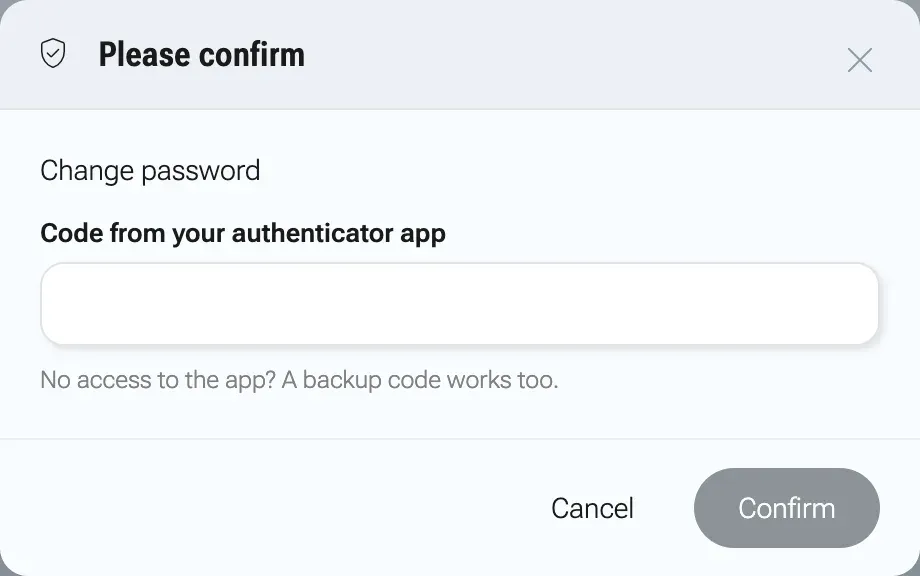
The dialog Please confirm asks for the Code from your authenticator app (No access to the app? A backup code works too.), or, if your account has no app, for Your password. Click Confirm. A remembered browser does not skip this step, and nexxus asks again at every such change.
Stay signed in and sessions
Section titled “Stay signed in and sessions”| How you signed in | How long you stay signed in |
|---|---|
| Without Stay signed in | Until the browser closes, and at most 12 hours without activity. An open tab counts as activity. |
| With Stay signed in | 30 days, counted from your last use. The browser signs you in again after it was closed. |
| With an authenticator app, ticked | The session lasts up to 30 days, but closing the browser ends it. Use Remember this device for 30 days to skip the code next time. |
| With Microsoft | Remembered for 30 days, like a ticked box, unless the account needs a second factor. |
Signing out with Sign out in the menu of your avatar (Do you really want to sign out?) ends the session and deletes your remembered sign-ins on the server, for every device. A copied cookie no longer works after that, and other browsers ask you to sign in again once their current session ends. When a session expires, the next click leads to the login page.
When you sign in without ticking Stay signed in, nexxus also removes a remembered sign-in that this browser might still carry from an earlier person. A shared computer does not sign the next person in as the previous one.
Sign-in link by email
Section titled “Sign-in link by email”The sign-in link lets people sign in without a password, for example on a computer where they do not want to type it.
-
On the login page, click Email me a sign-in link.
-
Type the email address under Email address and click Send link.
-
The page says Please check your inbox. The link is valid for 15 minutes. The mail, in German, has the button „Jetzt anmelden“ (sign in now).
-
The link signs the person in. If the account has an authenticator app, nexxus asks for the code first.
- The link is valid for 15 minutes and works once.
- nexxus sends a link only if exactly one account has this email address. The page says the same in every case, so nobody can find out whether an address has an account.
- An expired or used link shows The sign-in link is invalid or has expired. Please request a new one.
- The sign-in link needs working mail. Without it the page still says “please check your inbox”, but nothing arrives.
Lockout and rate limits
Section titled “Lockout and rate limits”nexxus does not lock accounts after failed sign-ins. It records every failed attempt (see Sign-in log) and limits how often certain requests may come from one address:
| What | Limit | Then |
|---|---|---|
| Requesting a sign-in link | 10 per hour per address, and 3 per 15 minutes per account | Too many attempts. Please wait a moment and try again. Requests beyond the per-account limit are dropped silently. |
| Entering a code (sign-in, setup, confirmation) | 5 per 2 minutes per address | Too many attempts. Please wait a moment and try again. |
| Wrong API tokens | 20 per minute per address | Token requests from that address are refused for a minute, including valid tokens |
The password form itself has no limit in nexxus. If your installation is reachable from the internet, put a rate limit for the sign-in in front of it, in your reverse proxy or web application firewall.
Personal API tokens
Section titled “Personal API tokens”A personal API token is your account without a browser: a script, a BI tool or an assistant sends it instead of a session cookie and works with exactly your rights. You can revoke it at any moment.
Create a token
Section titled “Create a token”-
Open My profile and the tab API tokens.
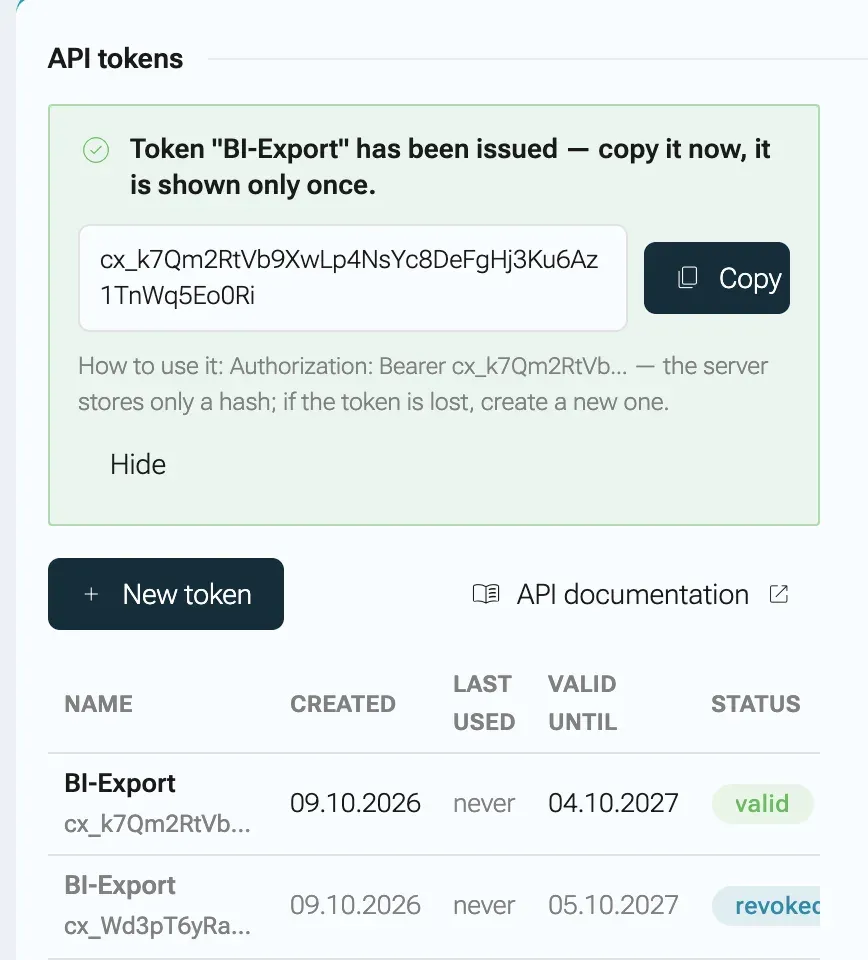
The new token is shown once. nexxus keeps only a hash. -
Click New token. Enter What is the token for?, for example “BI export”, so you know later which one to revoke.
-
Choose Valid for: 30 days, 90 days, 1 year (preselected) or No expiry. Short is better when the token lies in a file someone else could read.
-
Click Create token and confirm it is you, with your app code or your password.
-
The token appears once at the top, starting with
cx_. Click Copy and store it where the script can read it. nexxus keeps only a hash: if the token is lost, create a new one.
Use it
Section titled “Use it”Send the token in the Authorization header. There is no sign-in and no session:
# Who am I?curl -H "Authorization: Bearer cx_..." https://<your nexxus address>/api/v1/user/current
# The OpenAPI description of every route, generated from the running codecurl -H "Authorization: Bearer cx_..." https://<your nexxus address>/api/openapi.json
API documentation next to the token list opens the same description as a readable page. Every change made with a token carries your name and your tenant, as if you had clicked it.
A wrong, expired or revoked token gets the answer „Ungültiges oder zurückgezogenes API-Token.“ (invalid or revoked API token), without saying which of the three.
Rotate and revoke
Section titled “Rotate and revoke”The list shows each token with Name (with the first characters of the token below it, to recognise it), Created, Last used, Valid until and Status (valid, expired or revoked).
- Rotate replaces a token: the old one stops working at once, and a new one with the same name and the remaining lifetime, counted in whole days, appears once. You confirm it is you.
- Revoke ends a token immediately and for good. No confirmation with a code is needed, so you can react fast. Revoked tokens stay in the list as a record.
You can hold at most 20 valid tokens. Deleting an account stops all of its tokens at once. Administrators cannot see other people’s tokens.
What a token cannot do
Section titled “What a token cannot do”A token can do everything your account can, with one exception: nothing that changes the account itself. Managing tokens, changing the password, setting up or turning off the authenticator app, managing remembered browsers and editing the profile need a sign-in in the browser. The answer is „Diese Aktion ist mit einem API-Token nicht möglich“ (this action is not possible with an API token). A leaked token can therefore not make itself permanent or switch off the second factor. Tokens have no scopes of their own: a token that should be able to do less needs an account with fewer rights.
Sign-in log and activity
Section titled “Sign-in log and activity”nexxus records every sign-in, failed sign-in, sign-out, password change and remembered browser, with the time, the address and the browser. Failed attempts are recorded with the username that was typed, even if no such account exists.
Each person sees their own entries on My profile, tab Activity: What happened under your account, newest first: sign-ins, including failed ones, and changes to data. Please report a sign-in you do not recognise to an administrator.
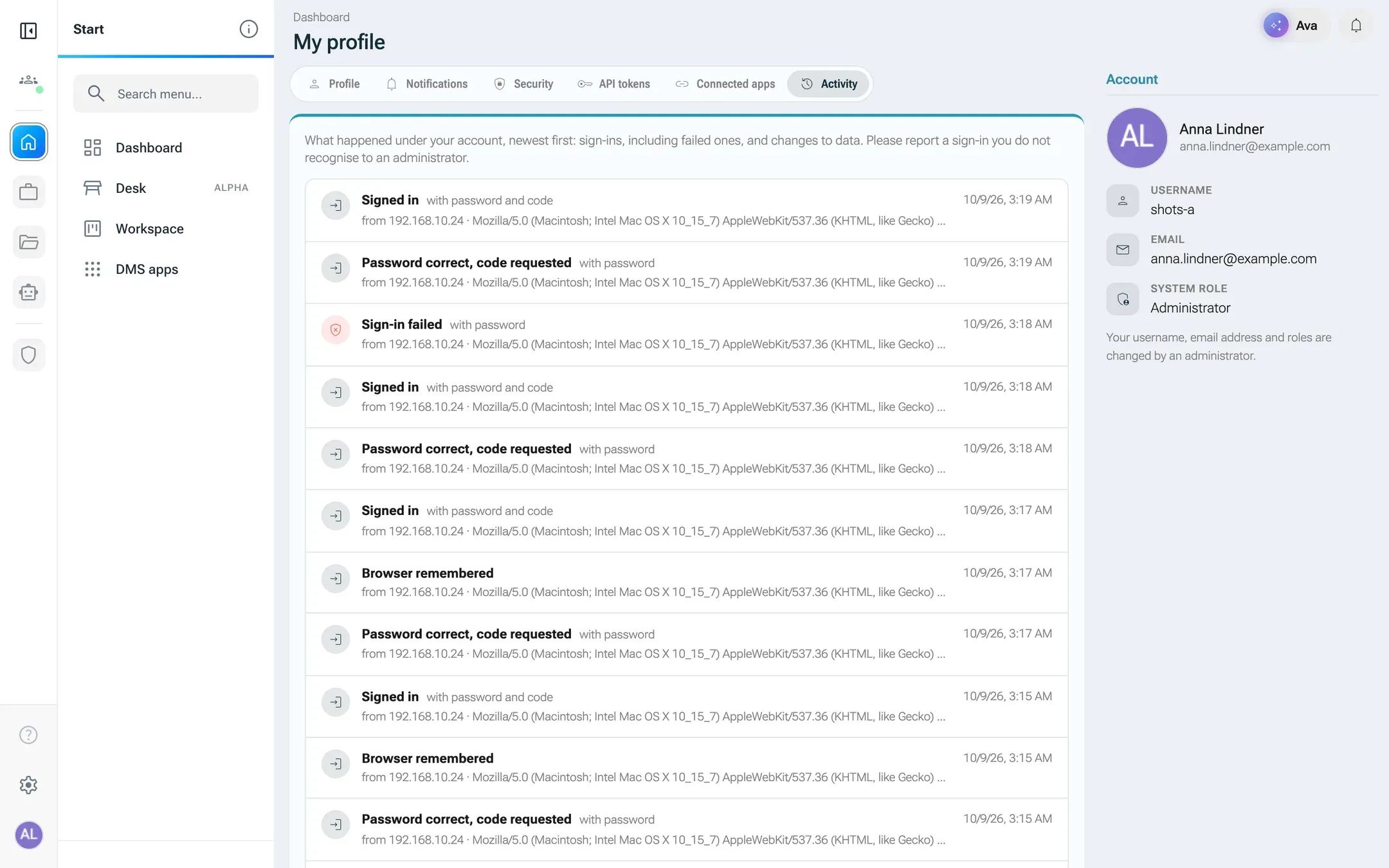
| Entry | Meaning |
|---|---|
| Signed in | A session was granted. The method follows: with password, with password and code, via sign-in link, via Microsoft or remembered browser |
| Sign-in failed | Wrong password or wrong code |
| Password correct, code requested | The password was right, the second factor was still outstanding. Not a sign-in yet. |
| Signed out | The person signed out |
| Password changed | By the person or by an administrator |
| Browser remembered | A browser was remembered for 30 days |
Administrators see the same for each person on the user’s tab Activity, and the entries of all accounts under AdministrationOperationsLogsEvent logs. Each account also records its last sign-in, which helps spot accounts nobody uses any more.
The audit log
Section titled “The audit log”The audit log answers “who changed what, and when”. For every record that is created, it writes an entry; for every change, it writes one entry per changed field, with the old and the new value, who made the change and when. Deletions in nexxus keep the record, so they appear as a change too.
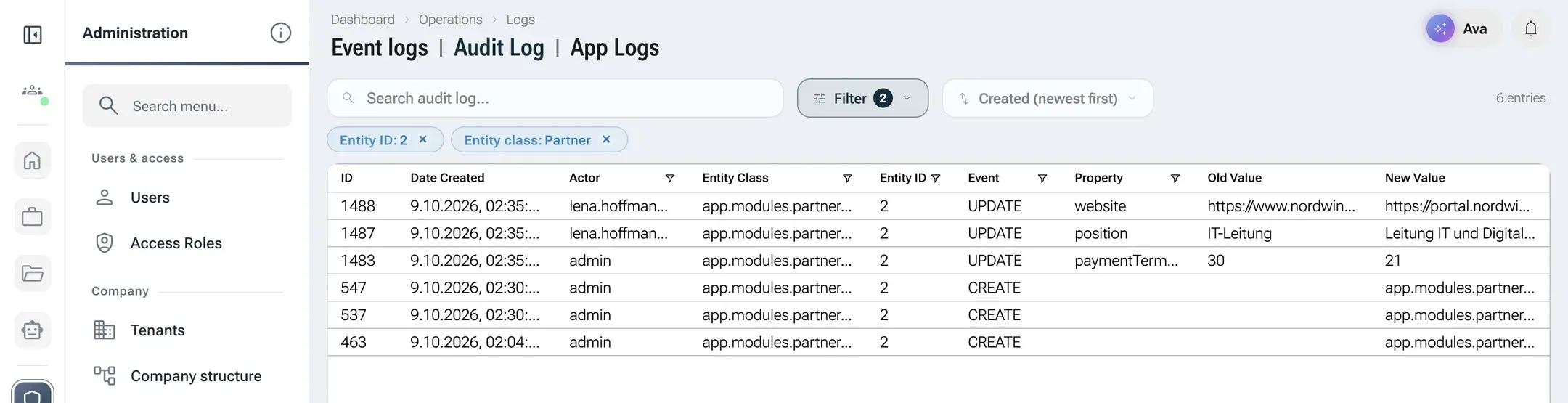
Administrators open it under AdministrationOperationsLogsAudit Log. Under Filter, narrow it by Entity ID, Entity class, Field name and Created; part of a class name is enough, for example Partner. The columns are Date Created, Actor, Entity Class, Entity ID, Event, Property, Old Value and New Value. The entity class is the technical name of the record type, for example a class name ending in Partner.
Changes the AI Assistant carries out after your click, and changes made with your API token, carry your name. Work that runs without a person carries “system”.
How long logs are kept
Section titled “How long logs are kept”By default nexxus keeps audit entries for 365 days and sign-in and event entries for 90 days. The cleanup job is switched off on a new installation, so nothing is deleted until you decide. To switch it on, open AdministrationOperationsMaintenanceCron Jobs and set the job LogRetention to Active. It runs every night. Self-hosters change the periods with app.logging.retention.auditLogDays and app.logging.retention.eventLogDays; scheduled jobs only run when app.disableCronJobs is false, which the production profile sets.
Tenant separation
Section titled “Tenant separation”All data of your organisation lives in one tenant. On installations with several tenants, nexxus keeps them apart like this:
- Every record carries its tenant. nexxus sets it when the record is created, from the signed-in person. A request cannot choose or change it.
- Every read is filtered by the tenant of the person asking. Records of another tenant are refused.
- Roles apply within a tenant. An access role and its assignments belong to one tenant.
- Settings are per tenant: AI providers and their keys, mail server, Microsoft sign-in, mandatory two-factor authentication.
All tenants share one database. The system role ADMIN stays within its own tenant: an administrator manages that tenant and cannot reach records of the others. Only SUPERADMIN works across tenants, for example when creating tenants under AdministrationCompanyTenants and for settings that apply to the whole installation. Give SUPERADMIN only to the people who run the installation.
Secrets at rest
Section titled “Secrets at rest”nexxus stores secrets so that a copy of the database alone does not reveal them:
- Encrypted (AES-256-GCM, with the installation’s secrets key): authenticator app secrets, the Microsoft client secret, connector tokens and client secrets, connector credentials, AI provider keys, mail server passwords.
- Hashed, not recoverable: passwords and backup codes (BCrypt), API tokens, invitation and sign-in links, remembered-browser cookies (SHA-256).
Secrets are shown once when they are created and never again. Fields for stored secrets stay empty: leave them empty to keep the stored value.
When something goes wrong
Section titled “When something goes wrong”| What you see | Cause and fix |
|---|---|
| The code you entered was invalid. Please sign in again. | The code was wrong or too old. Check the time on the phone (authenticator codes depend on it) and sign in again. |
| The setup has expired. Please sign in again. | The mandatory setup took longer than 2 minutes after the password. Sign in again and set it up straight away. |
| Too many attempts. Please wait a moment and try again. | Too many codes or link requests from your address. Wait two minutes. |
| „Der Code ist ungültig oder es gab zu viele Versuche.“ (the code is invalid or there were too many attempts) | In the confirmation dialog. Use the current code or a backup code. |
| „Das Passwort ist falsch.“ (the password is wrong) | In the confirmation dialog: your current password, not the new one. |
| „Höchstens 20 gültige Tokens je Konto“ (at most 20 valid tokens per account) | Revoke a token you no longer use. |
| „Diese Aktion ist mit einem API-Token nicht möglich“ | The request changes the account itself. Do it in the browser. |
| „Unbekannte Rolle(n): …“ (unknown roles) | A role in the mandatory 2FA list does not exist. Pick the roles from the list. |
| The sign-in link does not arrive | Mail sending is not set up or not confirmed, or several accounts share the address. Check the setup step Email. |