
Start here
Find your way around
A tour of the nexxus screen. The seven areas of the menu with every entry, the menu search and pins, focus zones, the global search with Ctrl+K, the assistant column, the bell, help mode, colour mode, language and the keyboard shortcuts.
nexxus keeps the same layout on every page. The menu sits on the left, the page in the middle, and the AI Assistant’s column on the right, ready whenever you open it. Once you know where these three are, every module works the same way.
This page walks the screen from left to right, lists every entry of the menu, and ends with the keyboard shortcuts. What you see depends on your role: nexxus only shows entries you may open, so a colleague’s menu may be shorter or longer than yours.
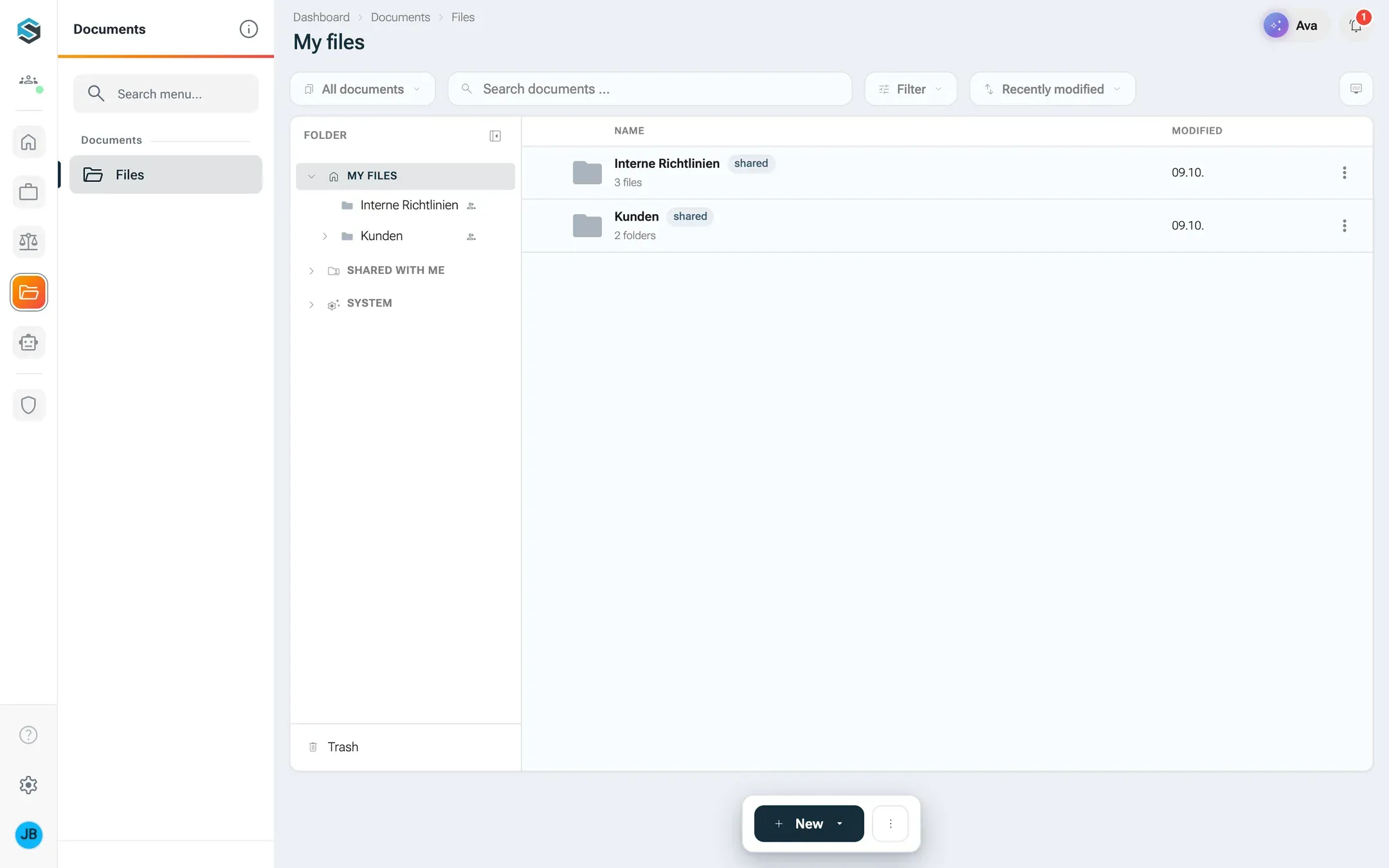
The screen at a glance
Section titled “The screen at a glance”Left
- Area railSix coloured areas, plus the bell, who is active, and your avatar with profile, settings and help
- Area menuSections and entries of the area you picked
The page
Lists, records, your files, the dashboard
- Title
- Tabs
- Actions
Right
- AI AssistantOne column for the whole app, knows which page you are on
- The area rail on the far left shows the seven areas as coloured chips: Start, Organisation, ISMS, Documents, Website, AI, and Administration at the bottom. Hover over an area or click it to see its entries. About Organisation (for each area) shows a one-line description.
- The area menu next to it lists the sections and entries of the chosen area. Some entries are groups, for example Partners or Billing: the group appears once in the menu, and its lists appear as titles at the top of the page, where you switch between them.
- The logo button at the top collapses and expands the menu (Collapse navigation, Expand navigation). nexxus remembers your choice for your account, on every device. Collapsed, the area rail stays: point at an area and a window with all its entries opens beside it. After a click on the area it stays open until you pick a page, click beside it or press Esc.
- At the bottom of the rail: the bell, who else is active, and your avatar. Behind the avatar are your profile, the colour mode, help and the version. The speech bubble at the bottom of the menu, Give feedback, opens your organisation’s feedback form in a new tab, if an admin has set its address under AdministrationOperationsSystem configuration, section Feedback.
- Above the page: at the left the way to the page (for example Administration › Users & access › Users), the search field in the middle (Search everything …); and, at the right, the button with the assistant’s name, AI Assistant. The page’s title stands below.
- On a phone (up to 640 pixels wide), a header bar appears with the button that opens the menu, the search as a magnifier and the AI Assistant. The menu opens below it.
- A simpler menu: an admin can give everyone, or a single role, the simple menu instead: one column with every page under quiet headings and no area rail. Each heading folds its section with a click (see Main menu). If the menu is light and your organisation has its own logo, the expanded menu shows it at full size at the top.
- Focus zones: in the third style, a badge sits at the top of the menu. There you switch between Everything, the whole menu, and zones such as “LIMS” or “CRM” that show only their areas and pages. Create own zone builds a zone from pages of the menu that only you see. The dashboard shows the same zones as tiles under Your focus zones. A link never switches the zone; if the page lies outside, the top of the page says not in this focus zone. More in Focus zones.
- Lists beside the page: the chat shows its channels and direct messages in a bar to the left of the conversation; Hide sidebar hides it. From 15 entries it offers Jump to …, and a group with more than 50 entries shows the rest with Show all. When the chat belongs to your focus zone, the list stands in the menu instead.
- Outside production, the menu shows the name of the environment at the bottom, so a test system is not mistaken for the real one.
The seven areas and their entries
Section titled “The seven areas and their entries”Each table lists the entries in the order of the menu, with the address in your browser. Entries marked admins are only visible to administrators. An admin can switch whole areas off for the tenant (see Areas); their entries then disappear for everyone. The AI Assistant cannot be switched off, so the area AI stays. The tables show the order nexxus comes with. If an admin rearranged the menu in the setup (see Main menu), entries may sit elsewhere for you, under another name or as their own icon in the rail.
| Entry | Route | What you find there |
|---|---|---|
| Dashboard | /dashboard | Your start page. Tiles you arrange yourself. See Build your dashboard. |
| Desk (badge Alpha) | /schreibtisch | Your tasks, your AI avatars and the AI Assistant at one table. |
| Workspace | /workspace | Boards with tasks, as Kanban or list, and My tasks. |
| Apps | /dms-apps | The apps of your tenant: small apps whose documents live in Files. See Apps. |
Organisation
Section titled “Organisation”| Section › group | Entry | Route | What you find there |
|---|---|---|---|
| Time › Time tracking | Monthly timesheets | /monthlyTimesheet | Your months with their status and actual against target hours, each with its timesheet as a PDF. Provisional until the month is approved. |
| Time › Time tracking | Toggl sync | /togglSyncLog | Time entries taken over from Toggl. Admins. |
| Time › Absence | Vacation requests | /vacationRequest | Request leave and follow your requests. |
| Time › Absence | Public holidays | /holiday | Holidays per region. They lower the target hours of the month. |
| Business › Partners | Customers | /partner/customers | Customers with branches and contacts. |
| Business › Partners | Suppliers | /partner/suppliers | Suppliers with branches and contacts. |
| Business | Projects | /project | Projects with assignments, rates and links. |
| Business › Billing | Invoices | /invoice | Invoices with positions, as PDF with ZUGFeRD. |
| Business › Billing | Contingents | /contingentAgreement | Hour contingents agreed with customers. A monthly run creates draft invoices. |
| Business › Billing | Credit accounts | /creditAccount | Credit accounts and their transactions. |
| Business › Billing | Billing roles | /billingRole | The lines under which hours appear on an invoice, with their levels. |
| Entry | Route | What you find there |
|---|---|---|
| Compliance programmes | /ismsProgram | One programme per framework (ISO 27001, NIS2): every requirement with its status up to the audit, and the Statement of Applicability. |
| Assets | /ismsAsset | What needs protecting: systems, data, locations, with their protection needs. |
| Risks | /ismsRisk | Risks to your assets, assessed and with their handling. |
| Risk assessments | /ismsRiskAssessment | Runs through the risk register. Completing one freezes its state. |
| Measures | /ismsMeasure | Technical and organisational measures, their executions and evidence. |
| Declaration campaigns | /declarationCampaign | Rounds in which people confirm a version of a policy. |
| Self-declarations | /ismsDeclaration | Your own declarations in these rounds. |
| Security incidents | /ismsIncident | Report and handle incidents, with the assessment, reports to the authorities and their deadlines. If you may only report, you see your own reports here. |
| Risk method | /ismsRiskMethod | What the four levels of likelihood and impact mean, and from which score a risk turns yellow or red. |
Documents
Section titled “Documents”| Entry | Route | What you find there |
|---|---|---|
| Files | /dokumente | Documents and folders with shares, versions, attributes and previews. See Files. |
Website
Section titled “Website”| Entry | Route | What you find there |
|---|---|---|
| Content | /content | The entries of your website in a folder tree, with draft, published state and translations. See What’s in the box. |
| Blocks | /content-blocks | The content types and blocks with their fields. |
| Media | /content-assets | Images and files for the content. |
| Delivery | /content-delivery | The tokens your website uses to fetch its content, the languages, and the webhook that rebuilds the website after publishing. |
| Section | Entry | Route | What you find there |
|---|---|---|---|
| Work with AI | AI sessions | /ai | Your conversations with the AI Assistant, on a full page. |
| Work with AI | Knowledge | /ai-knowledge | Knowledge entries the AI Assistant finds and adds to from conversations. |
| Work with AI | Skill Management | /ai-skills | Reusable instructions for the AI Assistant, with files and shares. |
| Work with AI | Schedules | /ai-schedules | Tasks the AI Assistant runs on a schedule or when an email arrives. |
| Work with AI | AI actions | /ai-actions | Everything the assistant can change in nexxus. Admins. |
| Set up AI | Connectors | /plugins | Tools, integrations and skills the assistant can use. |
| Set up AI | Avatars | /ai-avatare | AI colleagues with their own name, purpose and memory. |
| Set up AI | AI Providers | /ai-providers | Language model providers and their models. See Connect your AI. |
| Set up AI | Vector Viewer | /vectorViewer | A look into the search index. Admins. |
| Set up AI | MCP overview | /ai-mcp | Every tool source of the assistant, with state, tools and usage. Admins. |
| Set up AI | AI usage | /ai-usage | What the AI costs, by session, person, skill, model and origin. Admins. |
Administration
Section titled “Administration”| Section › group | Entry | Route | What you find there |
|---|---|---|---|
| Users & access | Users | /user | Accounts, invitations and the roles of each person. Admins. |
| Users & access | Access Roles | /accessRoles | Roles and their permissions. See Roles and permissions. |
| Company › Tenants | Tenants | /tenants | Your tenant and its own companies. Admins. |
| Company › Company structure | Own companies | /own-companies | Your legal entities, as they appear on invoices. |
| Company › Company structure | Business Units | /businessUnits | Your organisation chart. Files can be shared with a unit. |
| Company › Company structure | Teams | /team | Teams with their lead. |
| Company | Work schedules | /workSchedule | Weekly hours as templates or per person. |
| Content & automation › Content | System Mails | /system-mails | The templates of the emails nexxus sends. |
| Content & automation › Content | Text Blocks | /textBlock | Reusable texts. |
| Content & automation › Content | Tags | /tags | Tags for records. |
| Content & automation › Forms | Forms | /form | Forms you build yourself. |
| Content & automation › Forms | Field templates | /form-field-template | Reusable fields for forms. |
| Content & automation › Forms | Categories | /form-category | Labels to group forms by. |
| Content & automation › Forms | Records | /form-record | Filled-in forms. |
| Content & automation | Mailboxes | /mailboxes | Incoming mailboxes. Their attachments can be filed in Files. Admins. |
| Operations › Logs | Event logs | /eventLogs | Events of the application. Admins. |
| Operations › Logs | Audit Log | /auditLogs | Who changed which field, with old and new value. Admins. |
| Operations › Logs | App Logs | /appLog | Technical log of the application. Admins. |
| Operations › Maintenance | Cron Jobs | /cronJob | Background jobs, each switched on or off. Admins. |
| Operations › Maintenance | Migrations | /migrations | Upgrade tasks per version. Admins. |
| Operations › Maintenance | Email delivery | /emails | The emails nexxus sent. |
| Operations | Modules | /modules | The built-in modules with version and changelog. See What’s in the box. Admins. |
| Operations | Setup | /einrichtung | The steps of the setup, each as a form. See First run. Admins. |
| Operations | System configuration | /system-config | Settings of the tenant: default language, Microsoft sign-in, files, embeddings, desk, AI costs, two-factor rule. Admins. |
Two pages have no menu entry: your profile at /profil (from the avatar menu) and the full list of notifications at /benachrichtigungen (from the bell).
Who sees which entries
Section titled “Who sees which entries”Every entry has a permission that opens it. nexxus checks it twice: the menu only shows what you may open, and the page itself refuses anyone without the permission and sends them to the dashboard. Two pages are open to everyone who is signed in: the dashboard and your own profile.
Some entries open with either of two permissions. Monthly timesheets, for example, opens with the permission for your own months, and shows every employee’s months to those who also have the management permission. The full list of permissions is in Roles and permissions.
Search the menu and pin entries
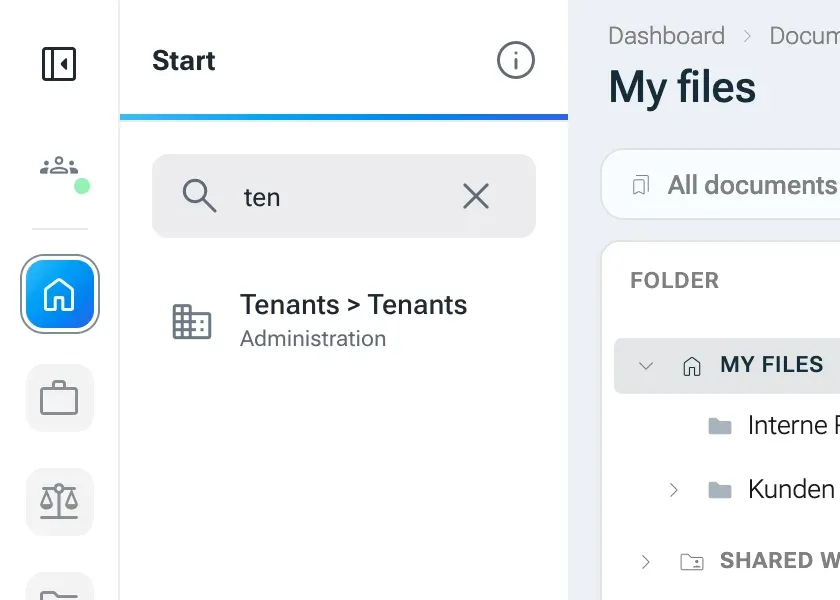
Section titled “Search the menu and pin entries”- Menu search: the search field above the page (Search everything …) looks through every entry of every area, not only the open one, and finds records too (see the next section). Each menu hit names its area.
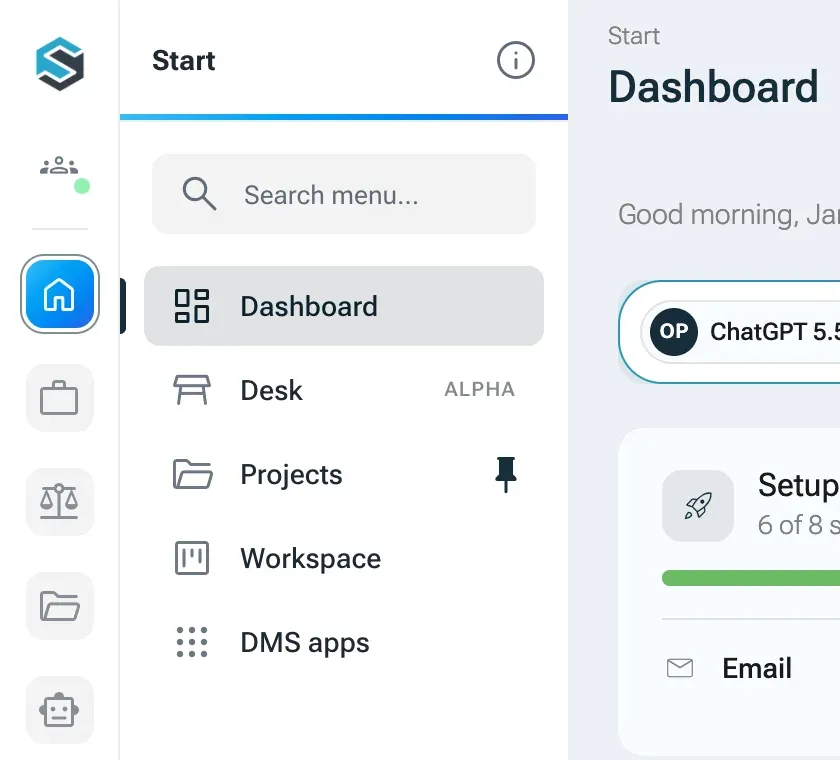
- Pins: point at an entry you use often and click the pin that appears beside it (Pin, Unpin). Pinned pages appear in the area Start below Dashboard and Desk. Your pins are stored with your account and follow you to other devices.
Search everything with Ctrl+K
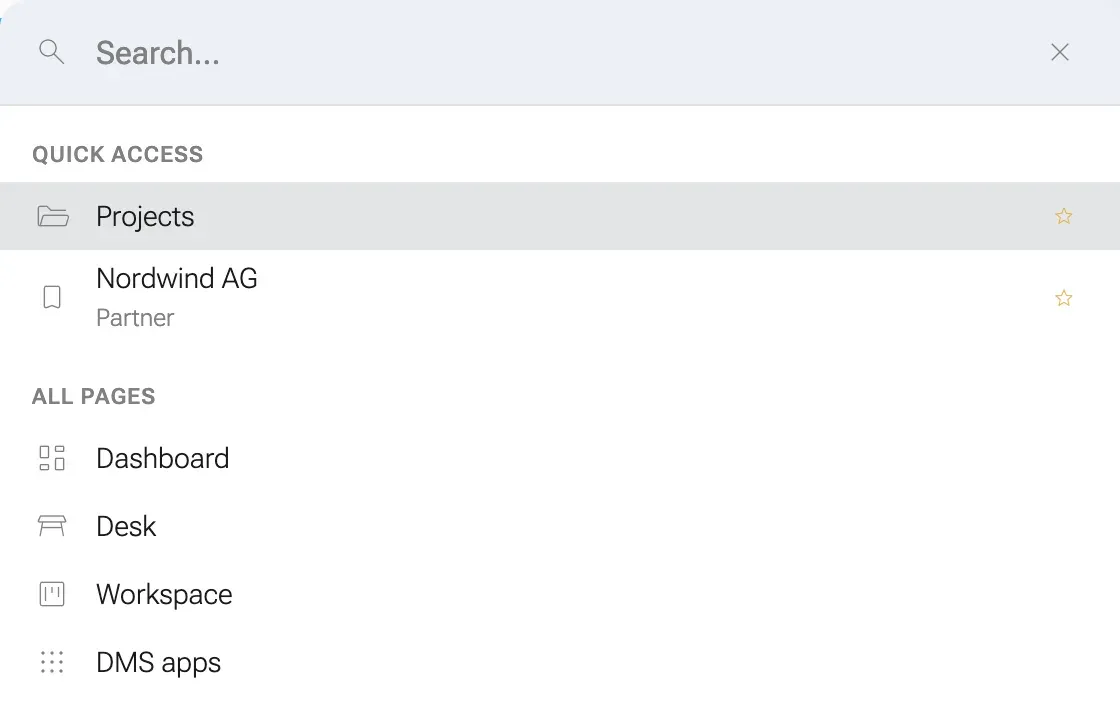
Section titled “Search everything with Ctrl+K”Press Ctrl+K (Windows, Linux) or ⌘K (Mac) on any page, or click the search field above the page. The search window opens right at the field.
- Without typing, it says what it searches: the menu entries and everything the application knows.
- When you type, it shows matching menu entries (Menu) and records grouped by type: partners (by name and number), projects (by designation, number and description), documents (by name and description), knowledge entries (by name, content and category), users (by user name, name and email) and tenants (by name). Under All it shows up to three hits per type; the chip of a type shows all of them. A record whose ID matches exactly comes first.
- Use the arrow keys to move, Enter to open, Esc to close.
Projects only appear if you may read projects, documents only if they are shared with you, and knowledge entries only if you can see them. Partners, users and tenants are found by everyone in the tenant; opening one still needs the permission for that page.
The assistant column
Section titled “The assistant column”Click AI Assistant at the top right (tooltip Open or close AI Assistant) to open the assistant next to the page you are on. There is one column for the whole app: the conversation stays when you move to another page, and each page tells the AI Assistant what you are looking at.
- Drag the left edge of the column to change its width (Drag to resize, double-click to reset). The width is saved with your account.
- The first time you open it, a welcome window explains what the AI Assistant can do. It appears once per person.
- Ctrl+Shift+E (Mac: ⌘+Shift+E) or the button Show in the input area lets you mark a part of the page for the AI Assistant to look at.
- If your assistant has another name, the button shows that name. An admin sets it during the first run.
Everything about working with the AI Assistant is in Work with the AI Assistant.
The bell
Section titled “The bell”The bell at the bottom of the menu counts your unread notifications. Click it to see them, with the tabs All and Unread, a search, Mark all as read, and per notification Mark as read, Mark as unread or Remove. Show all opens the full list. Settings leads to the notification settings in your profile, where you choose per type whether it appears in the bell and whether you also get an email.
Under Rules in your profile you set up notifications of your own: pick a source you may read, set conditions, and choose whether every new match notifies you or only a certain number of matches. A match arrives in the bell and, if the rule says so, by email, at once or in the digest. Nobody else sees your rules, administrators included.
The bell shows what others share with you, what they ask of you and what your schedules report.
Who else is active
Section titled “Who else is active”The button with the people icon at the bottom of the menu, next to the bell, shows a quiet dot when colleagues are active. Click it for the list Active now: each person with the page they are on and when they were last active (just now, 5 min ago). If nobody else is there, it says Nobody else is active right now.
Your avatar: profile, settings and help
Section titled “Your avatar: profile, settings and help”Click your avatar at the bottom of the rail to open a window. Your name and My profile are at the top, three groups below:
- Security and API tokens go straight to these tabs of your profile.
- Dark mode or Light mode switches the colour mode. The choice is stored in your browser and applies to all open tabs at once. The colour of the menu is the same for everyone; an admin sets it in the setup (see Welcome).
- Show hint texts switches help mode on, Hide hint texts switches it off. The row only appears on pages with explanations.
- What’s new shows the release notes of the latest versions. A version you have not read yet shows as a dot on your avatar and the badge New on the row.
- Sign out asks Do you really want to sign out? before it signs you out.
At the very bottom is the version of nexxus, and in brackets the build of the interface, for example “Version 0.13.0 (112)”. Give both numbers when you report a problem.
My profile opens /profil with the tabs Profile, Notifications, Rules, Security, API tokens, Connected accounts, a tab for your own AI Assistant, Phone, AI clients and Activity.
Help mode
Section titled “Help mode”With help on, short explanations appear as speech bubbles under fields and sections. Help switches itself off when you go to another page, so it does not cover the next one. Inside dialogs the explanations are always shown.
Change the language
Section titled “Change the language”nexxus speaks German, English and Polish. Each person picks their own language:
- Open My profile from your avatar. The tab Profile opens.
- In the section Language, choose Interface language: Deutsch, English or Polski.
The message Language changed. confirms it. The language applies on every device you are signed in on. Emails and messages from the server are only available in German so far. Modules you install bring their own texts: where a module has none in your language, you see its English ones, else its German ones.
In the same tab, the section Main menu has Style, which picks how the menu looks for you: Areas, Simple, Focus zones or As set up, the way the administration set it up for everyone. Pages and permissions stay the same.
As long as you have not chosen a language, nexxus uses the default language of your tenant, and so does the sign-in page. An administrator sets it under AdministrationOperationsSystem configuration, section Language, field Default language. Without a default, the language is German. Your own choice always wins over the default.
Banners you may see
Section titled “Banners you may see”- No connection to the server: the server is not responding. nexxus tries again by itself; Try again checks right away.
- No internet connection: your device is offline. Saving resumes once the connection is back.
- Connection restored: all good again.
- Signed in as a person, in red at the foot of the menu: an admin is working in another person’s name, for support. The box names the person, shows with Ends in when it expires and offers Back to the admin’s own account. A red frame then runs around the whole window.
Keyboard shortcuts
Section titled “Keyboard shortcuts”| Where | Keys | What it does |
|---|---|---|
| Everywhere | Ctrl+K / ⌘K | Global search |
| Everywhere | Ctrl+Shift+E / ⌘+Shift+E | Mark something on the page for the AI Assistant |
| Global search | ↑ ↓, Enter, Esc | Move, open, close |
| Main menu, collapsed | ↑ ↓ in the rail, → or Enter, ↑ ↓ Home End in the window, ← or Esc | Choose an area, open its window, walk the entries, back to the area |
| Assistant column, on its edge | Left and right arrow keys | Change the width step by step |
| Files, list | Del, or ⌘+Backspace / Ctrl+Backspace | Delete the selection |
| Files, list | F2 | Rename |
| Files, list | ⌘A / Ctrl+A | Select all |
| Files, list | Esc | Close menus |
| Files, document page | F | Full screen |
| Files, document page | Esc | Leave full screen |
| Files, document page | F2 | Rename |
| Files, preview | Left and right arrow keys | Previous or next file |
| Dashboard, edit mode | Enter or Space, arrows, Enter, Esc | Lift a tile, choose a place, drop it, cancel |