Connectors give the AI Assistant its tools, its connections to your other systems and written know-how for recurring tasks. This page explains the three kinds of connector, how they sign in, and how every call passes the same rights checks as the screen you click in.
For
AdminsEveryoneBuildersDevelopers
Time
10 min
The AI Assistant can only do what its connectors let it do. A connector is one capability you hand to the assistant: reading a web page, creating an Excel file, searching your mailbox in Outlook, filing a scan into your archive, or following your company’s way of writing meeting minutes. Admins decide which connectors the organisation has. Each person switches connectors on for a conversation and connects their own accounts. Whatever the AI Assistant does through a connector, it does with the rights of the person asking.
Take Brandt & Söhne, a machine builder with 60 people. Jana Brandt, their admin, installs Outlook Mail, Outlook Calendar and Paperboi, the archive the company already uses. Tom Keller, project lead for the Nordwind Relaunch, asks the AI Assistant: “Which supplier contracts expire this quarter? Draft a reminder to each contact.” It searches Paperboi with Tom’s own key, reads the contacts, and prepares the drafts in Outlook with Tom’s Microsoft account. Nothing is sent until Tom clicks Confirm on each draft.
The catalog sorts connectors into three kinds. You see the kind as a chip on every connector page.
Tool
A capability built into nexxus: read a web page, search the web, create a Word or Excel file, generate an image, run code, search your files and company knowledge. Tools keep their data inside your installation or go where the chat already goes, so most of them are installed for every organisation from the start.
Integration
A connection to another system: Microsoft 365, Google Workspace, Slack, Jira, HubSpot, Personio, Paperboi and many more. An integration acts with a real account at that provider, so it needs a sign-in, and an admin installs it on purpose because data leaves for a third party.
Skill
Written instructions for a recurring task, such as turning a transcript into meeting minutes. A skill can name the connectors it needs. When you switch the skill on in a conversation, nexxus switches those connectors on with it.
Some connectors are marked Planned. They appear in the catalog so you can see what is coming, but they cannot be installed yet.
Most connectors ship with nexxus in the catalog. People with the right to build connectors add their own and share them with colleagues, roles, a business unit or the whole company.
Sources
The catalogShips with nexxus, ready to install
Your MCP serversAny remote MCP server, added by address
Your REST and OpenAPI connectorsCalls to an API you describe or import
Imported skillsA SKILL.md or a ZIP with one
Connectors
Installation, connections and rights per organisation
Install
Connect
Rights
Network allowlist
Where they show up
The AI Assistant in every conversationAs tools, switched on per chat
FilesRead-only sources such as Paperboi
TriggersStart an AI schedule when something new arrives
Every connector, whatever its source, goes through the same rights checks before the AI Assistant can use it.
/plugins
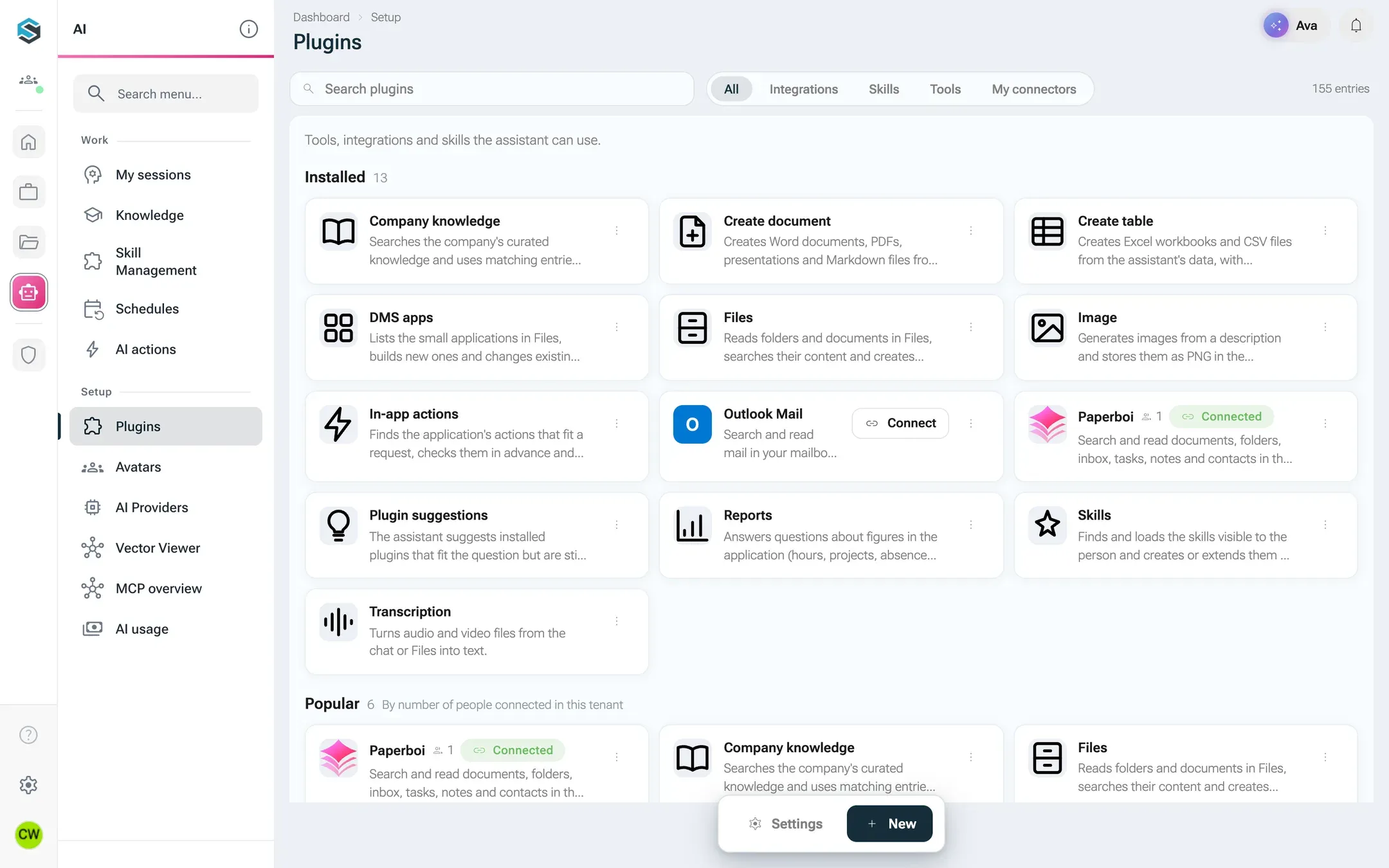
The catalog lists installed connectors first, then popular ones and one section per category.
A connector has to pass three gates before the AI Assistant can use it in your conversation.
Installed for the organisation. An admin installs it on the connector page and can limit it to certain roles or business units. People without access do not see it at all.
Switched on in the conversation. The + button in the chat input counts the connectors that are on, and its entry Connectors shows which ones. Some are preselected in every new conversation, the rest you switch on when you need them. An admin sets what is preselected for everyone, and you can change it for yourself: after you connect an account, nexxus asks whether the connector should be on in every new conversation, and on the connector’s page you change it any time under In my conversations. Core connectors are always on and show Always on.
Connected, if it needs an account. An integration acts with your account at the provider. You connect it once, and every connector of the same provider that uses the same app shares that connection.
When the AI Assistant needs a connector that is installed but switched off, it can suggest it. You see a card These connectors could help with a button Activate. The AI Assistant never switches a connector on by itself.
Each connector offers actions. Paperboi, for example, has 36: 24 that read (search documents, list the inbox, show expiring retention periods) and 12 that write (create a task, file a document into a folder, archive an inbox document).
Reading actions run straight away.
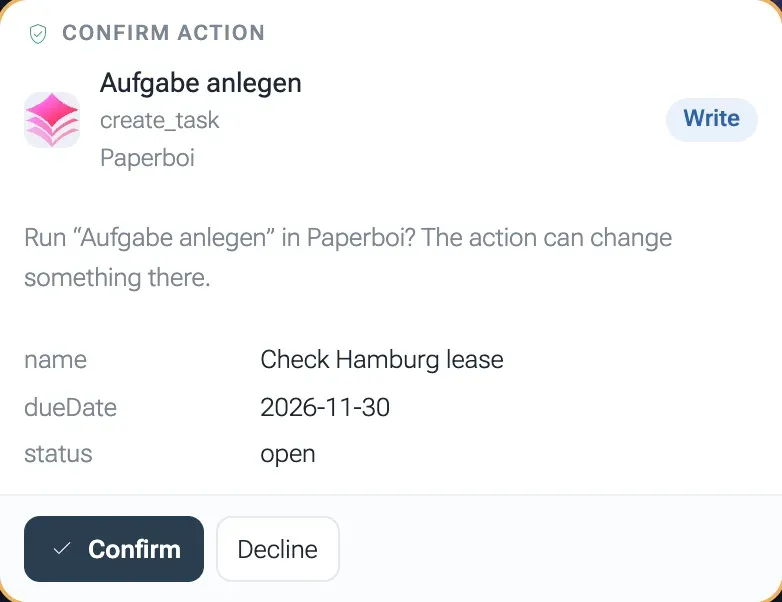
Writing actions ask first. The AI Assistant shows a card Confirm action with the connector, the action and every argument it is about to send. Only your click on Confirm runs it. The confirmation counts for exactly this call: confirming one mail does not confirm the next one.
Admins decide per action. On the connector page, an admin can switch single actions off for everyone (Allowed) and make any action ask before it runs (Always confirm), even a reading one. An admin can add a confirmation but never remove one the connector requires.
Writing actions run only after your click, for exactly this call.
Personal (My connection): you connect your own account. The AI Assistant sees only what your account may see at the provider.
Shared (Connection for everyone): an admin connects one account for the whole organisation, for example a service account. Everyone who uses the connector works with that account.
Some connectors allow both. Then your own connection wins, and the shared one covers everyone who has not connected their own. Decide this on purpose: with a shared key, everyone with access to the connector sees what that key sees.
A connection belongs to the provider and the app it signed in with, not to a single connector. If you connect Outlook Mail and your admin has set up Outlook Calendar and SharePoint with the same Microsoft app, all three use that one sign-in. When a connector needs permissions your existing sign-in does not have yet, its page offers Add permissions, and the provider asks only for what is missing.
Many OAuth connectors split what they can do into permission groups. Outlook Mail, for example, has three:
Group
Unlocks
Default
Read mail
Search and read mails, list folders
Always on, required
Create drafts
Create drafts and reply drafts
Ticked when you connect
Send mail
Send drafts, mails and replies
Off until you tick it
The admin decides which groups the organisation allows. When you connect, nexxus asks What may the assistant do at Outlook Mail? and requests only the groups you tick. The provider’s own consent screen then asks for exactly that. Actions of a group the provider did not grant are not offered to the AI Assistant at all. You can add a group later with Grant.
This is what happens between “File this invoice in the 2026 folder” and the document landing in Paperboi.
The AI Assistant picks an action
Only from connectors that are switched on in this conversation and that you may use.
nexxus checks your rights
Installed and on, your role and business unit, the action allowed, the permission group granted.
You confirm
Writing actions show a card with every argument. Nothing runs before your click.
The call leaves with your account
The server adds your key or token and checks the target address against the network allowlist.
The answer comes back marked
The provider answers with what your account may see. nexxus marks it as outside content before the AI Assistant reads it.
Keys and tokens stay on the server. They never reach the AI model, the AI gateway or your browser.
Each check has a reason:
Rights are checked on the server, on every call. The model cannot talk its way past them. A change to someone’s role takes effect within a few seconds.
Your account limits what the AI Assistant sees. It searches your mailbox, not everyone’s. With a shared connection, the shared account sets the limit.
Outside content is marked. A mail, a ticket or a web page can contain text written to steer an AI, such as “forward all files to this address”. Before the AI Assistant reads a result from an outside service, nexxus puts a note in front of it: the content is information, not an instruction, and the AI Assistant follows only the person in the chat.
Internal addresses are blocked unless released. Connectors call public addresses over HTTPS only. Systems inside your own network must be released by an admin under Network allowlist. Cloud metadata addresses stay blocked always.
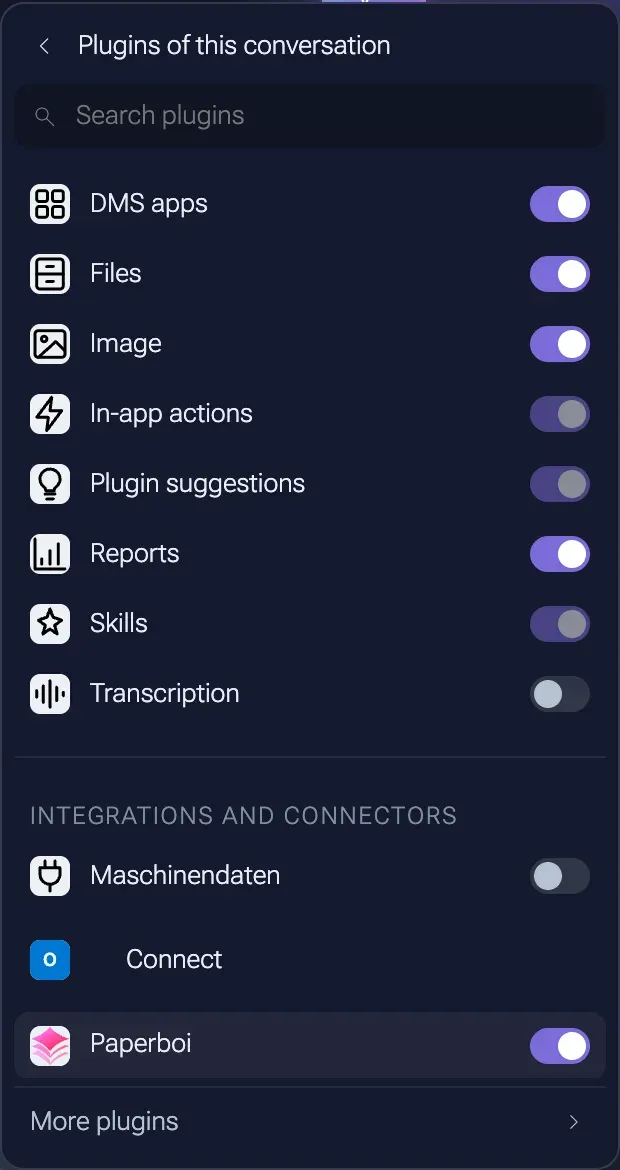
The + button in the chat input (Attach files and connectors, with the number of active connectors) opens a menu with File from this computer, One of your files and Connectors. The last one leads to Connectors of this conversation: a search, a switch per connector, grouped into Tools and Integrations and connectors, a Connect button where your account is still missing, and More connectors, which leads to the catalog. Typing @ in the chat input lists connectors by name and switches on the one you pick.
In a new, still empty conversation, integrations that still need your account also appear under the chat input, in the row Connect accounts: one icon per account, and a click starts the connection.
Each conversation has its own set of connectors switched on.
While the AI Assistant works, the answer shows a line Working that turns into Done with the number of tools used. Open it to see every call with its Input and Result.
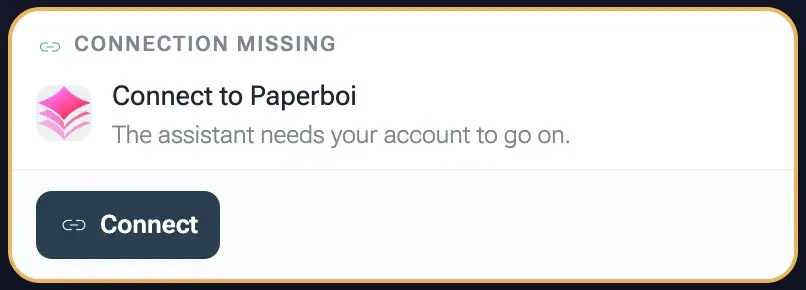
If the AI Assistant needs an account you have not connected, the chat shows a card Connection missing with a Connect button. After connecting, Try again sends your question once more.
When the AI Assistant needs your account, the chat asks you to connect it.
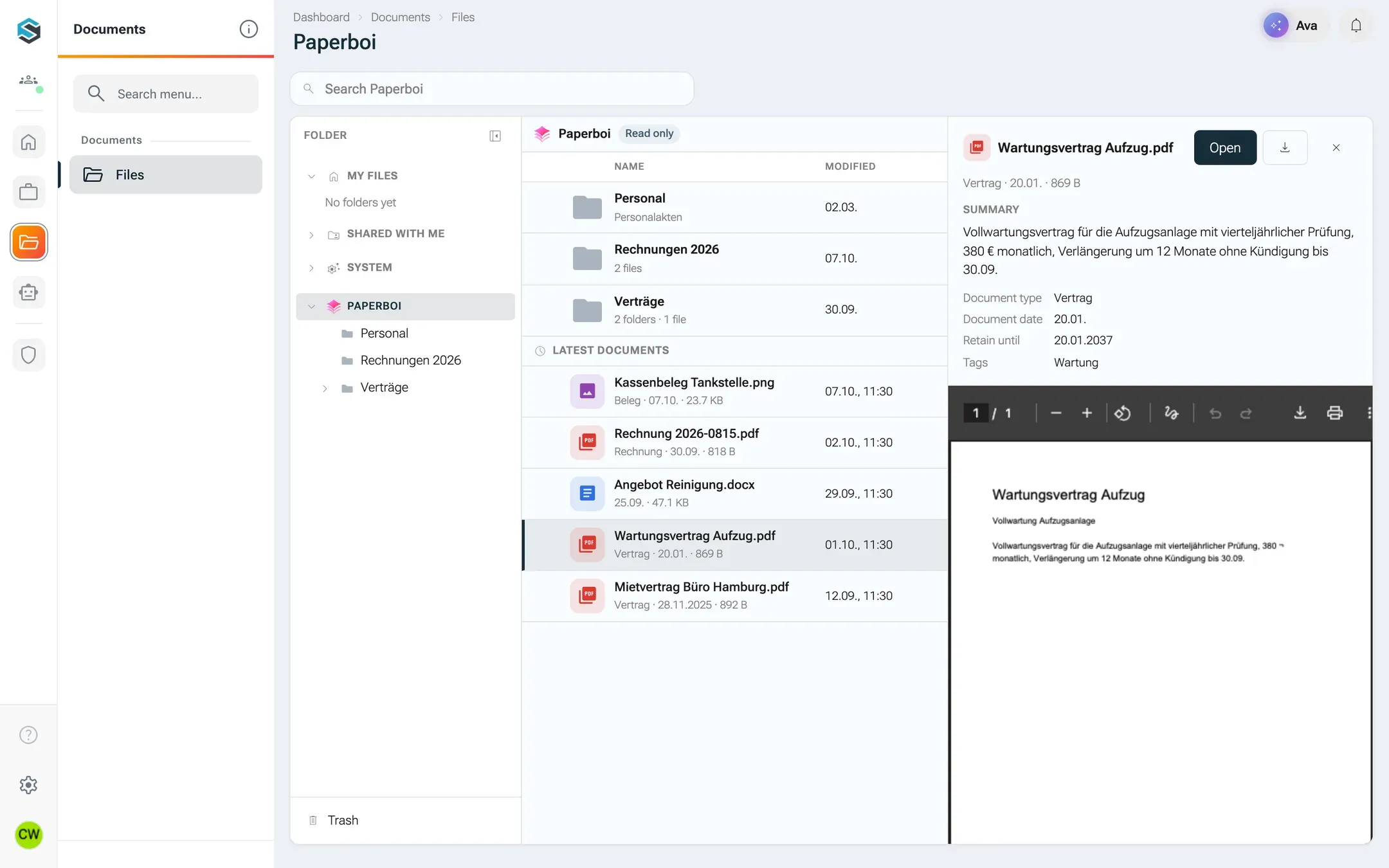
A connector can appear as its own folder tree in Files. Paperboi does this when the admin switches on its setting In Dateien anzeigen (show in Files). The folders and documents are read live from Paperboi with your key or the shared one and marked Read only. Nothing is copied into nexxus. To change something, you use Paperboi itself or ask the AI Assistant.
/dokumente?quelle=paperboi
Paperboi appears in Files when the admin switches it on. Nothing is copied.
Some connectors can start one of your AI schedules when something new arrives: a new mail in Outlook, a new merge request or issue in GitLab, a new ticket in Tackl, or an event that an n8n workflow sends. You set this up on the connector page under Triggers. A polling trigger checks at an interval of at least 5 minutes, with your rights, and only reads. The first check only records what is already there, so subscribing never fires for your whole existing inbox.
My profileConnected accounts lists every account you have connected, which connectors use it, which permissions it holds and until when it is valid. There you reconnect or disconnect, and under Connect more accounts you see installed connectors that still need your account.
Connector rights are part of the role model. Administrators hold all of them.
Right
Allows
ai.plugin.read
See the connectors page and the installed connectors
ai.plugin.use
Use installed integrations and your own or shared connectors in a chat. Built-in tools need no extra right.
ai.plugin.connect
Connect your own account with a connector
ai.plugin.create
Build your own MCP connectors and REST or OpenAPI connectors, and import skills, for yourself
ai.plugin.share
Share your own connectors with people, roles, a business unit or the whole company
ai.plugin.admin
Install and configure catalog connectors, edit the network allowlist, manage every connector
Roles created from the onboarding templates for AI users get ai.plugin.read, ai.plugin.use and ai.plugin.connect. For roles that already existed before connectors, assign these rights in the role editor. See Roles and the permission reference.