
Work with nexxus
Files
Files is the document management of nexxus. File documents in folders or by attributes, edit them in the browser with others, keep every version, share them inside the company or by public link, and let the AI Assistant answer questions from their content. This page covers all of it, including external sources such as Paperboi.
Files is where documents live in nexxus: contracts, offers, policies, scans, spreadsheets. You find it under DocumentsDocumentsFiles (route /dokumente). It looks like a file explorer, but every document carries more than a name and a folder. It keeps its versions, it has attributes such as type, project and confidentiality, it knows who may see it, and nexxus reads its content so that the AI Assistant can answer questions from it.
Take Brandt & Söhne again. The office drops the signed maintenance contracts for Nordwind AG into a folder for that customer. nexxus suggests “Vertrag” (contract) as type, the office accepts. The project lead edits the service schedule in the browser while a colleague reads along. A week later someone asks the AI Assistant “Which of our contracts have a three-month notice period?”, and it answers from the contracts that person may read, with the document and the page.
How Files fits together
Section titled “How Files fits together”In
- UploadFiles, whole folders, ZIP archives, photos
- Created in nexxusMarkdown, HTML pages, spreadsheets, apps
- Mail and AI AssistantAttachments from mailboxes, results of the AI Assistant
Files
One document, many versions, with its own access rights
- Versions
- Attributes
- Shares
- Trash
Out
- Preview and editingIn the browser, together with others
- Public linksWith expiry date and password
- AI AssistantReads, searches and edits, with your rights
Folders or attributes
Section titled “Folders or attributes”Every tenant decides once how its documents are organised. The choice applies to everyone in the tenant.
| Folders: file in folders, find via attributes | Attributes: no folders, structured by attributes | |
|---|---|---|
| Filing | In a shared folder tree, for example Customers / Nordwind AG / Contracts | Every document lands in its owner’s own storage |
| Finding | Folders plus filters on attributes | Grouping and filters on attributes |
| On the left | The folder tree | A grouping tree. Grouping sets which attributes nest in which order; drag to reorder, Add dimension adds one |
| Folders | Create, move, share | Cannot be created, not even by uploading a folder or a ZIP |
The setting is called How files are organised and lives under AdministrationOperationsSystem configuration, section Files. The setup wizard asks the same question in its step Files. You can switch later: existing folders and their shares are kept, their documents appear in the attribute view, and switching back restores the folders.
When the tenant works with folders, each person still chooses how to search: at the top of the tree, between Folders and Attributes. Attributes groups the documents across all folders like the attribute mode; filing still happens in the folder view only. The choice is part of the address (?ansicht=merkmale), survives a reload and travels with a copied link.
The Files page
Section titled “The Files page”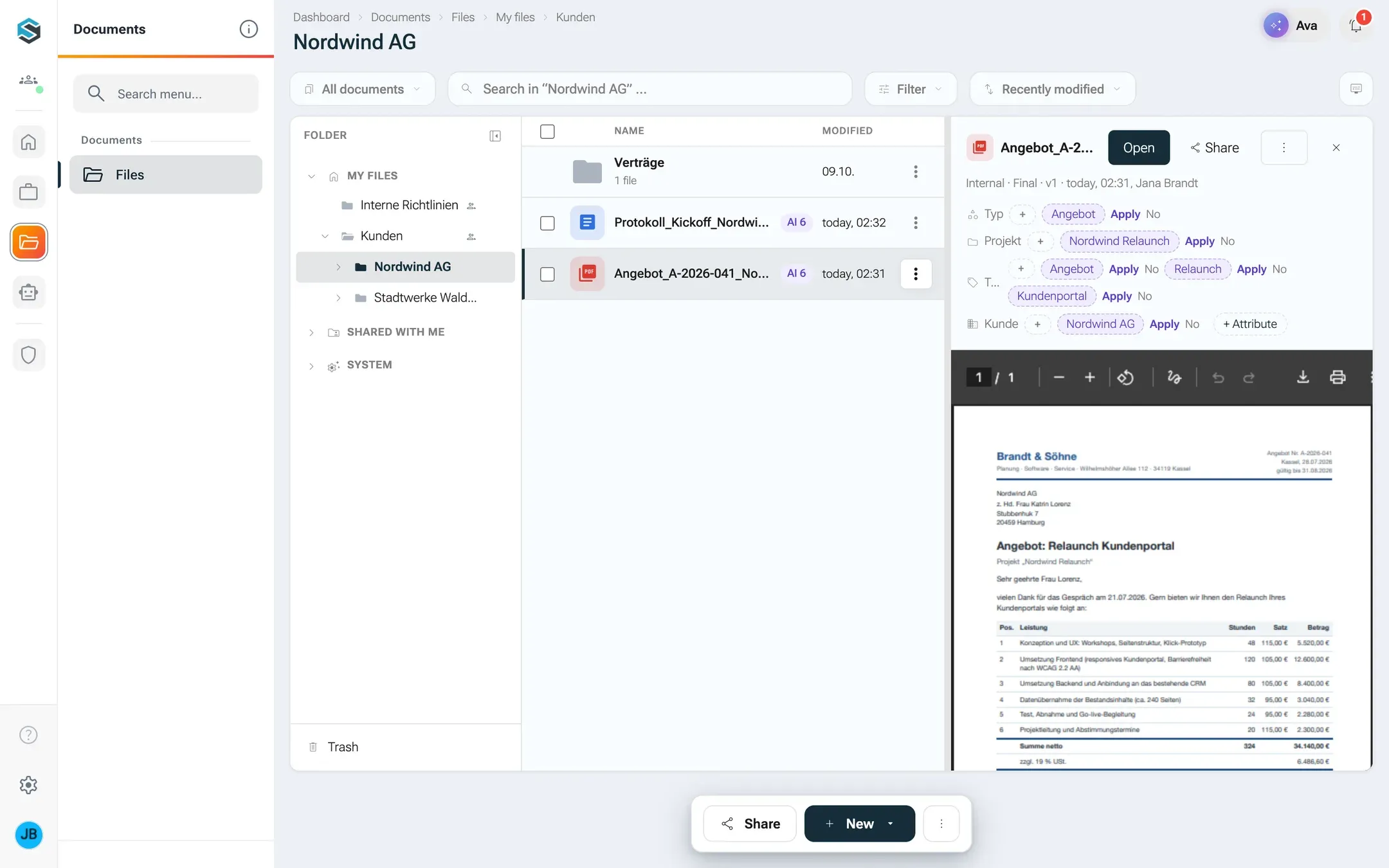
- On the left, the tree with three sections, above them Recently modified and, when your tenant works with folders, the switch Folders / Attributes. My files holds your own folders. Shared with me holds folders others shared with you. System holds two folders nexxus creates for you and that cannot be deleted: “KI-Sessions” (files from your conversations with the AI Assistant) and “Skill-Dateien” (files of your skills). Below them come connected external sources, and at the bottom the Trash. Hide folder tree gives the list more room.
- Where Files opens: where you were last. On your first visit it opens Shared with me if My files is still empty and something has been shared with you. A link to a folder always opens that folder. My files and Shared with me show how many folders they hold; Shared with me is expanded as soon as it holds something, and nexxus remembers which sections you expanded or collapsed.
- In the middle, the list with the columns name and Modified. A row can carry the flag shared, attribute chips, and an AI flag: AI … while the AI checks a new file, AI 2 when two suggestions wait for you.
- On the right, the quick view of the selected document, with its details and a preview. Drag its edge to make it wider.
- At the bottom: Share (or Access if you may only look) for the open folder, New, and More actions with Copy link to this view and Refresh.
Click a row to select it and see the quick view. Double-click it, or press Enter, to open the document page. Tick several rows to get the selection bar: Share, Move, Download, Delete, and under more actions Edit tags …, Accept AI suggestions (3) and Use in chat. Right-clicking a row, a folder or the empty list opens the matching menu.
On a phone the tree and the list share the screen: Up one level takes you back, and a long press selects.
Upload files
Section titled “Upload files”-
Open the folder you want to file into. You can upload into My files and into folders where you are owner or editor.
-
Drag files or whole folders onto the list. The list shows Drop into: Contracts while you drag. Or click New and Upload files ….
-
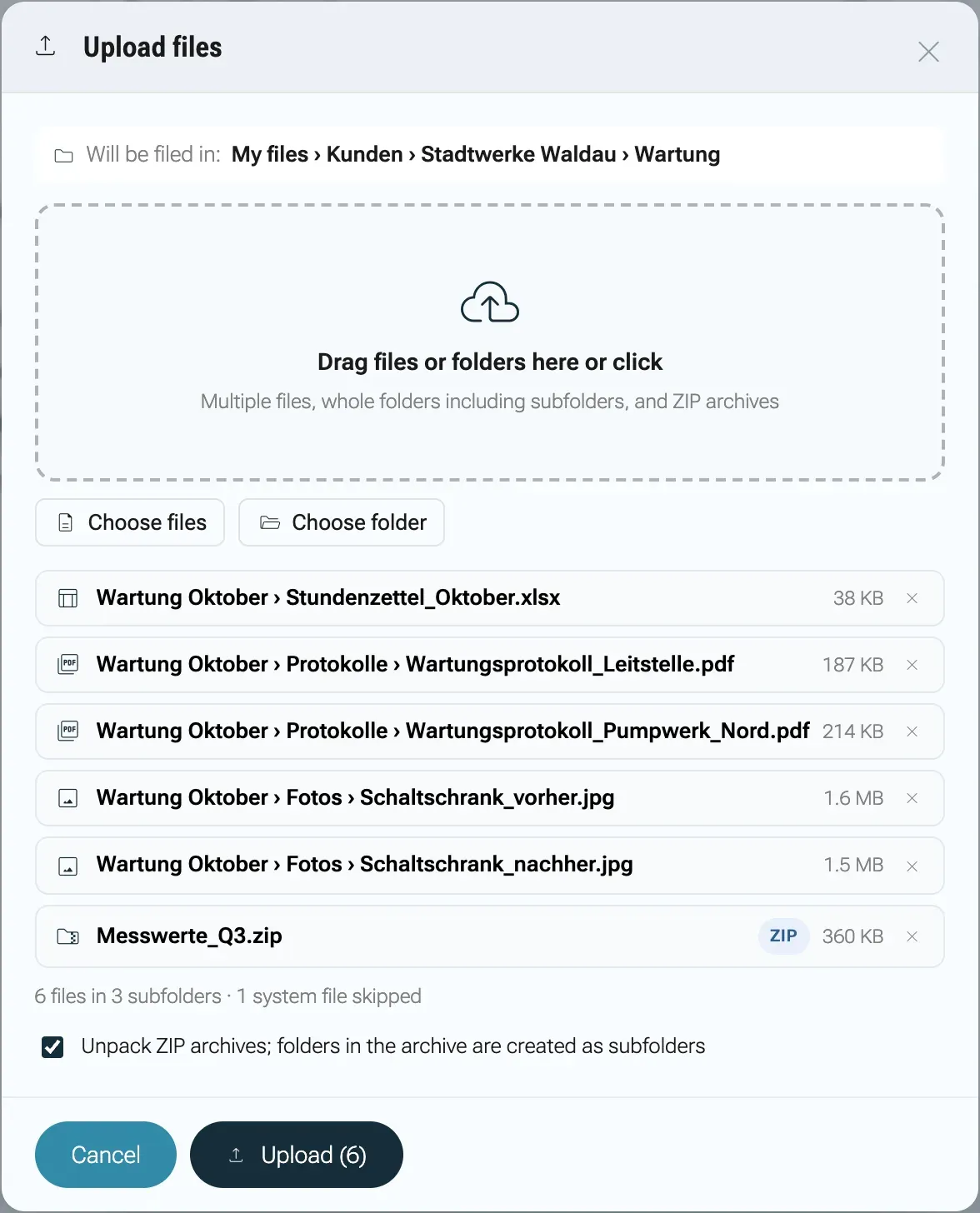
The dialog Upload files shows Will be filed in: with the target. You can add more with Choose files and Choose folder, on a phone or tablet also with Take photo. Each file is listed with its subfolder and size; the × removes it again. A line below counts them, for example 6 files in 3 subfolders · 1 system file skipped: system files such as
.DS_StoreandThumbs.dbare left out. -
ZIP archives are unpacked when Unpack ZIP archives; folders in the archive are created as subfolders is ticked, which it is by default. Uploaded folders keep their subfolders.
-
While Comparing with existing documents … is shown, nexxus compares each file with the documents you may see. If it knows a file already, it says so under the file, for example Already here as “Contract.pdf”, and you choose what happens to it:
- Same content as an existing document, also in another folder or as an older version, or the same file picked twice: Skip is proposed, the other choice is Separate document.
- Same or similar name in the target folder with the same extension, such as
Contract_v2.pdf,Contract (1).pdf,Contract - Copy.pdforContract final.pdfnext toContract.pdf(Looks like a new revision of “Contract.pdf” (version 2)): New version is proposed. The file then becomes the next version of that document, name and folder stay, and the previous state is in the history. Separate document and Skip are offered too.
Only someone who may edit the existing document can add a new version. Otherwise New version is locked, Separate document is proposed, and the row says Only people who can edit the document can add a new version. The line below the list counts along, for example 1 as a new version and 2 will be skipped. nexxus does not compare ZIP archives, and compares files over 128 MB by name only.
-
Click Upload. The button counts the files that will be uploaded, for example Upload (6); skipped ones do not count. Nothing is uploaded before this click. If the comparison is still running, the dialog waits for it. If it found something, the dialog shows it to you first and you click again.
-
Watch the progress (3 of 12 files). Each file ends with a tick or an error mark. Failed files are listed with the reason, for example No connection or Upload failed, and Try again sends them again.
-
When the dialog says 12 documents uploaded, it adds: The AI suggests attributes in the background; the suggestions appear on the files in the list. You can close the dialog now. A file that became a new version shows its number, for example Version 3. Skipped files are listed below with their reason (2 files skipped). Each uploaded file has Share to share it right away. Close the dialog with Done. The uploaded files are in the list already, also when you close the dialog with ×.
Dropping files onto a folder in the tree files them into that folder. In the attribute mode, everything lands in your own storage without folders.
Limits: a single file may be up to 1 GB. A ZIP archive may hold at most 200 entries and 200 MB unpacked. Any file type is accepted; which ones get a preview is listed under Preview.
Where you cannot upload, the button tells you why: Open a folder to upload, Nothing can be filed in system folders, Open a shared folder to file there or No write permission in this folder.
Create documents in nexxus
Section titled “Create documents in nexxus”Under New you can also create a document directly in the browser:
- Markdown file (named “New note” at first)
- HTML page (“New page”)
- Spreadsheet (XLSX) (“New spreadsheet”)
Each is a real file in the open folder (or in My files if you may not write there) and opens straight in the editor. The same menu lists the apps of your tenant under New app, for example Kanban board and Markdown editor. See Apps.
Edit together
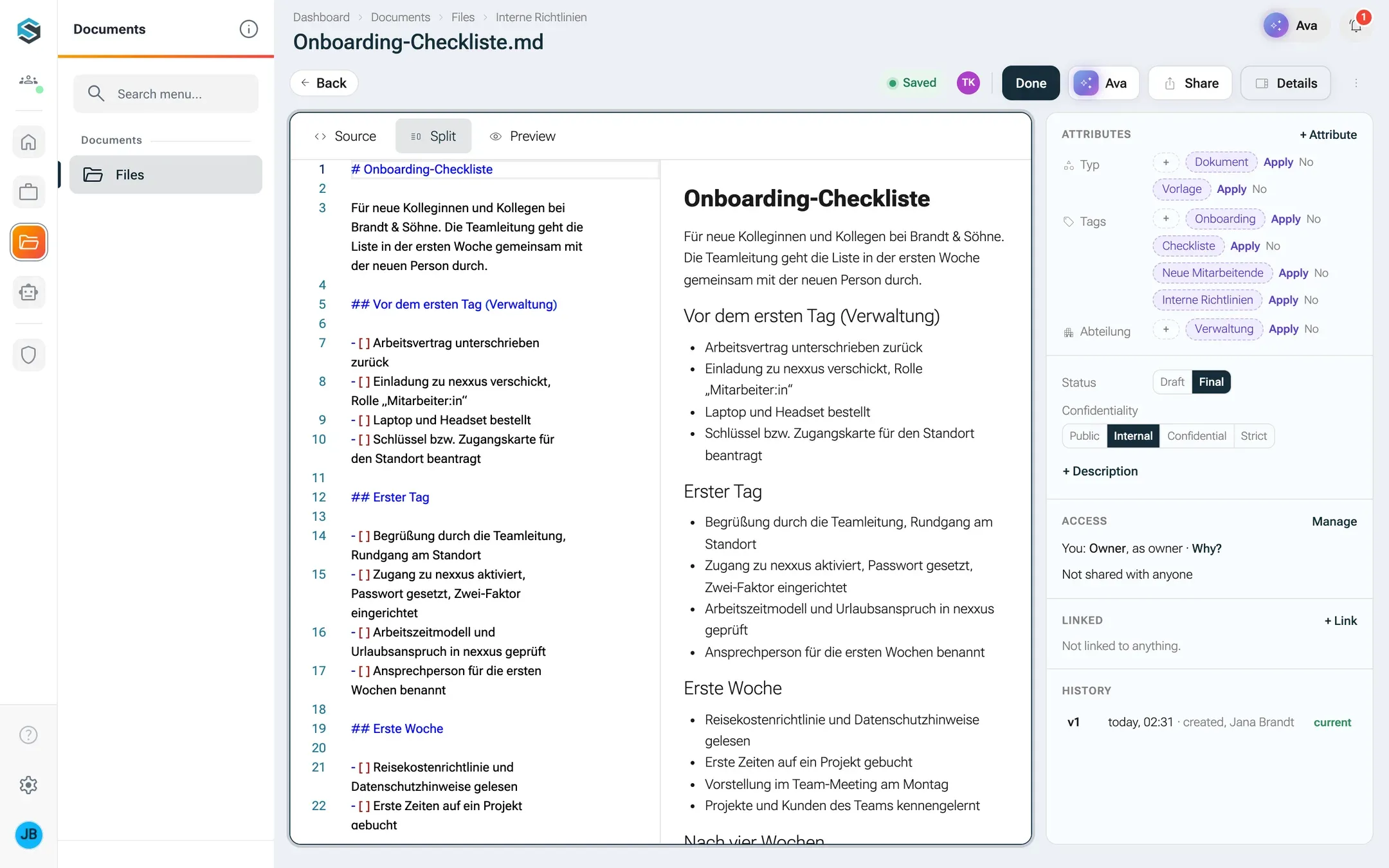
Section titled “Edit together”Markdown and HTML open in a text editor with three modes: Source only, Split (source and preview side by side) and Preview only. Spreadsheets open in a grid with formatting, sorting, a header row, row heights, and inserting or deleting rows and columns. Formulas work; while a sheet has formulas, sorting is locked. Very large sheets show only their first rows and columns and keep the rest untouched.
Several people can edit at the same time. Next to the save state, a round badge with initials stands for each other person who has the document open. Point at it to read, for example, Tom Keller is viewing it right now or Tom Keller is editing right now. You also see the cursors of the others. Simultaneous typing in Markdown and HTML merges without conflicts.
nexxus saves as you type. The indicator shows Changes …, Saving …, Saved or Not saved. Until you click Done, your changes are a draft; Done turns them into a new version.
Preview and the document page
Section titled “Preview and the document page”The quick view and the document page show a preview for:
- images (PNG, JPG, GIF, WebP, SVG, BMP)
- PDF and HTML
- Markdown, rendered
- Word files (DOCX) with headings, lists, tables and images, without Word’s page layout. Old DOC files get no preview.
- tables (CSV, TSV, XLS, XLSX): the first rows. Truncated. Open or download the file for the full table.
- App documents (
.nxd), shown by their app - JSON and text, in the large preview dialog
HTML pages and mini-apps run separately from nexxus in the preview, on the document page and in a new tab: their scripts run, and relative links to stylesheets, scripts, images and other pages work, but they cannot act with your sign-in or store data in the browser. nexxus saves a mini-app’s state with the document. SVG files are shown without script.
Everything else says There is no preview for this file type. and offers the download. In the preview dialog, the buttons for the previous and next file, or the left and right arrow keys, move through the folder.
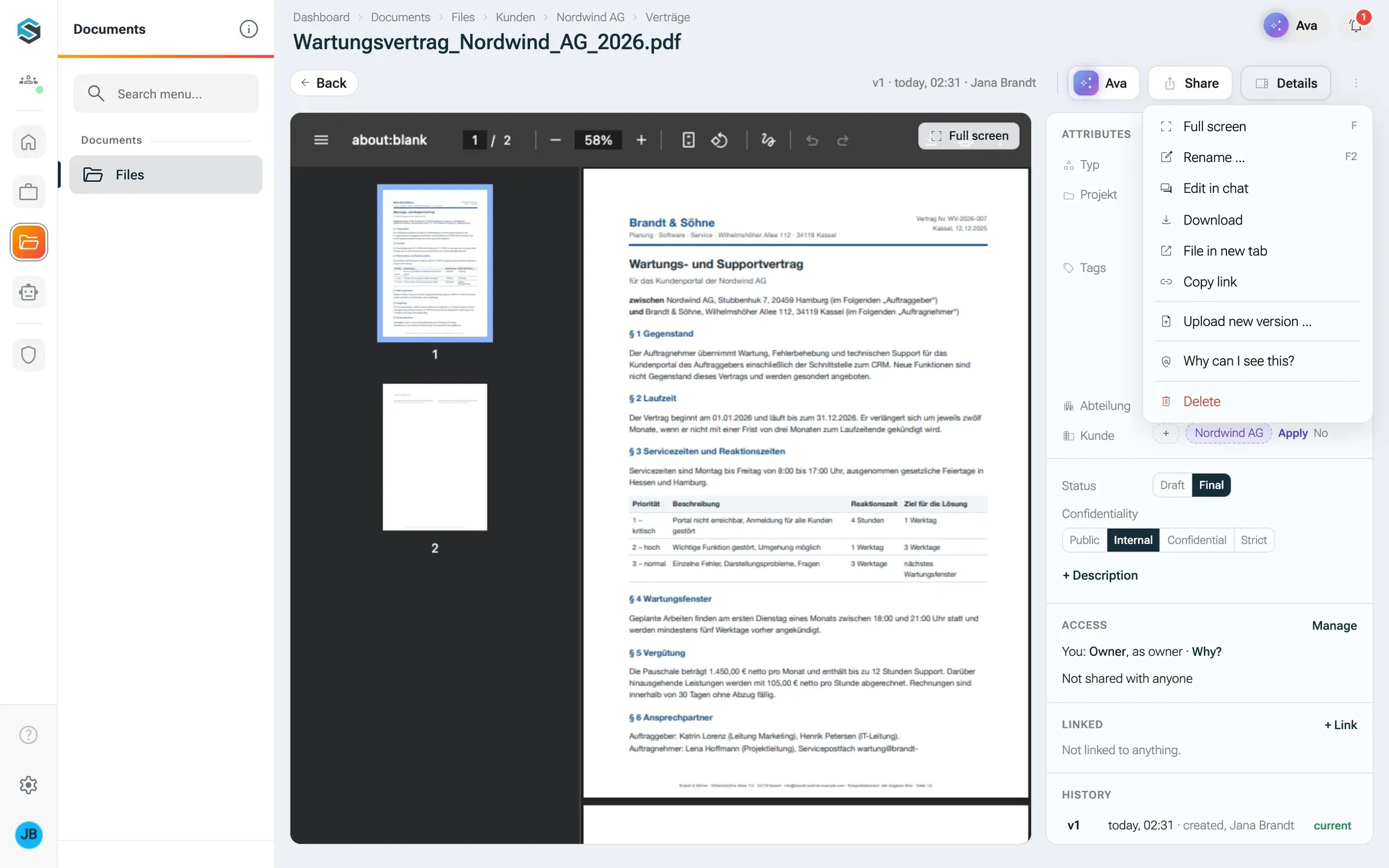
The document page (/dokumente/detail/<id>) has Back, a line with version, date and author, a button with the assistant’s name, Share, Details and More actions. Documents you can edit in the browser (Markdown, HTML, spreadsheets, apps) also get Edit, which becomes Done while you edit. More actions holds Full screen (key F), Rename … (F2), Edit in chat (or Use in chat if you may only read), Download, File in new tab, Copy link, Upload new version … (while you edit: Keep version), Why can I see this? and Delete. Rename, the version entries and Delete only appear if you may edit the document. Renaming changes the name only: the extension stands next to the field and cannot be edited, so a PDF stays a PDF. For an app document that is its double ending, such as .liste.nxd.
Drop a file onto the document page to upload it as a new version. nexxus asks Upload as new version?, and Different file type? if the extension differs.
Versions
Section titled “Versions”A document keeps every version. A new version is created when:
- you upload a new version, drop a file onto the document page, or choose New version while uploading,
- you click Done after editing,
- you click Keep version,
- the AI Assistant changes the document in a conversation (the history links to that conversation),
- a draft has not changed for 10 minutes.
The history is under Details, section History. Click an older version to see it: a band shows Version 3 with its date and offers Restore this version and Back to current. Restoring creates a new version with the old content, so nothing is lost (Version 3 restored.). Versions themselves never change. The table preview is only available for the current version.
Find documents
Section titled “Find documents”- Search: the field Search documents … searches the names of documents. Inside a folder it offers Only here and Everywhere. Type
#and a number to find a document by its id. One search shows up to 200 hits; 200 of 340 results. Narrow the search or filters to see the rest. - Filters: one per attribute, each value with its number of hits, plus Unclassified (12) for documents without attributes.
- Sorting: Recently modified or Name (A–Z).
- Recently modified at the top of the tree shows every document you may open from My files, Shared with me and System, latest change first. Each row names its folder, so you also find a file from a conversation with the AI Assistant without knowing which session created it. Search and filters work here too.
- Saved views: By folder and the views you save yourself, as in other lists. By folder resets search, filters and sorting and stays in the open folder; in the attribute view it is called All documents. Everything at once is Recently modified.
- Ctrl+K finds documents by name and description from any page.
- By content: “Which contract mentions a penalty?” is a question for the AI Assistant. See Files and the AI Assistant.
Attributes and AI suggestions
Section titled “Attributes and AI suggestions”Attributes describe a document independent of its folder. Five always exist; their names and values come from the server in German:
| Attribute | Values |
|---|---|
| Typ (type) | Free values. To start with: Dokument, Präsentation, Tabelle, Bild, Vertrag, Rechnung, Bericht, Notiz, Vorlage, Quellcode |
| Projekt (project) | Free values |
| Status | Entwurf (draft), Final |
| Vertraulichkeit (confidentiality) | Öffentlich (public), Intern (internal), Vertraulich (confidential), Streng vertraulich (strictly confidential) |
| Tags | Free, several per document |
AI suggestions. After every upload, the AI suggests attributes in the background. It looks at the folder, the folder’s default attributes, the description of each attribute and, for text files, the beginning of the content. A suggestion appears on the document as AI suggestion, from content (or from the file name or the folder), with Apply and No. Accept AI suggestions in the selection bar takes them for many files at once. Get AI suggestions in the details asks again. Values you set by hand are never overwritten.
Tags for many files: select them and choose Edit tags …, then Add tags or Remove tags.
Links: under Linked you connect a document with a project, a partner or another document (Search project, partner, document …). A link is not a copy.
Your own attributes
Section titled “Your own attributes”Admins add attributes under More actions, Manage dimensions …: Dimensions are freely definable categories by which files can be grouped and filtered. Each one has an icon (a Material icon name such as science), a Label, a key, optionally Fixed values, multiple for several values per document, a Color, and a description: What is this dimension for? One sentence, which the AI reads too. That description is what the AI uses for its suggestions, so write it for a reader. On attributes with fixed values, only admins add new values.
Folders
Section titled “Folders”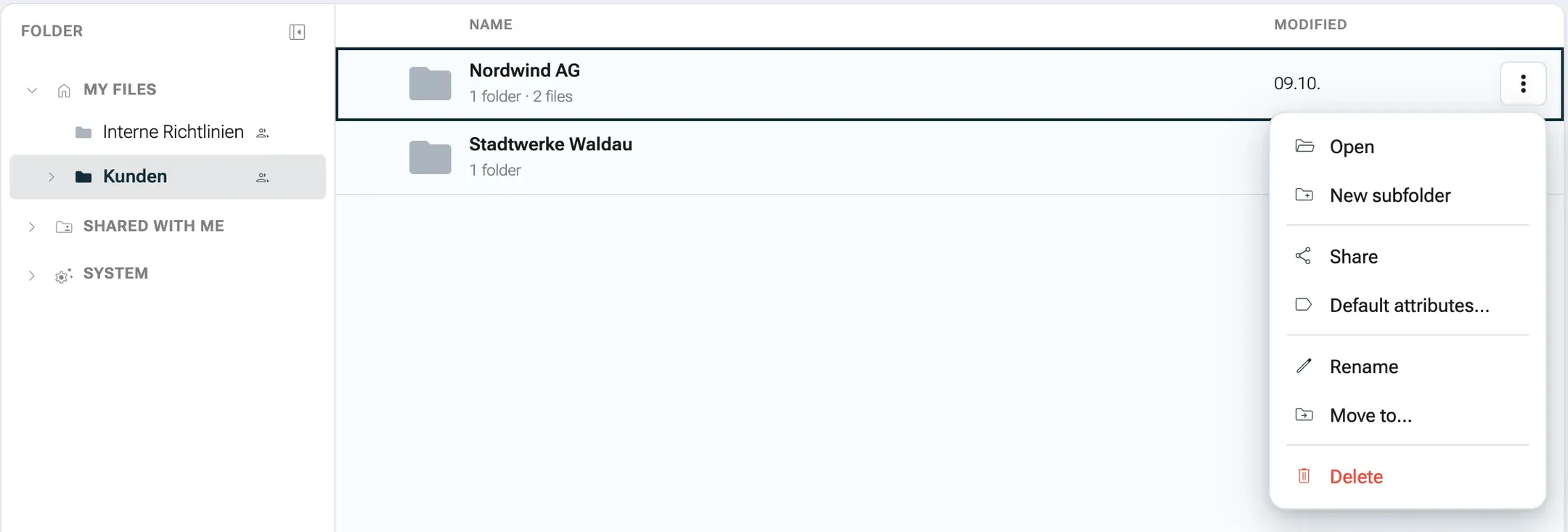
- Create: New, Folder, then a name. Inside a folder, its menu offers New subfolder. You need the editor role on the parent folder.
- Rename and move: Rename, Move to…, or drag the folder onto another folder in the list or the tree. After a move, a line with an undo button appears. If the move makes the content visible to more people, nexxus warns first: Becomes visible to more people, with how many, and Move anyway?
- Delete: only the owner of a folder can delete it. The folder and its content go to the trash: “Contracts” including 14 documents will be moved to the trash and can be restored from there for a while.
- Default attributes: Default attributes… in the folder menu. Every file that goes into this folder or a subfolder gets these values. Values set on the file take precedence. When you save, nexxus asks Apply to existing files? with Apply to 14 or Only for new files. Values inherited from a parent folder are marked from the parent folder.
The rule behind folders: whoever owns a folder owns everything in it, including subfolders and documents others put there.
A shared area for a business unit
Section titled “A shared area for a business unit”Admins can create a top-level folder that all members of a business unit see: New, Area for a business unit. Enter a name (for example “Hamburg lab”), pick the business unit, and choose what Members may do: Edit (file, change) or Read only. Create area creates the folder and shares it in one step. This option exists only in the folder mode.
Share with colleagues
Section titled “Share with colleagues”Every document and folder has its own access list. Four roles:
| Role | May |
|---|---|
| Owner | Everything: read, edit, share, delete |
| Editor | Read, edit, upload into the folder |
| Commenter | Read and comment |
| Viewer | Read |
You can share with a Person, an Access unit (a business unit, including the members of its sub-units) or the whole tenant (Entire tenant (all members)). A share on a folder applies to everything inside it. If you reach a document on several paths, the strongest role counts.
-
Select a document or folder and click Share. The dialog Manage access opens. Only the owner can change access; everyone else sees Who has access, read-only.
-
Choose whom to add (person, access unit or tenant), pick the role and click Invite. For a person, tick Notify the person about the share by email if they should get a mail.
-
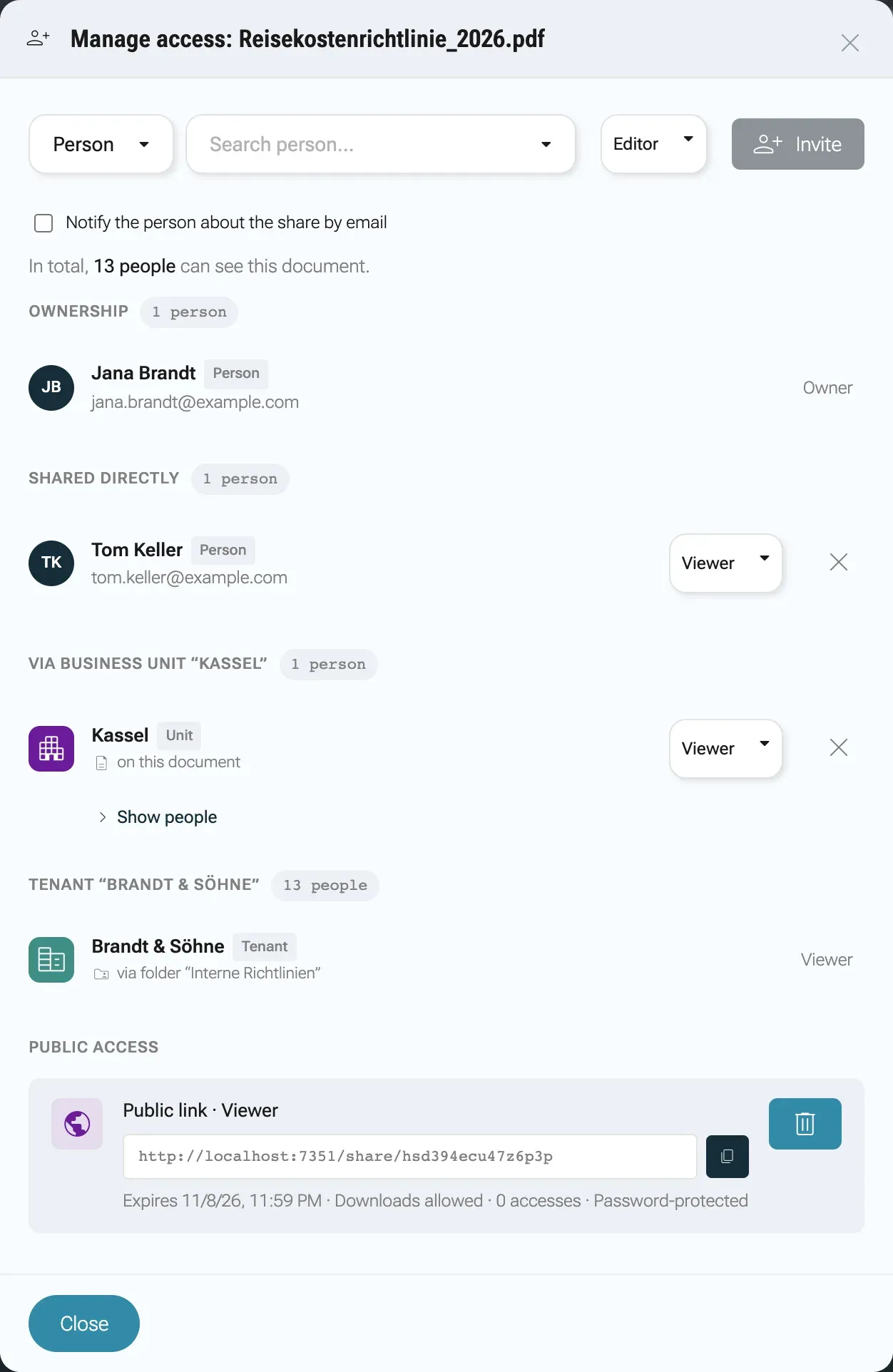
The dialog groups everyone who has access: Ownership, Shared directly, one group per business unit (Via business unit “Kassel”) and one for the tenant (Tenant “Brandt & Söhne”). Each group counts its people, and a line at the top says how many can see it in total (In total, 13 people can see this document.). Show people lists the members of a unit.
-
To remove someone, click revoke and confirm. Access that comes from a parent folder is marked Applies here too. It can only be changed or revoked where it was granted.
To share many documents at once, select them and click Share: Share multiple documents. Existing shares of the documents are kept.
Why can I see this? on the document page explains every path by which you reach a document (owner of a folder, a share with your unit, a direct share) and who could change it.
Being an admin does not open other people’s documents. Admins see what they own and what is shared with them, like everyone else.
Ask for access
Section titled “Ask for access”A link to a document you may not see opens No access to this document. Click Request access, choose what you would like to do (Read, Comment, Edit), add an optional message and click Send request. You see the document’s name only after access is granted. The people who manage the document see a banner 1 open access request and answer with Grant (choosing the role) or Decline. The answer reaches you in the bell. One person can send at most 20 requests per hour.
Public links
Section titled “Public links”A public link lets someone without an account view a single document. Only the owner can create one, and only for documents, not folders.
-
Open the share dialog of the document. The section Public access shows the current state: Only people with access can open the link.
-
Optional: choose View or Edit under Can, change Valid until and set a Password. The date starts 30 days ahead; the link works until the end of that day, and an empty field means no end. A link to edit needs a date.
-
Click Create public link, then Copy link.
The link row shows the role (viewer), the expiry date, whether downloads are allowed, how often it was opened and whether it is password-protected. Revoke link ends it at once.
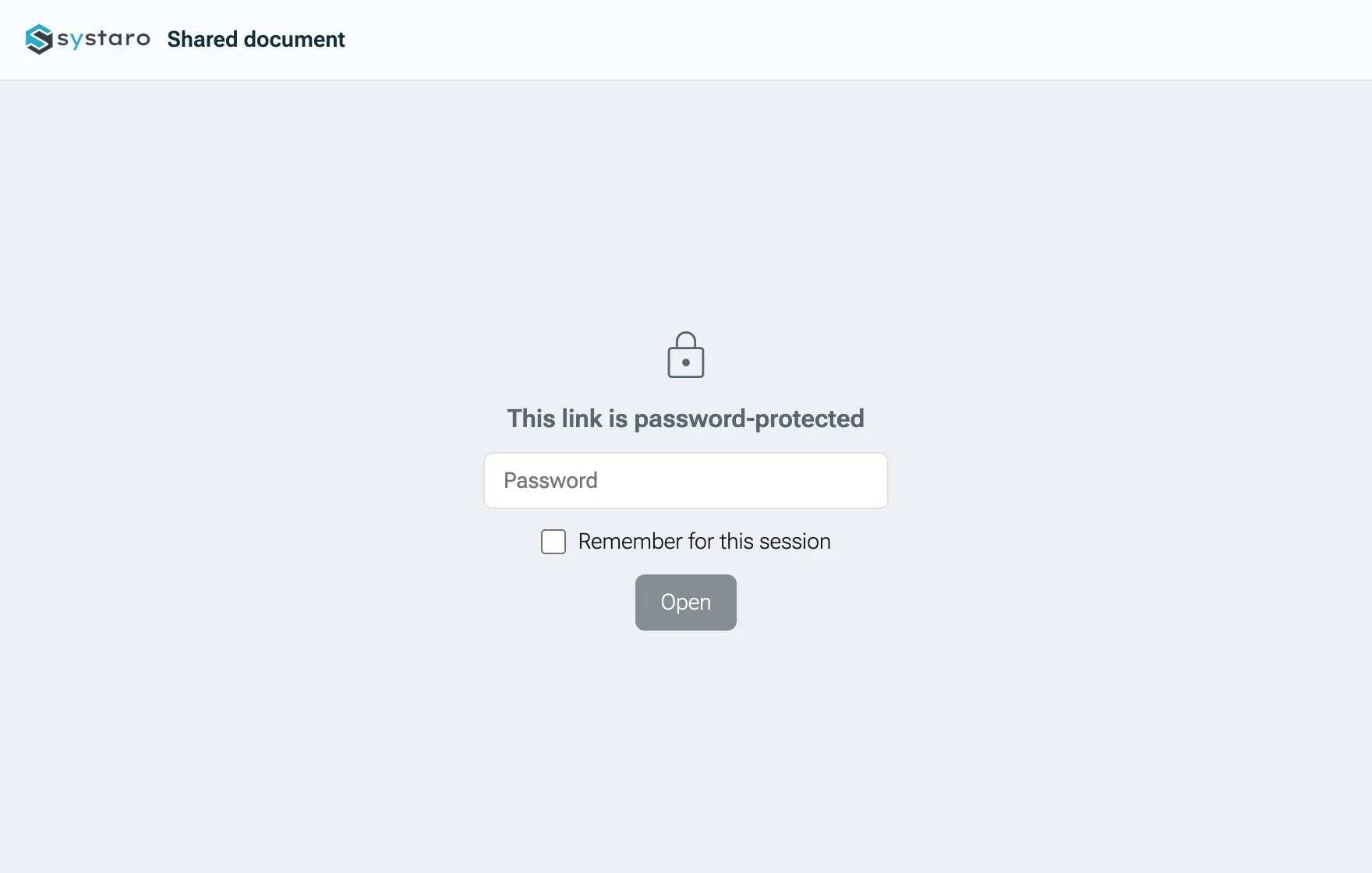
Whoever opens the link sees the page Shared document with the name, the expiry date (Valid until), Full screen and Download. A password-protected link first asks for the password and opens with Open. With Remember for this session it does not ask again until the tab is closed. With a link to view, app documents are shown read-only. The page appears in the browser’s language, German, English or Polish; someone who chose a language in their nexxus profile sees that one. What else can appear:
| Message | Meaning |
|---|---|
| This link is password-protected | Enter the password |
| The password is incorrect. | Try again |
| This link has expired. | The date under Valid until has passed |
| This link does not exist (any more). It may have been revoked. | Revoked, or mistyped |
Links to edit
Section titled “Links to edit”A link to edit works for Markdown, HTML, sheets and app documents. Whoever has it changes the document without signing in, live with everyone who has it open; in their editor the visitor appears as Gast (guest). Changes are saved in the name of the person who created the link, and only while that person may edit the document themselves.
An HTML page opens through the link as a page, as it does in nexxus. When it saves something (a choice, a vote, a filled-in form), everyone who has it open sees the change after two to three seconds, through the link as well as signed in. With a link to view it only shows what is saved. A link to edit has Seite (page) and Quelltext (source) in the bar at the top; Quelltext opens the HTML editor.
A page you build yourself needs no script of its own to save. The script nexxus-state.js with a name for the state and data-nx-state on each field are enough:
<script src="/public/nexxus-state.js" data-key="fair"></script>
<select data-nx-state="booth">  <option>open</option>  <option>ordered</option>  <option>set up</option></select><input type="checkbox" data-nx-state="power"> Power requested
When two people save at the same time, both changes are kept. Only when both change the same field does the later one win. The AI assistant builds such pages on request (“a page with dropdowns that are saved”).
Deleting moves documents and folders into the Trash at the bottom of the tree. It lists your own deleted items with the days left (5 days left) and Restore. A folder comes back with its content. After the grace period (7 days by default) nexxus removes the content for good; the entry then says Content permanently deleted.
Only the owner of a document, or an admin, can restore it.
Files and the AI Assistant
Section titled “Files and the AI Assistant”The AI Assistant works with your files with your rights: it only reads, searches and changes documents you may read or change yourself.
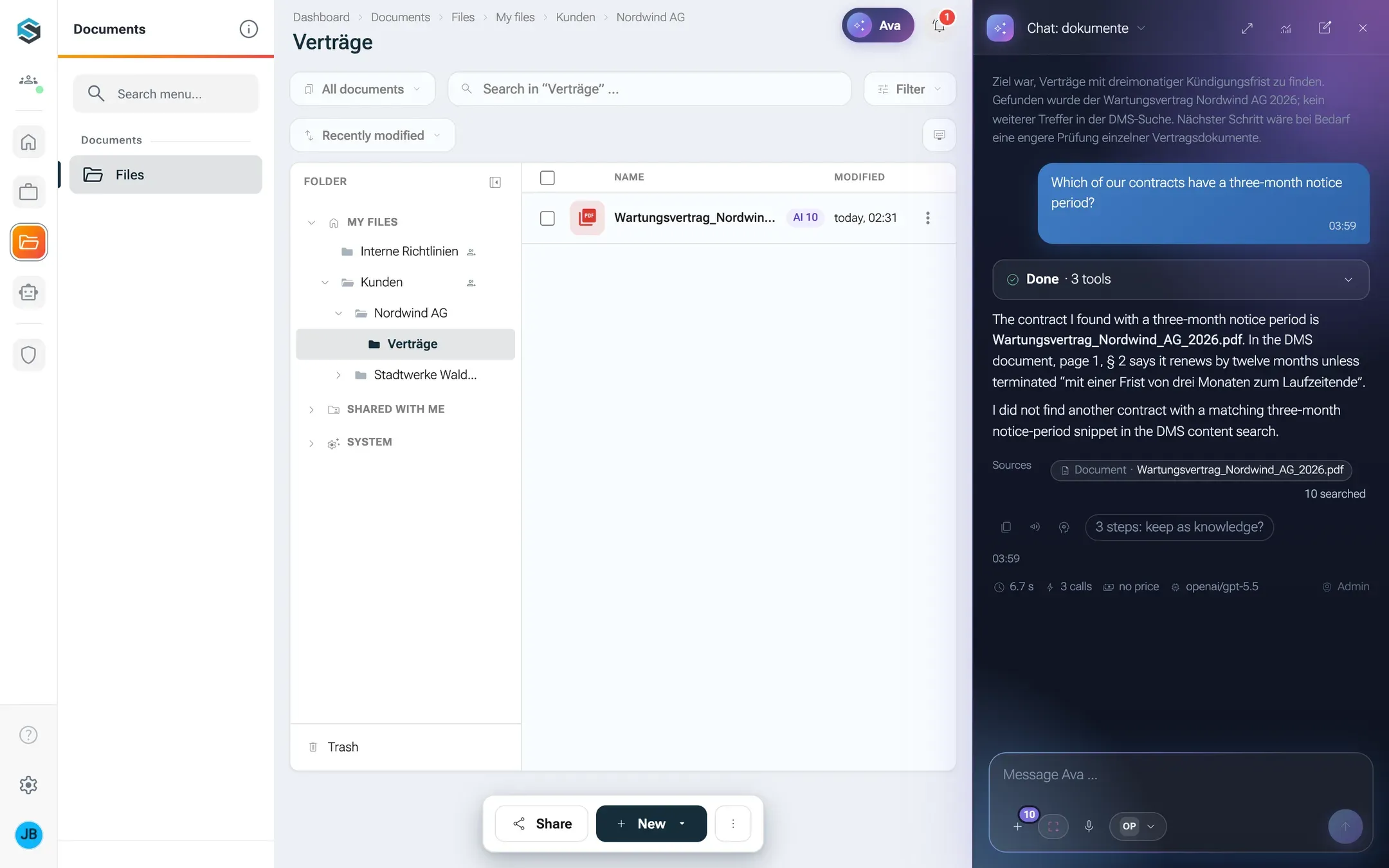
- On the document page, the button with the assistant’s name opens the AI Assistant’s column for this document (Work on this document with AI Assistant). It knows which document is open and its status, confidentiality, tags and folder, and reads its text. The conversation belongs to the document and is there again next time.
- In a conversation, Use in chat (or Edit in chat if you may edit) on one or more documents starts a chat with them attached. In any chat you can attach One of your files.
- Changes by the AI Assistant to a document become a new version, marked as coming from the chat, and you can restore the previous one.
- Files the AI Assistant creates (images, documents, tables) land in your System section, in “KI-Sessions”, in a folder per conversation with the subfolder “Ergebnisse”. Recently modified shows them together with all your other files, and asked “What did I work on last?”, the AI Assistant reads the same list.
- Questions about content, such as “Which contracts have a three-month notice period?”, run a search by meaning over the documents you may read. The AI Assistant gets matching excerpts with the document and the page and can point you to them.
External sources such as Paperboi
Section titled “External sources such as Paperboi”Some connectors bring their own documents into the tree, read-only. Today that is Paperboi, an audit-proof document archive. When an admin has installed the Paperboi connector and switched on its option “In Dateien anzeigen” (show in Files), Paperboi appears in the tree below your sections.
- Each person sees what their own Paperboi API key, or the shared key of the organisation, may see.
- Everything is marked Read only: From Paperboi, read-only here. Changes are made in Paperboi itself or through the assistant.
- The top level shows Paperboi’s folders and Latest documents. You can search (Search Paperboi) and load more with Load more.
- The preview shows Paperboi’s details: Summary, Document type, Document date, Retain until, Tags, and the status Inbox or Hidden. View archived version opens the archived file.
- Without a connected key: No account is connected for Paperboi yet. with Connect.
nexxus stores nothing from Paperboi. Every folder and file is fetched from Paperboi when you open it. Setting up the connector is described in Set up a connector.
Other ways documents arrive
Section titled “Other ways documents arrive”- Mailboxes: an admin can give a mailbox under AdministrationContent & automationMailboxes a folder for attachments. Attachments of incoming mail are then stored there as documents.
- Skills keep their files in your “Skill-Dateien” folder under System.
Notifications
Section titled “Notifications”In My profile, tab Notifications, two sections concern Files:
- Files: shares: whether a share with you personally appears In the bell, and whether you get an Email when something is shared.
- Files: access requests: whether you get an Email for a request to you, and whether the answer to your own request appears in the bell or by email. A request to you always appears in the bell.
Shares with a business unit or the whole tenant are not announced, so nobody gets mail for every folder a large group can see.
What happens behind the scenes
Section titled “What happens behind the scenes”- Storage: the bytes of every version are stored in S3-compatible storage. The document records in the database point to them.
- Reading the content: after an upload or a new version, nexxus sends the file to a text extraction service (Docling, with OCR for scans), splits the text into sections and stores them. Plain text files (
.txt,.log,.json,.yaml,.xml) nexxus reads itself; they never go to Docling. With embeddings on, each section also gets an embedding for the search by meaning. Drafts are indexed once they become a version. - Rights on every read: the search by content checks the access of the asking person for each document before it returns anything. Without a signed-in person it returns nothing.
- Folder rights inherit downwards: a share or ownership on a folder applies to everything below it, and the strongest path wins.
- Drafts become versions after 10 minutes without changes.
When something goes wrong
Section titled “When something goes wrong”| Message | Cause and fix |
|---|---|
| No write permission in this folder | You are viewer or commenter here. Ask the owner for the editor role, or file into My files. |
| This folder does not exist, or it has not been shared with you. | The link points to a folder you cannot see. Go to My files takes you back. |
| Zip enthält zu viele Dateien (max 200) (too many files in the ZIP) | Split the archive. At most 200 entries and 200 MB unpacked per ZIP. |
| Ordner sind in den Dateien ausgeschaltet; Dokumente werden über Merkmale geordnet. (folders are switched off) | Your tenant uses the attribute mode. Use attributes instead of folders. |
| In Systemordnern können keine Ordner angelegt werden. (no folders in system folders) | Create the folder under My files. |
| Becomes visible to more people | Not an error. Check the list of people, then confirm with Move anyway? or cancel. |
| Das Dokument wurde inzwischen von jemand anderem gespeichert. (someone else saved in the meantime) | Two people saved over each other. Reload the document and apply your change again. |
| Key and label are required / Key already exists | When adding an attribute, fill in both and choose a key that is not taken. |
| This file cannot be opened as a spreadsheet. It is damaged or not an XLSX file. Earlier states are in the history. | Restore an earlier version from the history. |
| This link has expired. | Create a new public link, or extend Valid until. |
For operators
Section titled “For operators”| Setting | Default | What it does |
|---|---|---|
spring.servlet.multipart.max-file-size / max-request-size | 1GB / 1100MB | Upload limits |
app.s3.endpoint, app.s3.publicEndpoint, app.s3.accessKey, app.s3.secretKey, app.s3.defaultBucketName | local MinIO | File storage |
dms.s3Cleanup.graceDays | 7 | Days in the trash before the content is removed |
dms.s3Cleanup.cron | 0 30 3 * * * | When the trash is emptied (03:30) |
dms.draftVersion.idleMinutes | 10 | Minutes without changes before a draft becomes a version |
dms.suggestions.waitForContentSeconds | 30 | How long the AI suggestions wait for the extracted text |
docling.api.url | Address of the text extraction service | |
ai.embeddings.enabled (env AI_EMBEDDINGS_ENABLED) | true | false locks embeddings for every tenant of the installation |
The background jobs DmsS3Cleanup (empties the trash) and DmsDraftVersionCut (turns idle drafts into versions) are created switched off. Switch them on under AdministrationOperationsMaintenanceCron Jobs, otherwise the trash keeps its content and drafts stay drafts until someone clicks Done.