
Modules (NXM)
Package, install and update
How a module version becomes a signed .nxm file, how an administrator uploads it, decides whether to trust its publisher, reviews and installs it, and how updates, deactivation and uninstalling work, with every label of the package catalogue.
An NXM module reaches a tenant as one file. A developer builds it from the package’s folder and signs it with their own key. An administrator uploads it, decides whether the tenant trusts that key, sees exactly what it brings and which data outside its own it wants to use, agrees, assigns roles and installs. Later versions update the installation in place, with their data migrations, and an uninstall either keeps the data for later or deletes it.
Take Brandt & Söhne again. Their supplier sends acme.leihgeraete-1.0.0.nxm. Before anything is installed, the administrator sees on one page that the package brings one business object, two menu entries, two roles and five tools for the AI Assistant, that it uses no data outside its own and that it is signed by the supplier with a key the tenant does not know yet. The administrator compares the key’s fingerprint with the one the supplier sent by mail and trusts the key with one click. Only then does anything change in the tenant.
Build
module-package.mjs packs the package folder and lists every file with its hash.
Sign
The publisher signs the hash list with their own Ed25519 key. Nobody has to register it beforehand.
Upload
An administrator uploads the .nxm file in the package catalogue.
Check and trust
Hashes, signature, schema and rules, every problem at once. The tenant decides whether it trusts the key.
Install
Consent, roles, optional sample data. The module is live.
Before you start
Section titled “Before you start”- Administrator rights in the tenant. The package catalogue and every install, update and uninstall are for administrators only. Everyone else is sent to the dashboard.
- A package, either a
.nxmfile from a publisher or a package folder you built yourself (see Build your first module). - For a signed package from a new publisher: the fingerprint of the publisher’s key, given to you on another channel than the package itself (mail, phone, their website), so you can compare it (see Trust the publisher).
The catalogue shows a package’s texts in your language, else in English, else in German. Messages that the server writes (refusals, validation problems) are always German. This page quotes them in German with the meaning in brackets.
Package a version
Section titled “Package a version”This part is for developers. A released version never changes again. There are two ways to keep it that way: every version lives in its own folder named like the version (acme.leihgeraete/1.0.0), or the package has one folder with its current version and every released version is a git tag such as acme.leihgeraete-v1.0.0. Because the script builds the same archive from the same files, an older version can be rebuilt from its tag at any time. validatePackage checks a new version against the last one for the rules of an upgrade (see On the command line and in CI).
-
Get the packaging script
module-package.mjs. It ships with the nexxus sources underbackend/scripts/, runs with Node.js and has no dependencies. -
Build the archive from the package folder:
Terminal window node module-package.mjs build acme.leihgeraete/1.0.0The script needs
module.jsonwithkind,keyandversionand a heading## [1.0.0]inCHANGELOG.md. It zips every file of the folder (dot files left out), addsMANIFEST.sha256with one line<sha256> <path>per file and writesacme.leihgeraete-1.0.0.nxm. Use--out <file.nxm>for another name. Entries are sorted and carry fixed timestamps, so the same folder always gives the same archive. -
Read the archive back as a check:
Terminal window node module-package.mjs verify acme.leihgeraete-1.0.0.nxmverifychecks that every file is listed with the right hash, that nothing is missing or extra, and the changelog heading. It answers with a line such asacme.leihgeraete-1.0.0.nxm: acme.leihgeraete 1.0.0, 5 Dateien, Hashes stimmen, unsigniert(5 files, hashes match, unsigned). The content of the manifest is checked by nexxus on upload, not by the script.
Sign the package
Section titled “Sign the package”A signature proves that the package comes from the holder of a key and that no file changed after signing. You sign with your own key. Neither the operator of the instance nor Systaro has to know your key beforehand: each tenant decides whether it trusts it. A tenant accepts unsigned packages only if its administrator allows them.
-
Create a key pair once:
Terminal window node module-package.mjs keygen ~/keys/acme.pemThe script writes an Ed25519 private key (PKCS#8 PEM, readable only by you) and prints the public key and its fingerprint, the SHA-256 of the key in groups of four hex digits. It never overwrites an existing file. Keep the private key out of every repository.
-
Build with the key and a key id of your choice:
Terminal window node module-package.mjs build acme.leihgeraete/1.0.0 --key ~/keys/acme.pem --key-id acme-2026The archive now contains a file
SIGNATURE:{"keyId": "acme-2026", "alg": "Ed25519", "sig": "<base64>", "publicKey": "<base64>"}, a signature overMANIFEST.sha256together with the public key that checks it. The script prints the public key and the fingerprint again. The key id is only a name for you; nexxus recognises a key by its fingerprint. -
Check the signature:
Terminal window node module-package.mjs verify acme.leihgeraete-1.0.0.nxmverifychecks the signature with the public key the package names and ends its line withSignatur gültig, Fingerabdruck <fingerprint>(signature valid). Add--public-key <base64>to insist that the package names exactly that key. -
Give the administrators who install your packages the fingerprint, on another channel than the package: by mail, on your website, on the phone. With it they can tell that the package really comes from you.
Use the same key for later versions. A tenant that trusts it once installs every later version signed with it without asking again.
Trust the publisher
Section titled “Trust the publisher”This part is for administrators. A validly signed package from a key the tenant does not know yet is accepted on upload, but it cannot be installed until you trust the key.
-
Upload the package as described below. The catalogue shows the chip Unknown publisher in the column Origin.
-
Open the package. The notice Unknown publisher names the publisher from the manifest and the key id and shows the fingerprint. The card Origin on the right repeats Publisher, Trust, Key and Fingerprint. Install stays disabled.
-
Compare the fingerprint with the one the publisher gave you. If it differs, do not trust the key: someone else signed the package.
-
Click Trust this publisher. The dialog Trust this publisher? shows the fingerprint once more. Confirm with Trust. The chip changes to Trusted and Install becomes available, without uploading the package again.
If the publisher sent you the public key itself, you can trust it before any package arrives: on the tab Publishers (route /modules/herausgeber), click Add key in the card Trusted keys, paste the key into Public key and compare the fingerprint the dialog computes as you type (Does it match the one the publisher gave you?). Publisher (optional) and Name of the key (optional) are for your own overview. Trust saves it. The key is base64 with 44 characters, as module-package.mjs keygen prints it on the line “öffentlicher Schlüssel”; the DER form and a -----BEGIN PUBLIC KEY----- block work too. If the text does not fit, the dialog says why, for example when it is a private key.
The tab Publishers
Section titled “The tab Publishers”The tab Publishers shows what this tenant trusts:
- Allow unsigned packages: off by default. While it is off, an unsigned upload is refused and an unsigned version cannot be installed. If the instance allows unsigned packages for everyone (see below), the page says This instance allows unsigned packages for every tenant; the switch does not change that.
- Trusted keys: every key the tenant trusts or removed, with publisher, key id, fingerprint, since when and by whom, and links to the uploaded versions signed with it.
- Platform keys: keys the operator configured for the whole instance. Every tenant trusts them; they cannot be removed here.
Remove takes a key back after the question Remove the key of “acme”? (Running installations keep running. New uploads, installs and upgrades with this key are refused.). The key stays in the list as Removed, and its packages show Key removed. Trust again undoes it.
Only administrators see the tab and may change anything on it; nexxus checks it on the server, too. The AI Assistant can tell an administrator whom the tenant trusts and which packages can be installed for that reason, but it cannot trust or remove a key or flip the switch. It points to this page instead.
Keys the whole instance trusts
Section titled “Keys the whole instance trusts”Whoever runs the instance can trust a key for every tenant in the configuration. Systaro’s own packages are signed that way.
nexxus: modules: trusted-keys: systaro2026: <base64 public key> allow-unsigned: falsetrusted-keys takes the base64 of the raw 32-byte Ed25519 public key (what keygen prints) or of its DER form. A package that uses the same key id but another key is not trusted by this entry: nexxus compares fingerprints, never names. allow-unsigned allows unsigned packages for every tenant. If you leave it out, nexxus allows them on instances that run with the Spring profile development, local or demo; everywhere else each tenant decides with its switch.
The origin of a package
Section titled “The origin of a package”The column Origin of the catalogue, the package page and its card Origin show one of these for each version:
| Label | Meaning |
|---|---|
| Platform | Shipped with nexxus or signed with a platform key. Hint: Ships with NEXXUS or is signed with a platform key every tenant trusts. |
| Trusted | Signed with a key this tenant trusts. Hint: Signed with a key this tenant trusts. |
| Unknown publisher | Validly signed, but nobody here trusts the key yet. Cannot be installed until you trust it. |
| Key removed | Signed with a key this tenant removed. Installations already running keep running; nothing new is installed or upgraded with it. The tab Modules shows the chip on the installed package too. |
| Unsigned | No signature. Accepted only while unsigned packages are allowed, and always shown with the warning Not signed. Check where it comes from before you install it. Installed unsigned packages carry the chip Unsigned on the tab Modules too. |
When the installed version has another origin than the newest one, the catalogue adds a chip such as installed version: Unsigned.
A wrong hash or a signature that does not match its key is always refused, whoever signed.
Upload the package
Section titled “Upload the package”-
Open AdministrationOperationsModules and switch to the tab Packages (route
/modules/pakete). The tab Modules next to it lists the built-in modules and the installed packages with their versions and changelogs. Packages carry the chip Package there.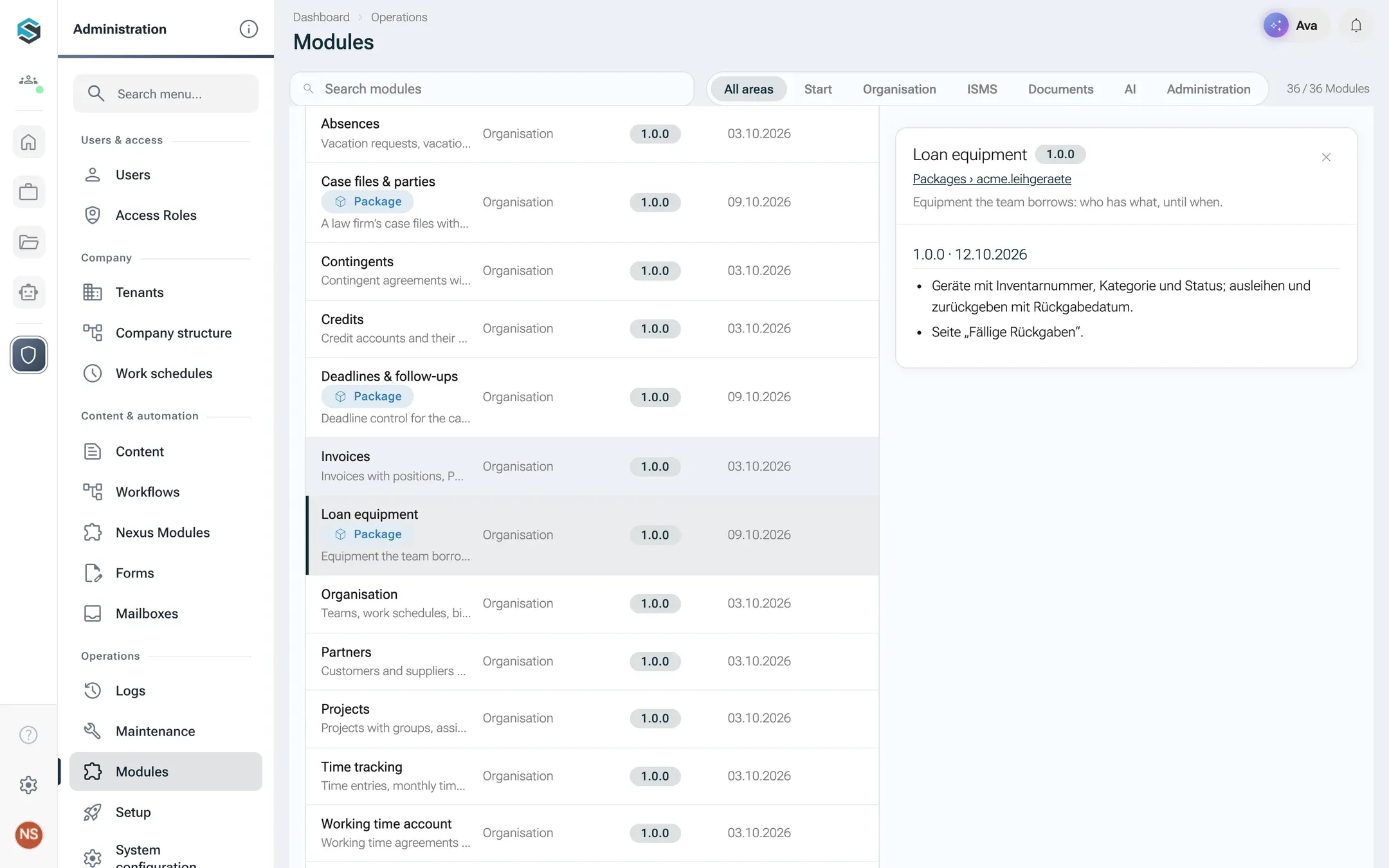
Installed packages appear next to the built-in modules, with version and changelog. -
On a tenant without packages, the page shows No packages yet with the button Upload package (.nxm). Otherwise the catalogue lists every package with the columns Package, Version, State and Origin. Use Search packages and the filters All, Installed, Not installed and Updates to find one.
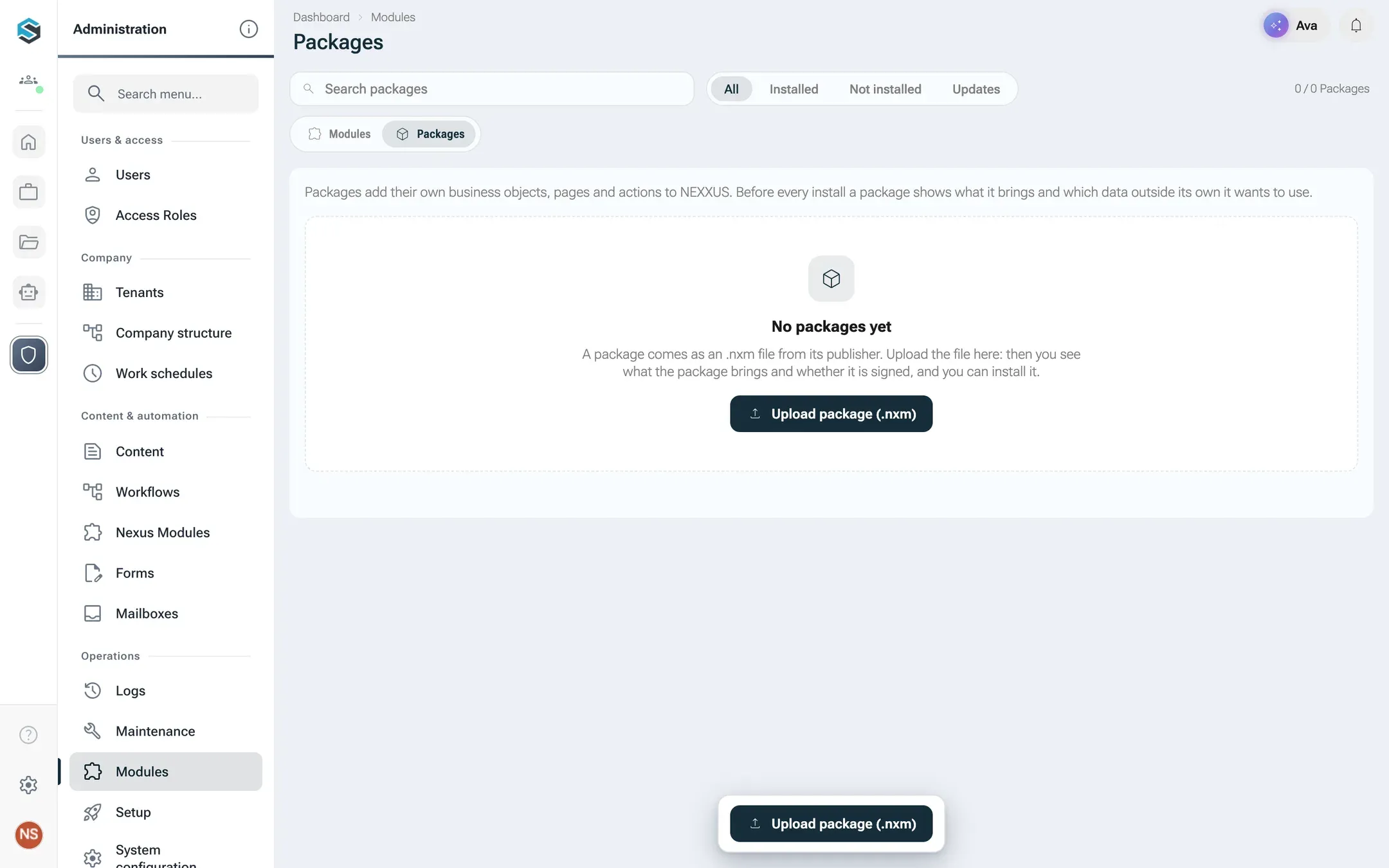
Uploading a .nxm file is the way into the catalogue. 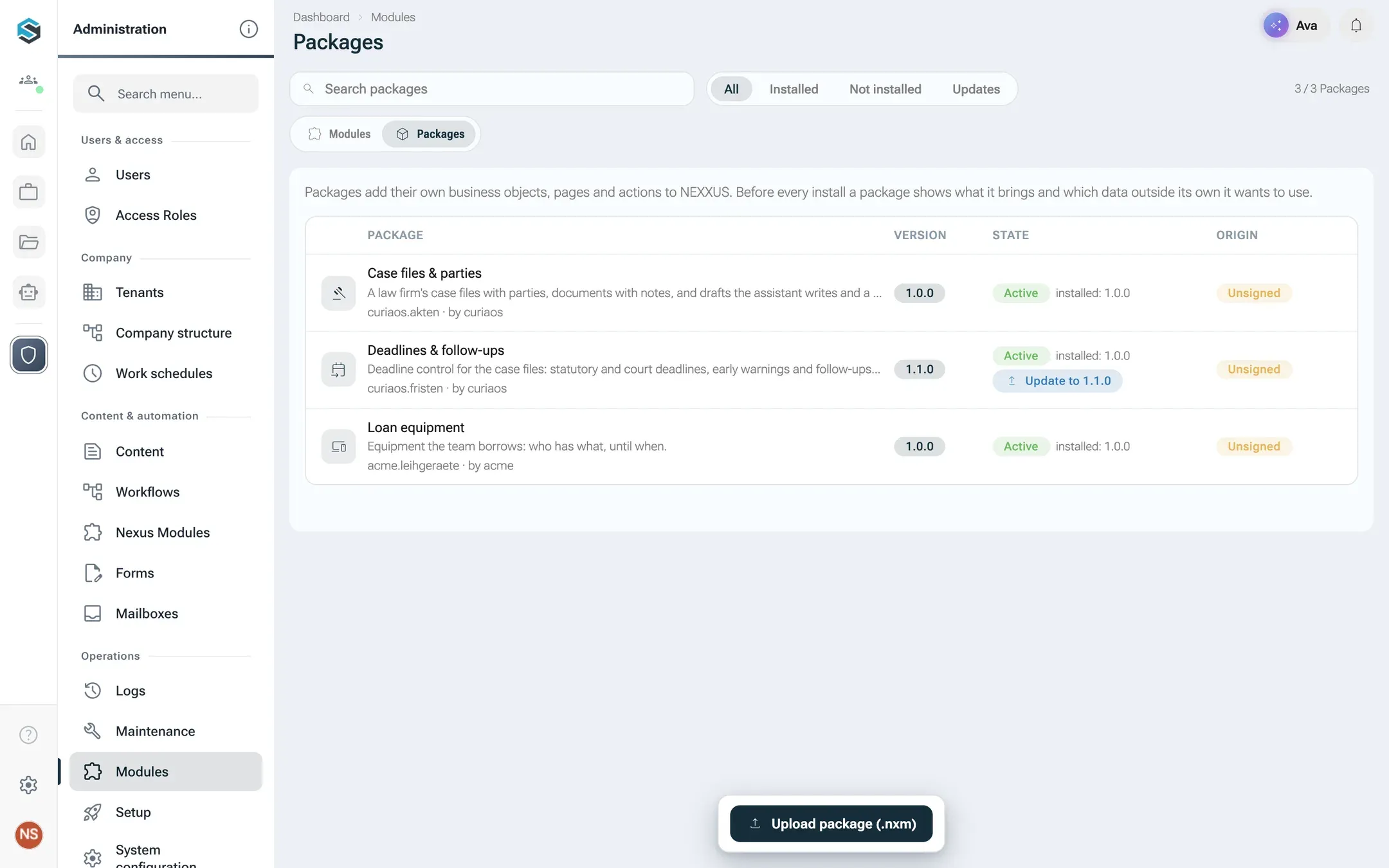
State, waiting updates and origin at a glance. -
Click Upload package (.nxm) at the bottom and choose the file (
.nxmor.zip). -
nexxus checks the file. If it accepts it, the toast Loan equipment 1.0.0 uploaded. appears and the package page of that version opens. If it refuses it, the page keeps a red notice “acme.leihgeraete-1.0.0.nxm” was not accepted. with the server’s reason and one line per problem. Fix the package and upload it again.

nexxus lists every problem of a refused package at once.
The package is stored for your tenant only. Uploading does not install anything.
Review the package page
Section titled “Review the package page”The package page (/modules/pakete/<key>) shows the newest version unless you pick another one with the buttons next to Version. Everything on it comes from the manifest. Nothing is installed yet.
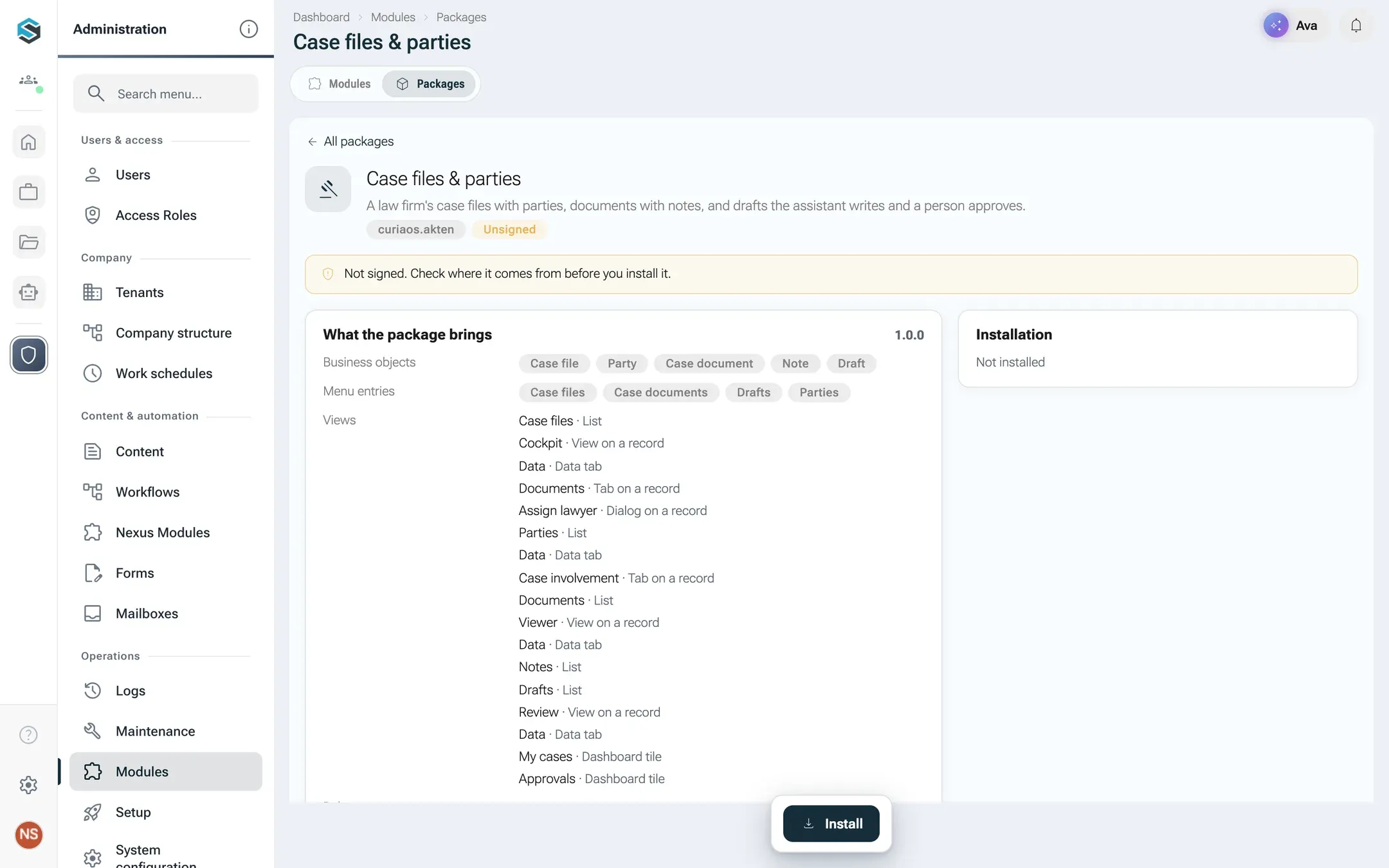
| Part | What it tells you |
|---|---|
| Header | Name, description, the key, the origin chip and, once installed, state and version. |
| Origin | Publisher, trust, key id and fingerprint of the version shown. A notice above the page says what to do when the version cannot be installed because of its origin. |
| What the package brings | One row each: Business objects, Menu entries, Views with the place each one shows up, Roles with their permissions, Data outside the package, External services with their host and the events they receive, Tools for the assistant (tool names for the AI Assistant) and Permissions with their full keys. Empty rows read none. |
| Changes | The changelog of the version. |
| Installation | Once installed: State, Version, Installed on, Installed by, Last upgraded and Agreed to, the list of what you consented to. Before that: Not installed. |
| Settings | Only when the installed version declares settings. |
| Event deliveries | Only when the installed version uses external services. |
The rows that deserve the closest look are Data outside the package and External services. nexxus writes each item as a sentence, with the technical key next to it:
| Key | Shown as |
|---|---|
core:partner:read | Read partners |
core:user:read | Read users |
core:dmsDocument:read | Read documents |
core:dmsDocument:create | Create documents |
core:partnerContact:read | Read contact persons |
core:partnerContact:create | Create contact persons |
core:project:read | Read projects |
core:invoice:create | Create draft invoices |
core:invoice:read | Read invoices |
core:opportunity:read | Read opportunities |
core:opportunity:create | Create opportunities |
core:ismsMeasure:create | Create ISMS measures |
core:partner:create | Create contacts |
core:mail:send | Send e-mails on behalf of your organisation |
service:fristendienst@fristen.example.com | Call the service “Deadline service” at fristen.example.com and send it events |
Send e-mails on behalf of your organisation lets the package’s mail actions send mail through your tenant’s mail server, with a letter as PDF in Files. Each mail still goes out only when a person sends it after looking at its preview, and only to the address stored in the contact. The AI Assistant never gets such an action.
Install the package
Section titled “Install the package”-
On the package page, click Install in the action bar. nexxus computes an install plan first. The dialog Install Loan equipment opens with the subtitle Version 1.0.0.
-
Read the notices at the top. An unsigned package shows This package is not signed. Install it only if you know where it comes from. (Install is disabled on the package page as long as the origin does not allow the install, see Trust the publisher.) If the package cannot be installed, a red box The package cannot be installed like this: lists the reasons, and the install button stays disabled.
-
Under Your consent, tick every item: The package may use these data and services once it is installed. Tick every item. The button stays disabled until all items are ticked. A package that needs nothing says The package uses no data outside its own.
-
Under Assign roles, choose people for each role of the package: open the field Choose people, click the names and confirm with the picker’s green check button. Only people are offered, no service or system accounts. Whoever you leave out can get the role later in the role editor.
-
If the package brings sample data, decide on Create sample data: Creates invented sample records and documents to try the package out. The box is unticked by default. Leave it unticked in production tenants.
-
Click Install. The toast Loan equipment is installed. confirms it. If the server refuses, the dialog stays open and shows Not installed: followed by the reason.
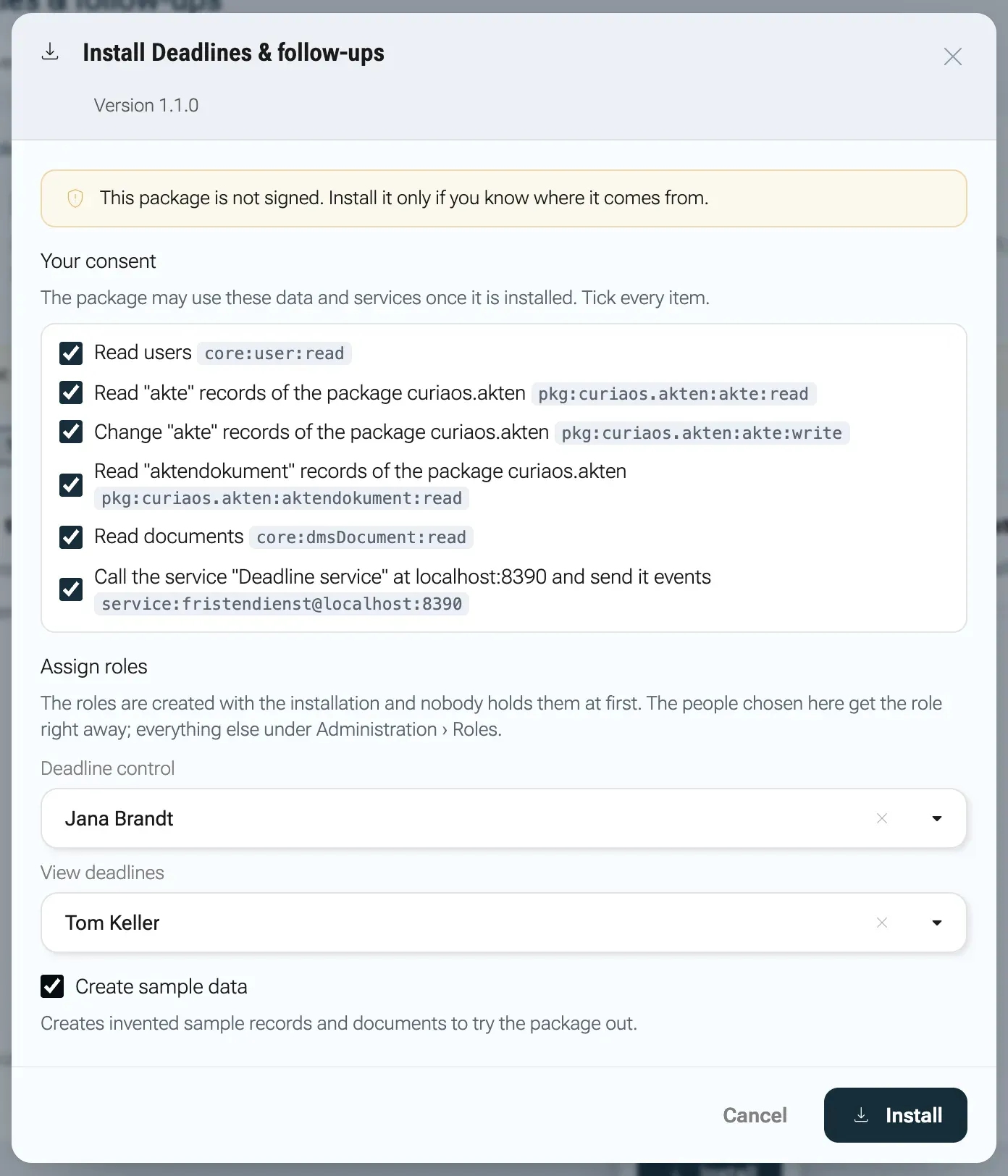
Every consent item must be ticked; the people picked get the role right away.
The module’s menu entries appear at once, without a reload, in the menu area of the module’s business area. Administrators see everything. Everyone else sees the module only with one of its roles. Switching that business area off for the tenant does not hide the module; only deactivating it does.
What happens behind the scenes
Section titled “What happens behind the scenes”The install runs in one transaction. Either all of it happens or nothing does.
- Installation. nexxus stores the installation with the state Active, the version and the list of items you consented to.
- Roles. For each role in the manifest, nexxus creates an access role named after the German names of the module and the role, for example
Leihgeräte – Geräteverwaltung. The role belongs to the installation, and nobody holds it except the people you chose in the dialog. The module’s permissions appear in the role editor like any other permission. - AI Assistant. If the package brings instructions for the assistant, nexxus creates a company-wide skill named after the module, for example
Leihgeräte: Arbeitsweise, that is always on. It is switched off while the module is deactivated and removed on uninstall. Avatars and skills from the package become company-wide avatars and skills, with their AI buttons on the package’s record pages; they are switched off with the module, and on uninstall the skills go and the avatars are archived, so their conversations stay. The package’s tools appear in the AI Assistant for everyone with the matching permissions. - Data. Package data from
data/is always created. Sample data fromdemo/only when you ticked the box. Documents in sample data go into a new folder in the files area named after the module with the suffix(Beispieldaten). Partners named in sample data are found by name or created. - Service account. Every installation gets a service account that cannot sign in, with a system role
<module name> – Dienstkontoholding all of the module’s permissions. Only the package’s external services act with it. Packages without services never use it. - Services. If the package declares external services, nexxus tells each of them about the install once the transaction is committed.
Settings and event deliveries
Section titled “Settings and event deliveries”Some packages have settings per installation, for example the federal state whose public holidays count. The card Settings appears on the package page once the package is installed and shows the fields the package declares, for example a choice list and a number. Change the values and click Save, or Discard to drop your changes. nexxus answers Settings saved. or Not saved: followed by the reason.
Packages with external services get the card Event deliveries: The last 100 events NEXXUS sent to the package’s services. Each row shows the event, the record number, the state Waiting, Delivered or Failed, the number of attempts, the last error and when it was created. The list refreshes itself every five seconds while you look at it. Refresh reloads it at once. How deliveries and retries work is explained in Module services.
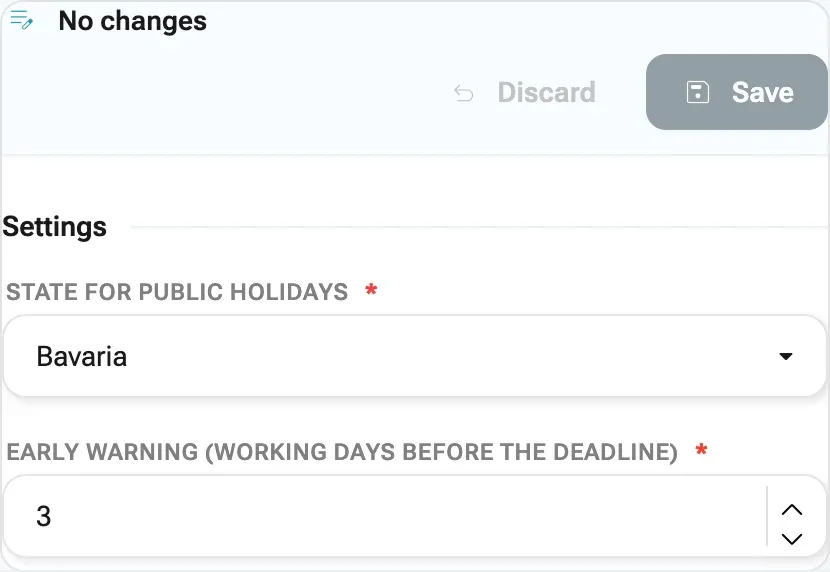
Update to a new version
Section titled “Update to a new version”A new version arrives as a new .nxm file with a higher version number.
-
Upload the new file on the tab Packages. The catalogue shows the chip Update to 1.1.0 next to the installed version, and the filter Updates lists every package with a newer version.
-
Open the package and click Upgrade to 1.1.0. The button always updates to the version shown on the page. Pick another version with the buttons next to Version if you want it.
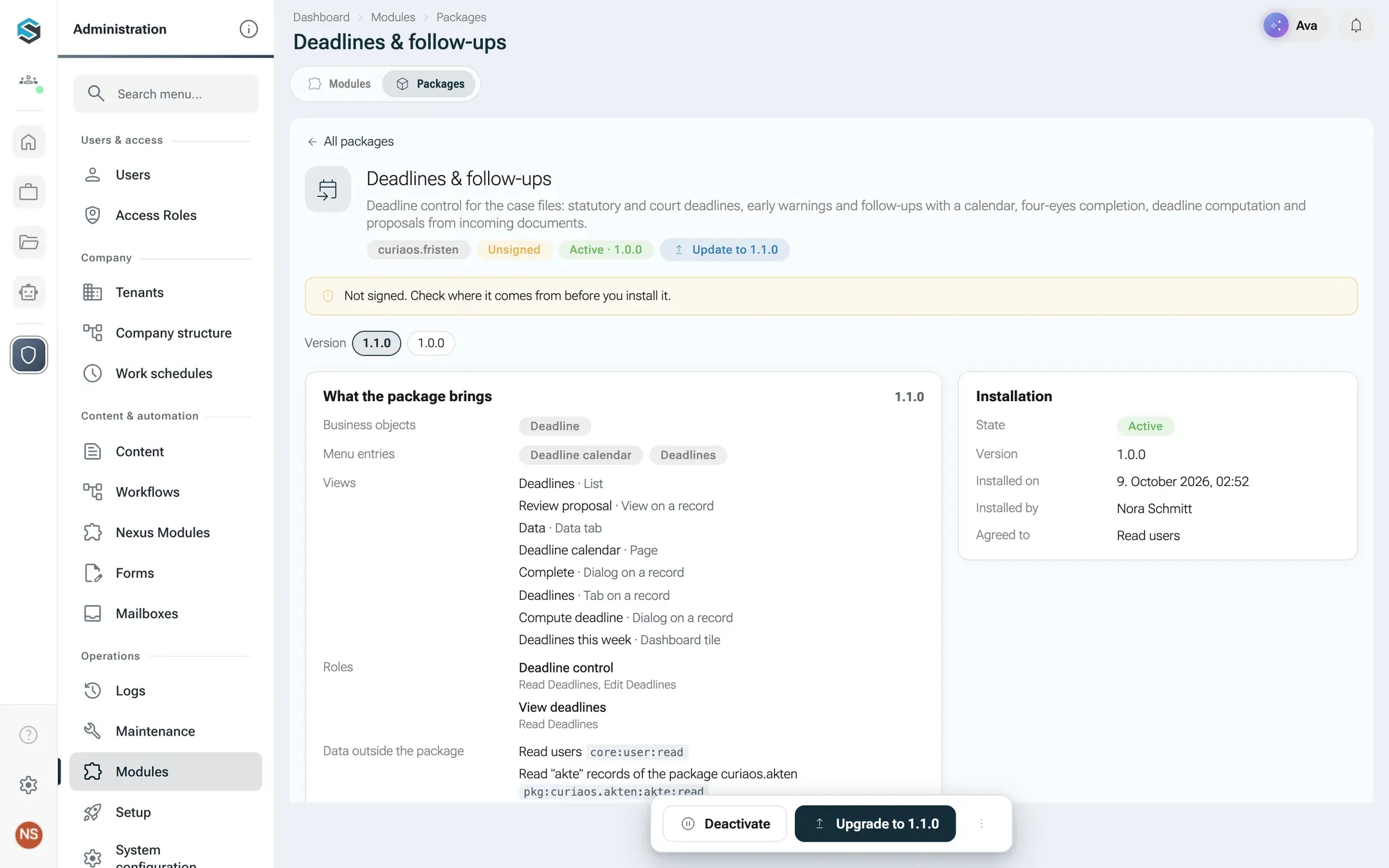
The button always updates to the version on screen. -
Read the dialog Upgrade Loan equipment, subtitle From 1.0.0 to 1.1.0:
- What changes: every changelog section between the installed and the new version.
- Data changes: Dry run on today’s data. All steps run in one go; if one fails, the package stays on 1.0.0. One line per migration step with the step, the field, the version, before the switch or after the switch, and how many records it would change. Without steps: No data changes needed.
- New consent: only what the new version wants beyond your earlier consent. This version also wants to use the following. Without your consent the package stays on 1.0.0. Tick every item.
- Create new sample data: only when the new version brings sample data that does not exist here yet. The hint below it gives their number and ends with Deleted sample data does not come back. The box starts unticked. Leave it off in production tenants.
- This upgrade is not possible: lists reasons that block the update.
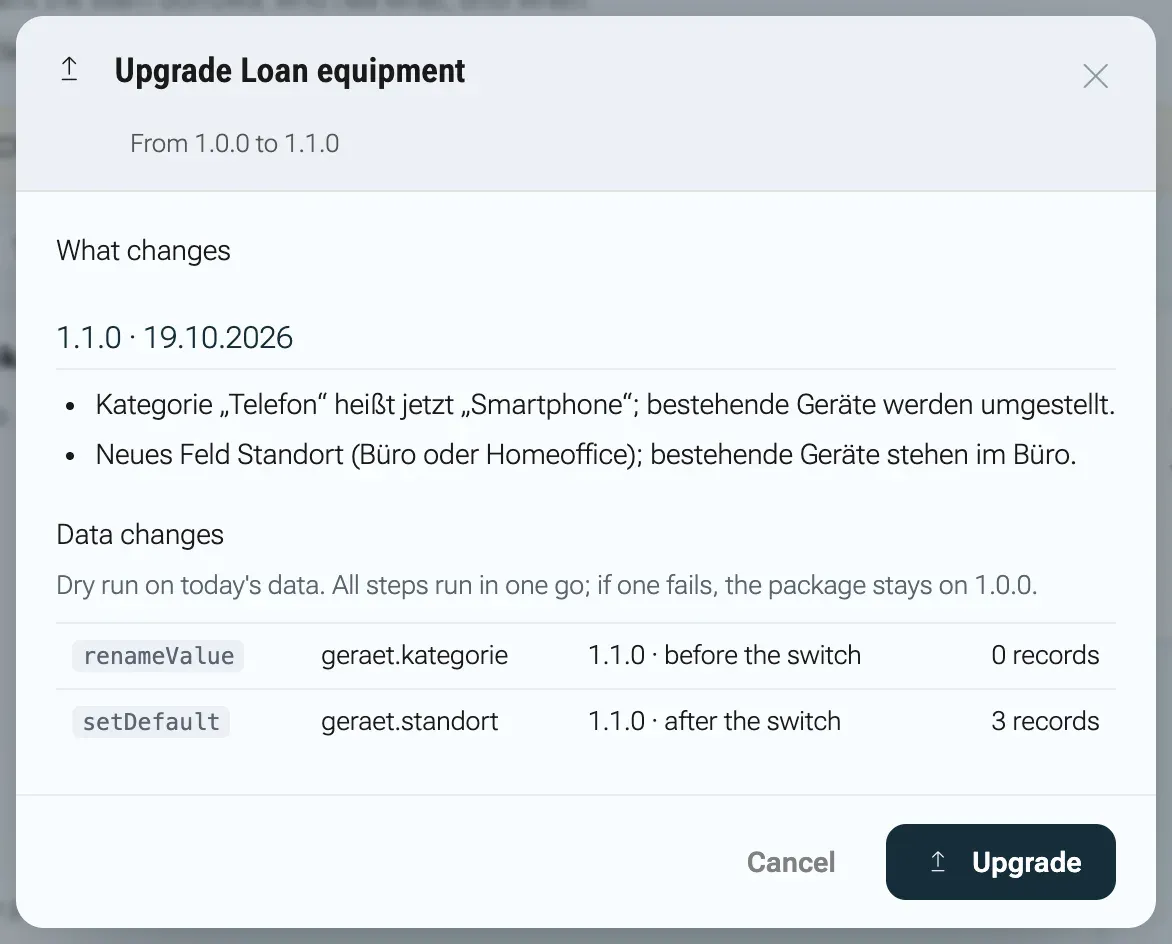
The dry run counts the records each migration step will change. -
Click Upgrade. The toast reads Loan equipment is upgraded to 1.1.0.
The update runs in one transaction per tenant. If a migration step fails, nothing changes and the module stays on the old version. Roles of the installation get only the permissions that are new in this version, and only roles that existed before. Permissions you took away from a role stay away. Version rules and migration steps are explained in Data and upgrades.
Deactivate and activate
Section titled “Deactivate and activate”Deactivating hides a module without touching its data. Click Deactivate on the package page. nexxus asks Deactivate Loan equipment?: The package’s menu entries, pages and tools disappear for everyone. Data, roles and settings stay; “Activate” brings everything back. Confirm with Deactivate. The toast reads Loan equipment is deactivated.
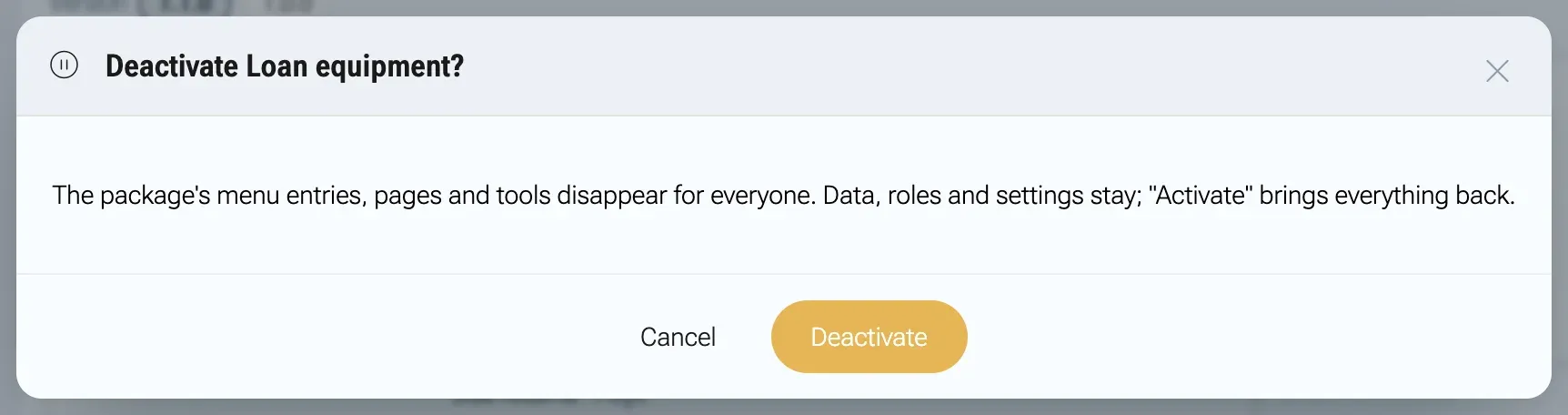
People who open a link into the module now see the page Module not available with The module “Loan equipment” is deactivated. The address stays in the browser, so the same link works again after activation. Click Activate to bring everything back: Loan equipment is active again.
Uninstall
Section titled “Uninstall”-
On the package page, open More actions in the action bar and choose Uninstall. The dialog Uninstall Loan equipment opens.
-
Click Export data (ZIP) to keep a copy first: Back up first: one JSON file per business object. The file
acme.leihgeraete-export.zipcontains one<entity>.jsonper business object, each record with its id, key, data, version and timestamps, plus amodule.jsonwith key, version and export time. -
Under What happens to the data, choose:
- Keep the data (the default): The package disappears, its records stay, invisible. A later install attaches them again.
- Delete the data: The records, the package’s roles and its sample documents are deleted.
-
Type the module key into the field Type the key acme.leihgeraete to confirm. The button Uninstall unlocks only when the key matches.
-
Click Uninstall. The toast reads Loan equipment is uninstalled.
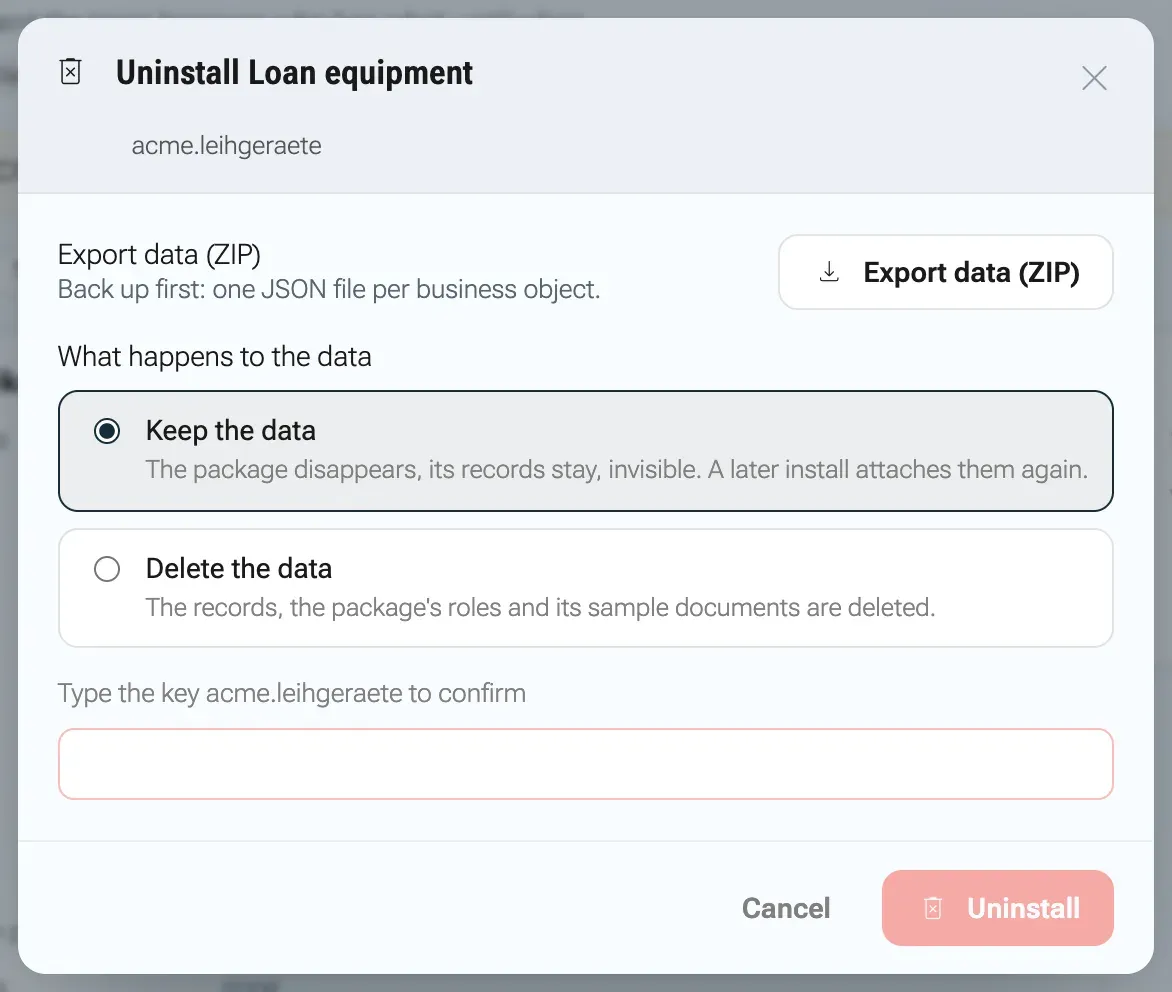
Typing the module key unlocks the uninstall.
After Keep the data, the catalogue shows the state Removed, data kept, and the package page offers Install again. That dialog, Install Loan equipment again, says The data of the earlier installation is still there and will be attached again. Roles and records come back as they were.
After Delete the data, the records are deleted, the package’s roles lose their permissions and assignments, and sample documents move to the trash of the files area. Partners created by sample data stay, because other records may use them. The uploaded package stays in the catalogue and can be installed again from scratch.
When something goes wrong
Section titled “When something goes wrong”The server writes these messages in German. They appear exactly as quoted here, in every language of the app.
On upload the catalogue shows “<file>” was not accepted. and the reason:
| Message | What to do |
|---|---|
Das Paket ist fehlerhaft: (the package is faulty) followed by a list | The manifest or files break the package rules. Each line names the file and the place, for example module.json views.geraet.list: Filter 'notiz' ist nicht indexed. Fix every line and build a new file. |
Das Paket ist nicht signiert. Unsignierte Pakete sind für diesen Mandanten nicht zugelassen; zulassen lassen sie sich unter System › Module › Herausgeber. (not signed, unsigned packages are not allowed in this tenant) | Sign the package, or switch on Allow unsigned packages on the tab Publishers if you trust its source. |
Das Paket nennt den öffentlichen Schlüssel zu 'acme-2026' nicht, und die Plattform kennt ihn nicht; mit module-package.mjs build neu signieren. ... (the package does not name its key) | The package was signed by an older version of the script, which did not write the public key into it. Build and sign it again. |
Der Schlüssel, mit dem das Paket signiert ist, wurde für diesen Mandanten entfernt (...). (the key was removed in this tenant) | An administrator removed this key on the tab Publishers. Trust it again there if that was a mistake. |
Die Signatur mit dem Schlüssel 'acme-2026' ist ungültig. (signature invalid) | A file changed after signing, or another key signed. Build and sign again from the unchanged folder. |
MANIFEST.sha256 stimmt nicht: (hash list does not match) followed by paths | Files were added, removed or edited after the build. Build again. |
acme.leihgeraete 1.0.0 gibt es schon mit anderem Inhalt; eine neue Fassung braucht eine neue Versionsnummer. (this version exists with other content) | Give the change a new version number. |
Das Archiv enthält kein module.json. (no module.json) | The archive has the manifest neither at its root nor in a single top folder. |
Das Archiv ist entpackt größer als 64 MB. / Das Archiv hat mehr als 2000 Dateien. | Packages are limited to 64 MB unpacked and 2000 files. Each view file may have at most 2 MB. |
In the install or update dialog, reasons in the red box block the action:
| Message | What to do |
|---|---|
Dem Herausgeber „acme“ vertraut dieser Mandant noch nicht (...). (the tenant does not trust the publisher yet) | Compare the fingerprint and trust the publisher, see Trust the publisher. |
Der Schlüssel des Herausgebers „acme“ wurde für diesen Mandanten entfernt (...); damit signierte Versionen lassen sich nicht installieren. (key removed) | Trust the key again on the tab Publishers, or ask the publisher for a version signed with a key you trust. |
Die Version ist nicht signiert, und unsignierte Pakete sind für diesen Mandanten nicht zugelassen (System › Module › Herausgeber). (unsigned, not allowed) | Switch on Allow unsigned packages, or ask for a signed version. |
Version 1.0.0 verlangt die Plattform >=0.2.0 <1.0.0, hier läuft <version>. (needs another platform version) | The package was built for other nexxus versions. Ask the publisher for a matching version. |
Das Modul 'partners' gibt es auf dieser Plattform nicht. (required module missing) | A required built-in module is missing on this instance. |
Das Modul 'partners' läuft in Version 1.0.0, verlangt ist >=2.0.0. (required module in another version) | The package needs another version of a built-in module. Ask the publisher for a matching version. |
Diese Version baut auf dem Paket 'muster.akten' auf. Pakete bauen nicht mehr aufeinander auf; was zusammengehört, kommt als ein Paket. (this version builds on another package) | The version was uploaded before packages became self-contained. Ask the publisher for a version that brings everything in one package. |
Das neue Pflichtfeld 'geraet.standort' hat keinen Standardwert. (new required field without default) | The new version breaks a version rule. Only the publisher can fix it, with a new version. |
Die Migration auf 1.1.0 ist gescheitert, 'acme.leihgeraete' bleibt auf 1.0.0: followed by the cause (migration failed) | A migration step failed on your data. Nothing changed. Send the message to the publisher. |
In the settings card: Not saved: Die Einstellungen sind ungültig. (the settings are invalid). Check the fields marked in the form.
Errors reported by external services are listed in Module services.